Workstations
Image Builder
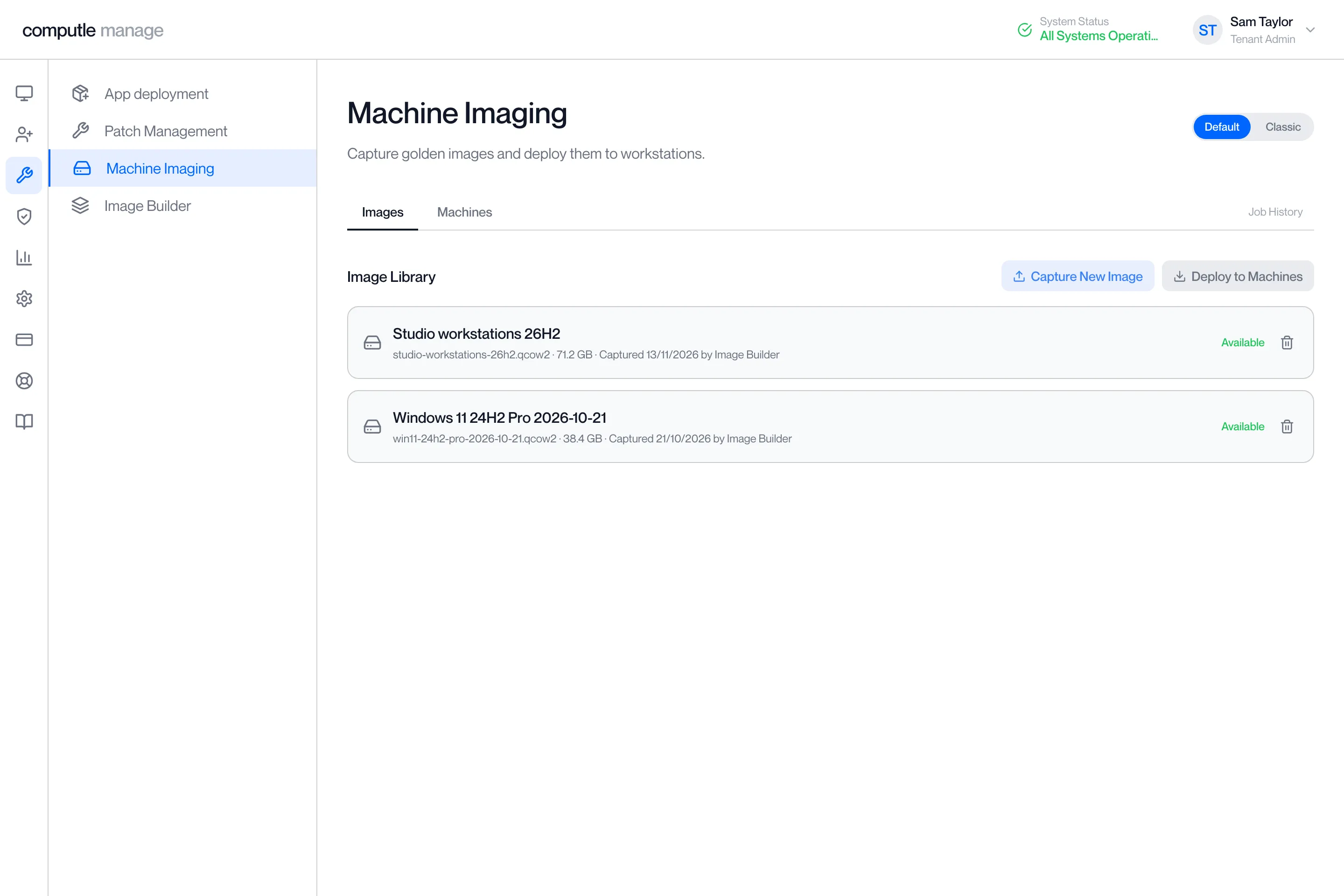
Image Builder makes a new Windows 11 image for your workstations from Microsoft’s own media, with your apps installed. Computle builds it and sends it to your image host. You then deploy it from Machine Imaging.
Open Image Builder under Manage in the portal. The entry appears only when Image Builder is enabled for your organisation, and the page needs the Tenant Admin role.
Build an image
Section titled “Build an image”-
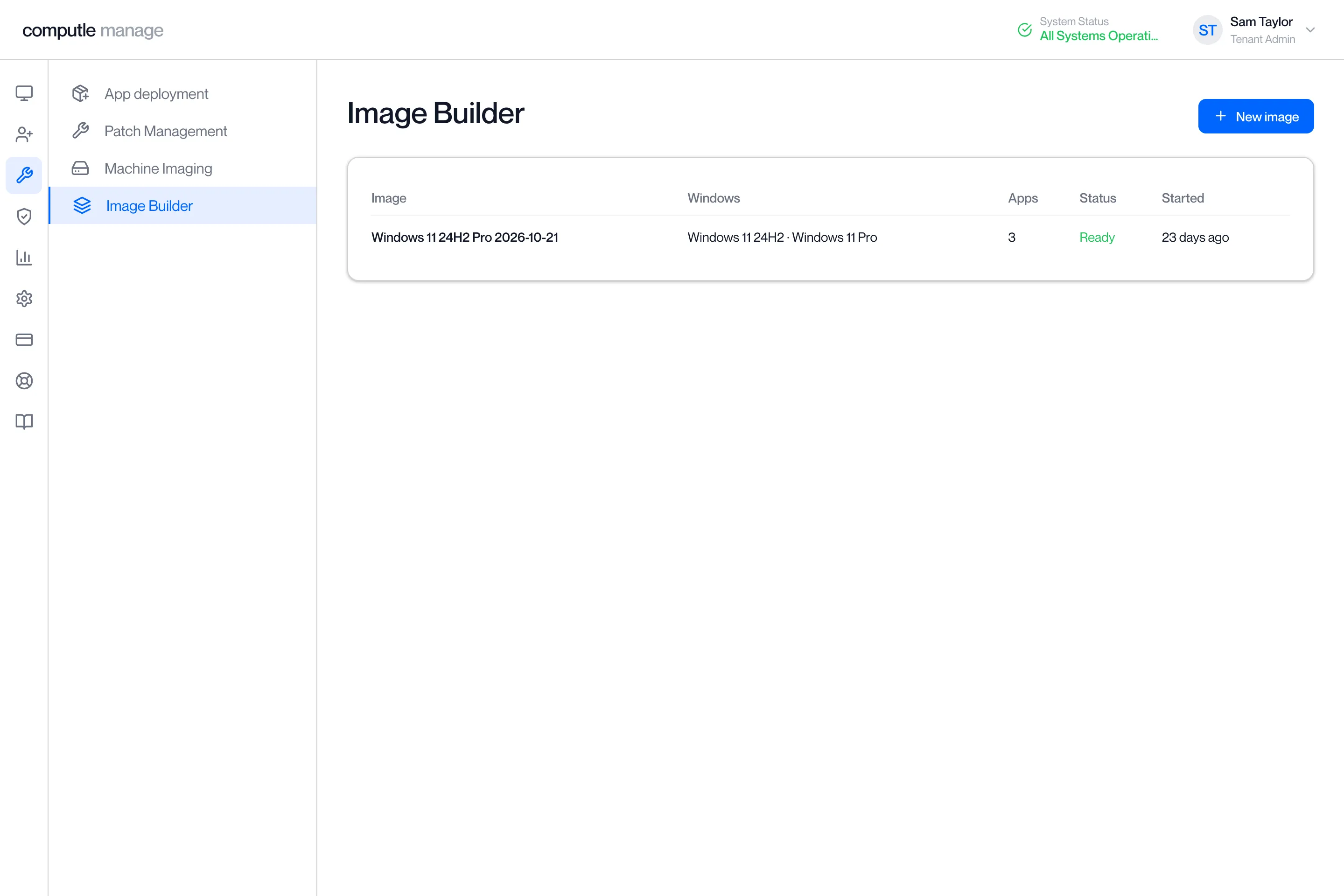
Click New image.
The Image Builder page lists your earlier builds with their Windows release, number of apps, status and start time. Click a build to open it.
-
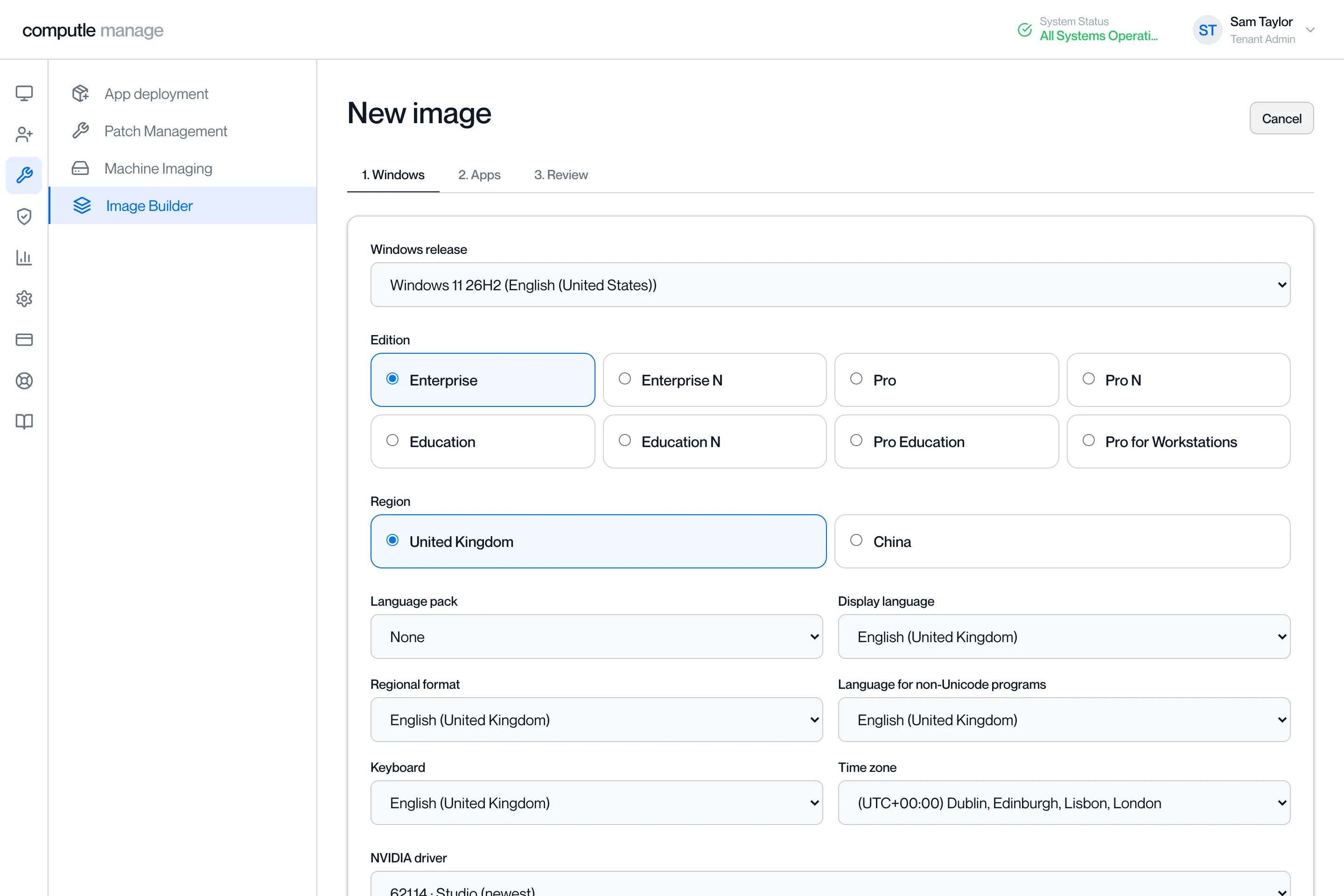
On the Windows step, choose the Windows release and the edition.
-
Choose a region.
The region fills in the display language, regional format, language for non-Unicode programs, keyboard and time zone. Change any of them in the lists below it. Add a second display language with Language pack.
-
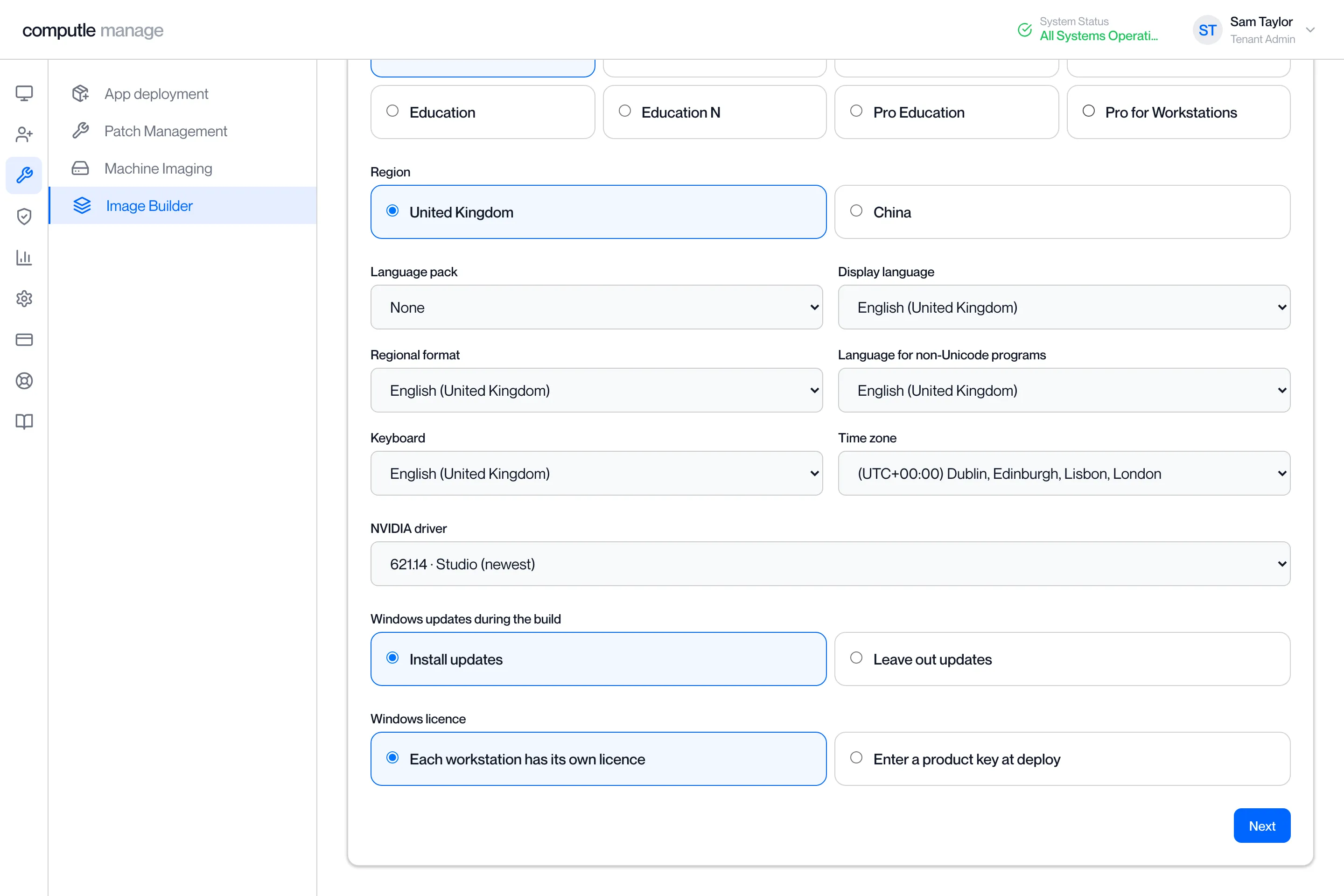
Check the NVIDIA driver, Windows updates and Windows licence.
The newest NVIDIA driver is chosen for you. Install updates installs Windows updates during the build. For the licence, choose Each workstation has its own licence or Enter a product key at deploy. The image itself holds no licence.
-
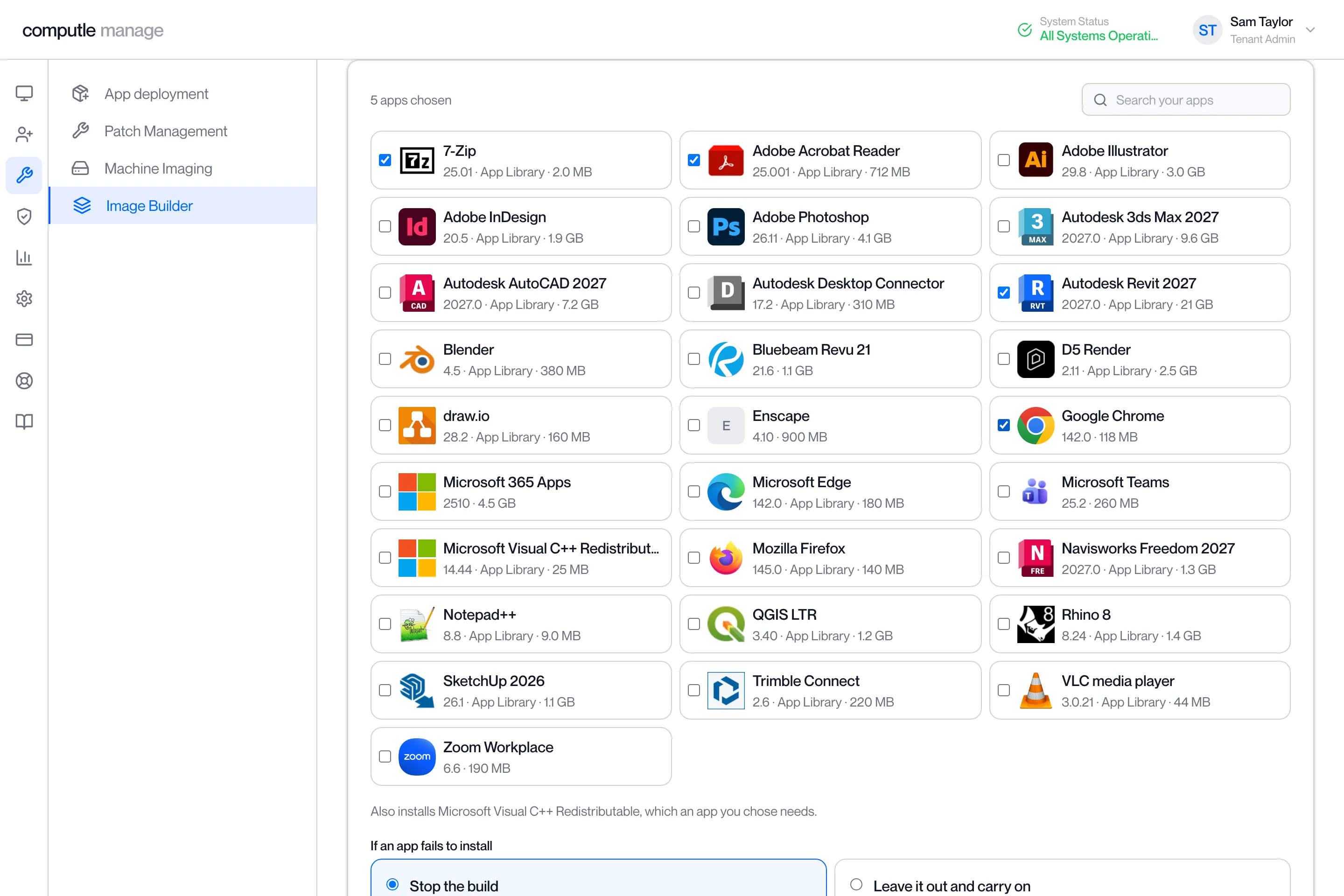
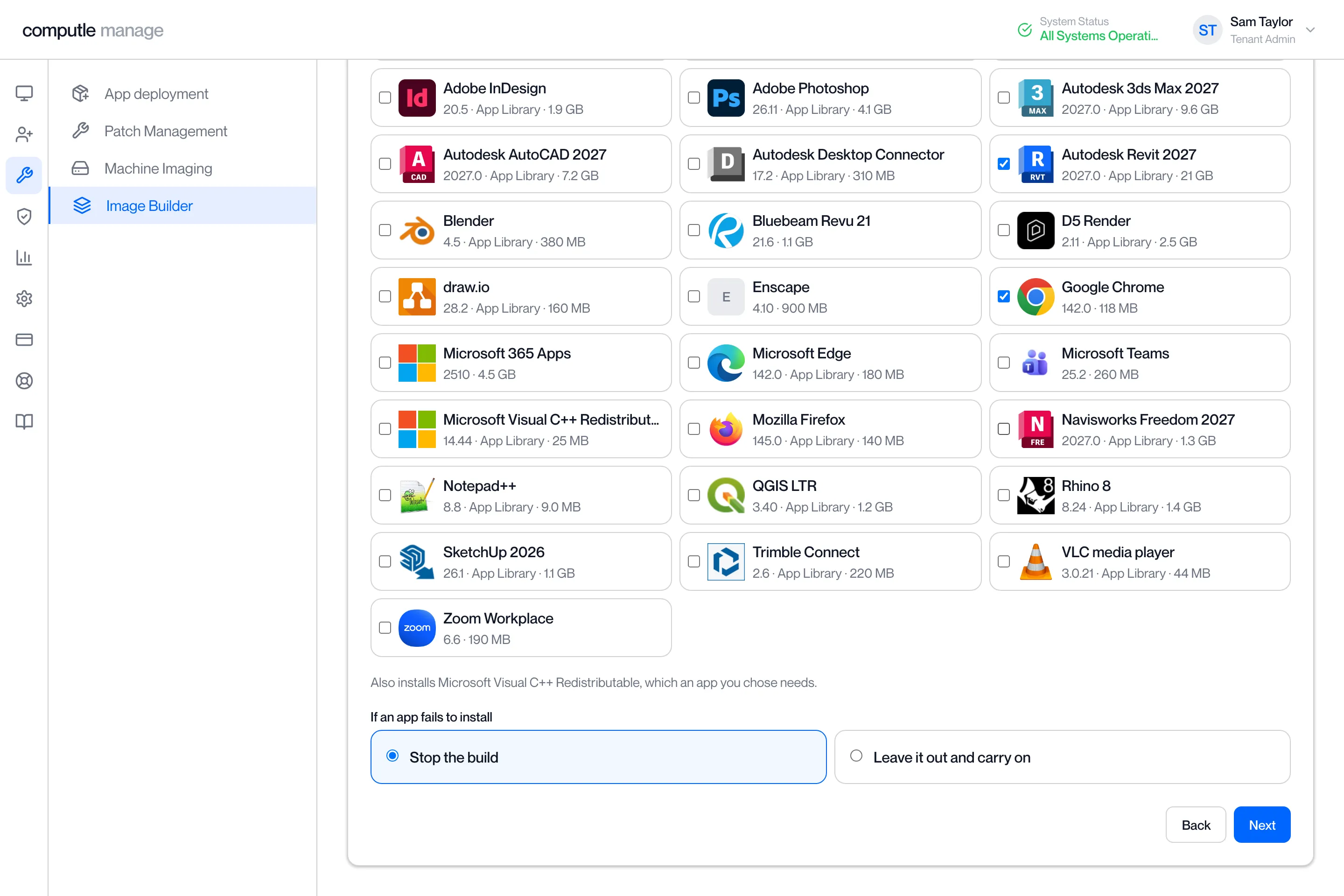
Click Next and tick the apps to install.
The list holds your own packages from App deployment and the Computle App Library. Search with the box at the top right. An app that cannot go into an image is greyed out with the reason under its name.
-
Choose what happens if an app fails to install.
An app that needs another app to run brings it in automatically, and the line under the list names it: “Also installs Microsoft Visual C++ Redistributable, which an app you chose needs.” Choose Stop the build or Leave it out and carry on.
-
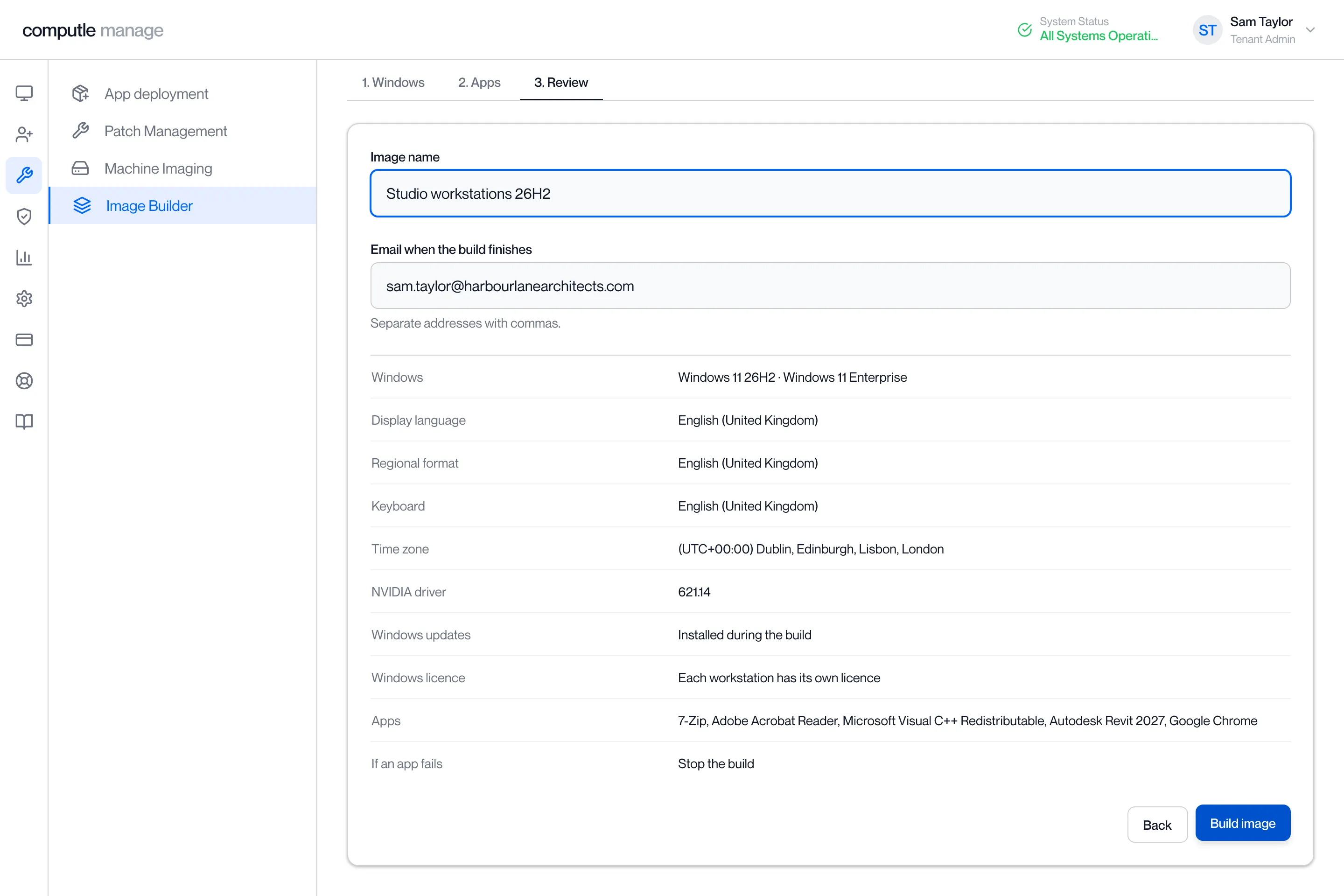
Click Next, name the image and enter who to email.
The name is filled in with the release, edition and date. Change it to something your team will recognise. Separate email addresses with commas, up to 10. The table below lists every choice you made.
-
Click Build image.
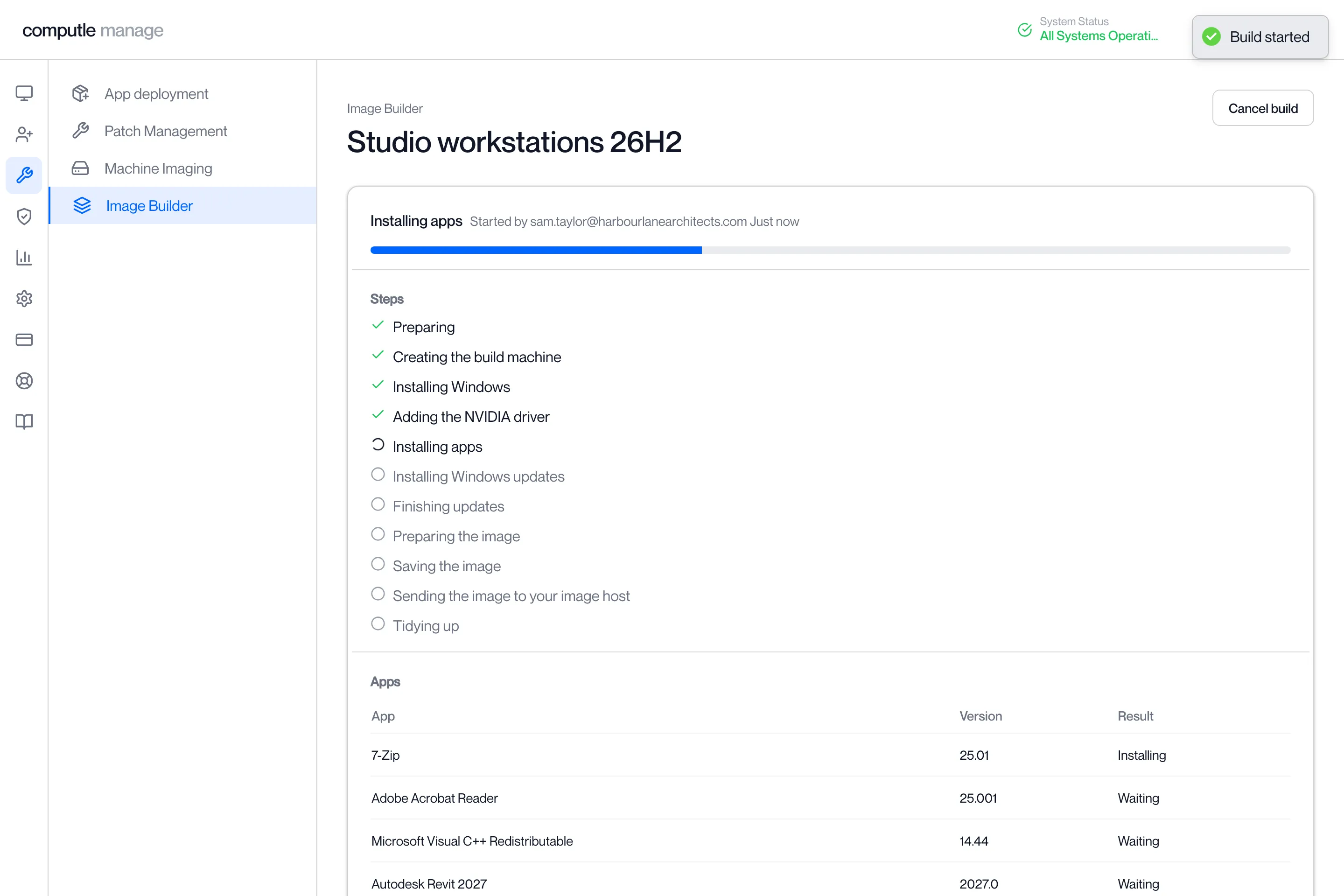
The build page opens and shows each step as it runs.
-
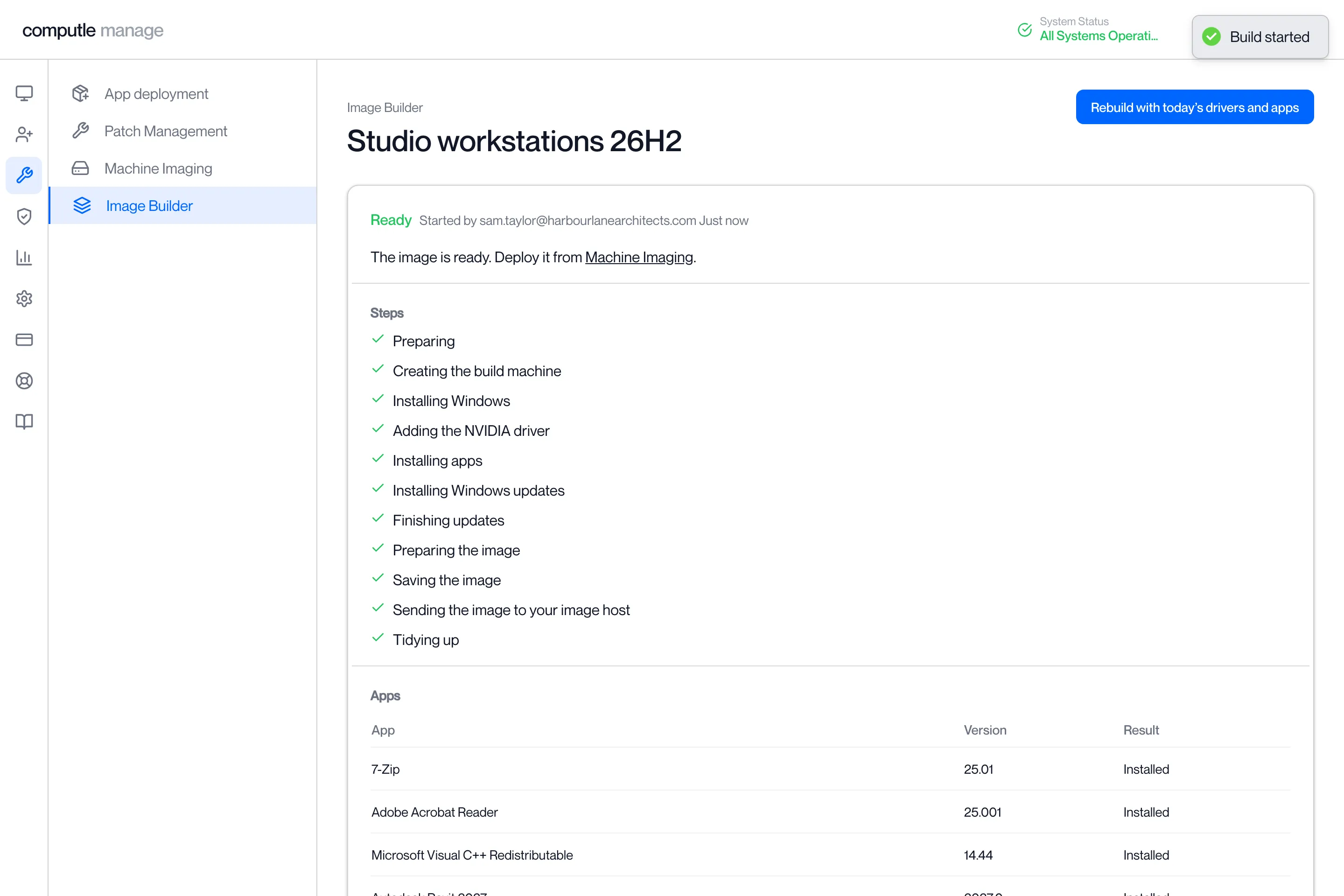
The build shows Ready and you get an email.
The image is now in Machine Imaging. Deploy it to your workstations from there; see Deploy an image.
The build steps
Section titled “The build steps”| Step | What happens |
|---|---|
| Preparing | The build is set up. |
| Creating the build machine | A machine is created to build the image on. |
| Installing Windows | Windows is installed from the release media. |
| Adding the NVIDIA driver | The driver is added to the image. |
| Installing apps | Your apps are installed in order, each after anything it needs. |
| Installing Windows updates | Windows updates are installed, if you chose them. |
| Finishing updates | Windows finishes installing the updates. |
| Preparing the image | Windows is generalised so the image can go on any workstation. |
| Saving the image | The image is saved. |
| Sending the image to your image host | The image is copied to your image host. |
| Tidying up | Temporary build resources are removed. |
A step that the build does not need shows “not needed”. When more than one build is waiting, the status shows the build’s place in the queue and a rough start time.
Cancel, try again or rebuild
Section titled “Cancel, try again or rebuild”| Button | When it shows |
|---|---|
| Cancel build | While the build is running. It goes once the image is being copied to your image host. |
| Try again | After a build fails or is cancelled. Runs the same build again. |
| Rebuild with today’s drivers and apps | After a build is Ready or has failed. Starts a new build with the same choices and the newest NVIDIA driver and app versions. |
Messages you may see
Section titled “Messages you may see”| Message | What to do |
|---|---|
| “This organisation has no image host yet. Contact Computle to set one up.” | Contact your account manager. |
| “No Windows release or NVIDIA driver is available to build with yet. Contact Computle.” | Contact your account manager. |
| “App deployment is not set up for this organisation, so this image will have Windows and the NVIDIA driver only.” | Build without apps, or ask your account manager to set up App deployment. |
| “Some answers on the Windows step need checking.” | Go back to the Windows step and fill in the field marked in red. |