Patch Management
What users see
With auto patching on, each user sees two things on their PC: a popup on the day their PC is due to update, and a restart screen once the updates are installed. Both appear in every session signed in to the PC, and both are from Computle.
The popup
Section titled “The popup”On the day a PC is due to update, a card appears in the bottom-right corner of the screen, above other windows, from 12 hours before the install window opens. For a window opening at 01:00 that is from 13:00 the day before.
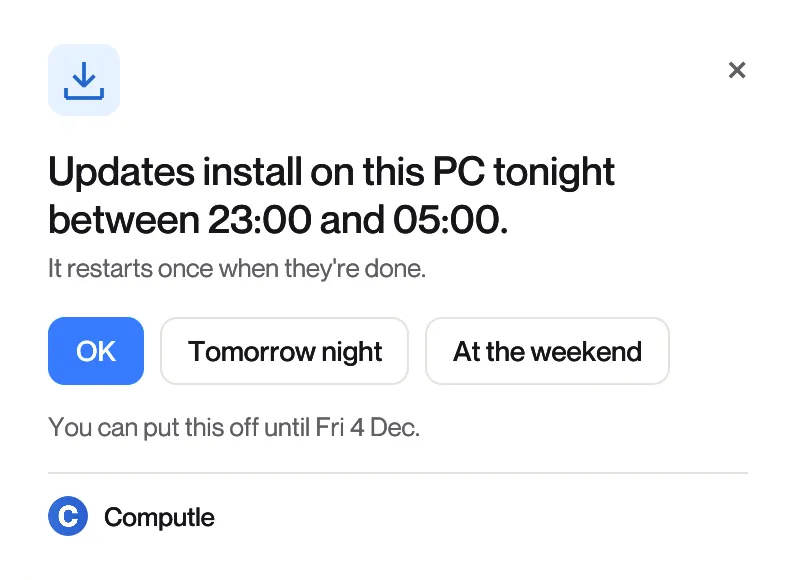
The card says which night the PC updates (“tonight”, “tomorrow night” or a named night), the install window, and that it restarts once when the updates are done. A window opening before midday counts as the night before.
| Button | What it does |
|---|---|
| OK | Keeps that night. The card closes. |
| Tomorrow night | Moves the update to the next night the window opens. |
| At the weekend | Moves the update to the next Saturday or Sunday night the window opens. |
| × | Closes the card and keeps that night, the same as OK. |
Tomorrow night and At the weekend appear only while the new night is inside what the organisation allows (the Users can put it off setting). “You can put this off until Fri 4 Dec.” shows the last day the user can move it to. The allowance counts from the first time the user puts it off and starts again once the PC has updated. When the organisation allows no putting off, or the allowance is used up, the card shows only OK.
After the user answers, the card closes and does not show again for that night. When they move the night, the card shows again on the day of the new night. If Email users is on, they also get an email confirming the new night.
If nobody answers, the card stays on screen and the updates install that night.
“Could not reach the update service. Try again.” under the buttons means the answer did not reach Computle. Click the button again.
-
Save your work and leave the PC on.
The updates install in the window while the PC is on. A PC that is off or offline for the whole window is updated in a later run.
-
Click OK, or choose another night.
The restart screen
Section titled “The restart screen”Once a PC’s updates are installed and Windows needs a restart, the restart screen fills the whole screen, in every session signed in to the PC. It stays on top of other windows and cannot be closed; Escape and Alt+F4 do nothing.
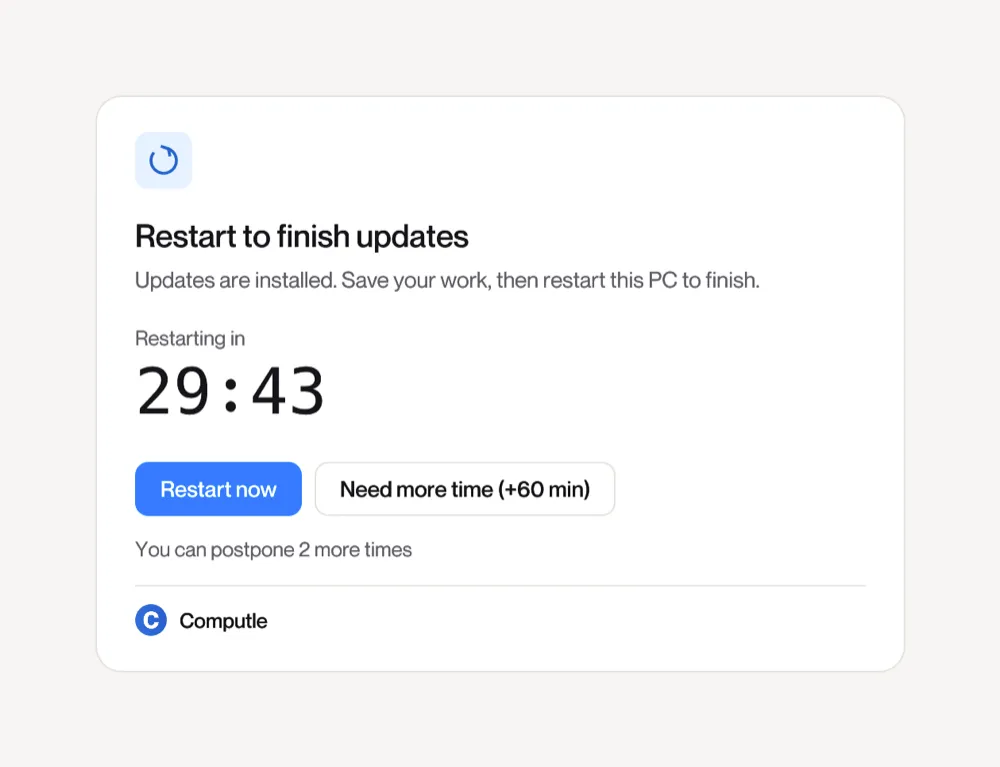
The screen shows Restart to finish updates, a line saying the updates are installed, and Restarting in with a countdown. The countdown starts at the organisation’s restart time, 15 minutes by default.
| Button or line | What it does |
|---|---|
| Restart now | Restarts the PC 5 seconds later. The line under the buttons reads “Restarting. Save your work now.” |
| Need more time (+60 min) | Adds 60 minutes to the countdown. |
| You can postpone 2 more times | How many more times Need more time can be clicked. “You can postpone once more” before the last one. |
| This PC restarts when the timer ends. | Shown instead when no more postponing is allowed. Need more time is not shown. |
-
Save your work and close your programs.
-
Click Restart now.
Or click Need more time to put it off. The organisation allows 3 postpones of 60 minutes by default.
-
Wait for the PC to restart.
Windows finishes installing the updates during the restart. The restart screen does not come back.
When the countdown ends, the PC restarts with one minute’s warning from Windows, closing open programs. The forced restart happens only while the install window is open: if the window has closed, the screen stays and the PC restarts when the window next opens.
Related pages
Section titled “Related pages”Questions
Section titled “Questions”Why did the popup not appear?
Section titled “Why did the popup not appear?”It appears only when auto patching is on, the PC is missing updates of the kinds the organisation installs, and the PC is due that night. A PC in the second group is not due until the test group has finished, and the card does not show again for a night the user has already answered.
A user clicked × by mistake. Can they still put it off?
Section titled “A user clicked × by mistake. Can they still put it off?”No. × keeps the night, the same as OK. The PC updates in that night’s window.
Can a user put off the restart for good?
Section titled “Can a user put off the restart for good?”No. Need more time can be clicked only as many times as the organisation allows. After that the PC restarts when the timer ends, within the install window.
The user was not at the PC. What happened to their work?
Section titled “The user was not at the PC. What happened to their work?”The PC restarted when the countdown ended, within the install window, and open programs were closed without saving. To give users longer, choose a later install window or allow putting it off on the Settings tab.