Using the App
Connection Status
Remotle watches your connection throughout a session. The Connection view in the session toolbar tells you in plain words whether the connection is good, and if it is not, whether the cause is your own internet connection or the path to your workstation.
Open the Connection view
Section titled “Open the Connection view”-
Open the session toolbar.
Click the tab at the top of the screen. See Toolbar.
-
Click the fps reading (for example 60 fps) after the machine name.
The Connection view drops down under the reading. It updates every second while it is open.
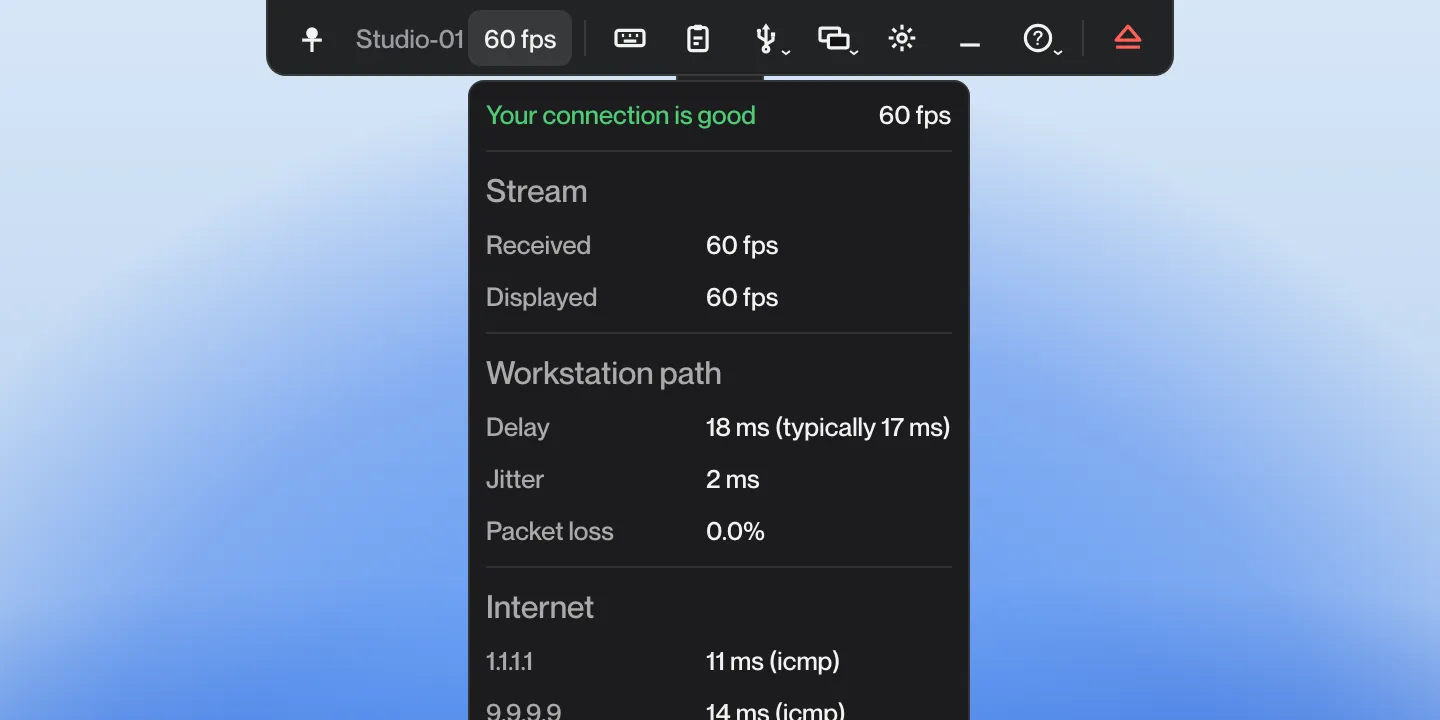
When the connection is not good, the verdict turns amber or red and the figures show why.
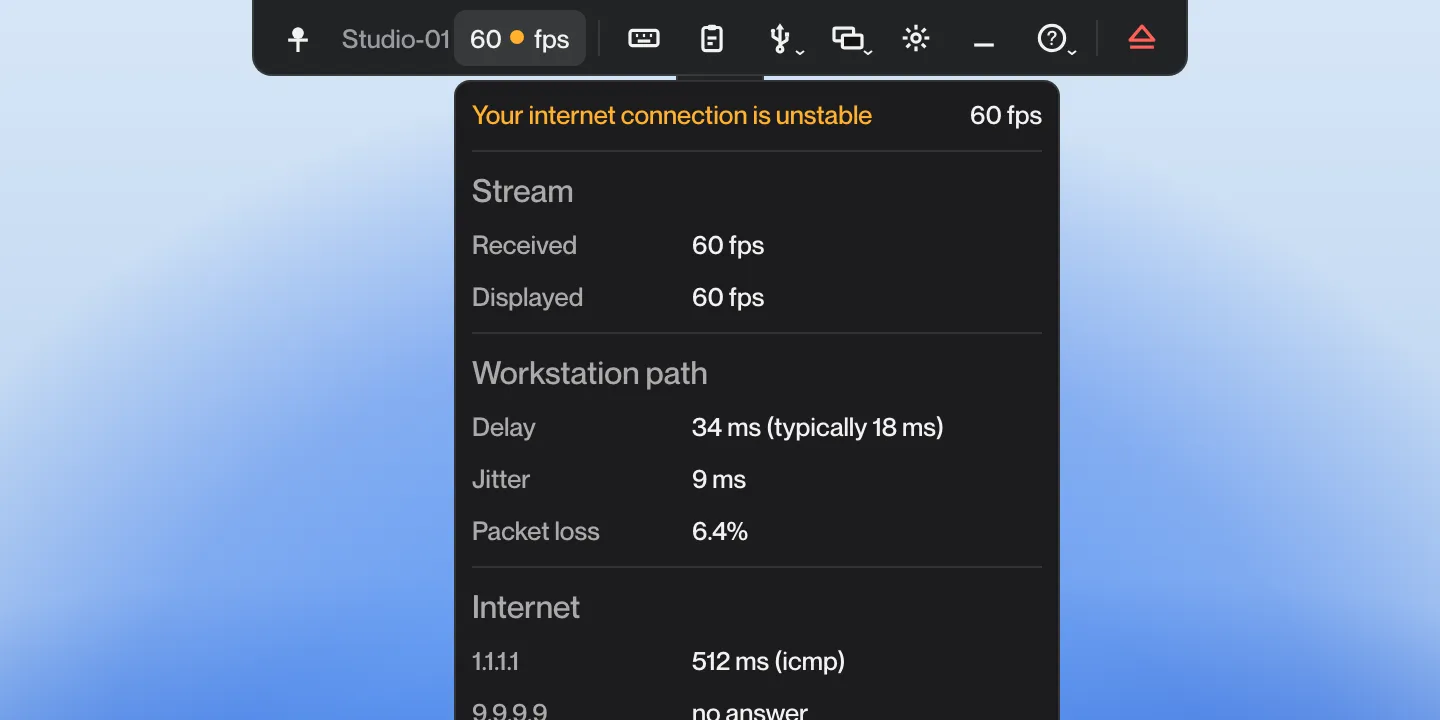
-
Read the first line.
It is the verdict, in green, amber or red. See The verdict.
-
Click the reading again, or click anywhere else, to close it.
On iPad and iPhone, tap the tab, then tap the fps reading (for example 60 fps) after the machine name.
What it shows
Section titled “What it shows”| Section | Row | What it means |
|---|---|---|
| Verdict | First line | Whether your connection is good, and whose side a problem is on. |
| Stream | Received | Frames per second arriving from your workstation. |
| Stream | Displayed | Frames per second this device shows on screen. |
| Workstation path | Delay | The round trip to your workstation in milliseconds, with its typical value for this session, for example “18 ms (typically 16 ms)”. |
| Workstation path | Jitter | How much the delay varies, in milliseconds. |
| Workstation path | Packet loss | The share of data lost on the way, as a percentage. |
| Internet | 1.1.1.1, 9.9.9.9, 8.8.8.8 | The round trip from this device to three public internet services, in milliseconds. These show whether your internet connection itself is working well. |
| Dropouts | Last line | “No dropouts this session”, or the number of dropouts, the longest one and when it happened, then up to six dropouts with their time, length and cause. |
A figure not measured yet reads “measuring” or “checking”. A public service that does not reply reads “no answer”.
Each dropout in the list shows its cause in brackets: your internet, workstation path or cause unknown.
The verdict
Section titled “The verdict”| Verdict | What it means |
|---|---|
| Your connection is good | Everything is within its normal range. |
| Your internet connection is unstable | The workstation path is slow or losing data, and the public internet services are slow or not replying too. The cause is on your side: your Wi-Fi, router or internet provider. |
| Connection to your workstation is degraded | The workstation path is slow or losing data while the public internet services reply normally. The cause is between your network and your workstation. |
| Your connection is unstable | The path is slow or losing data and Remotle has not yet been able to check the public internet services. |
| Your internet connection dropped, Connection to your workstation dropped, Your connection dropped | The session stopped receiving data for 2 seconds or more. For 2 minutes after a dropout, the verdict names it with its length and time, for example “Your internet connection dropped for 9 s at 14:40”. |
A dropout shorter than 2 seconds is not counted.
The dot on the tab
Section titled “The dot on the tab”While the connection is good, the tab shows its arrow and the fps reading (for example 60 fps) after the machine name has no dot. When it is not, the arrow on the tab is replaced by an amber or red dot, and the same dot appears on the fps reading, just before fps, so you can see it without opening the toolbar.
| Dot | When it shows |
|---|---|
| None (the tab shows its arrow) | The connection is good. |
| Amber | For 5 seconds or more, one of these: packet loss of 5% or more over the last 10 seconds, delay at least two and a half times its typical value and 150 ms above it, or jitter of 60 ms or more. Also for 2 minutes after a dropout ends. |
| Red | During a dropout, or while the connection is unstable with packet loss of 15% or more or delay more than four times its typical value. |

The connection banner
Section titled “The connection banner”When the connection becomes unstable or a dropout ends, a short banner appears at the top of the screen for 6 seconds. It names the cause, for example “Your internet connection is unstable — 7% packet loss.” or “Connection to your workstation dropped for 4 s.”
-
Click or tap the banner.
The toolbar opens pinned, with the Connection view already open.

-
Read the figures, then unpin the toolbar when you are done.
The banner does not appear in the first 20 seconds of a connection, and appears at most once every 2 minutes.
What to do
Section titled “What to do”| Verdict | Try this |
|---|---|
| Your internet connection is unstable | Move closer to your Wi-Fi router or use a cable, pause large downloads or video calls on your network, or restart your router. |
| Connection to your workstation is degraded | Report it from the Report tab of Stream settings. Your report includes this device’s diagnostics and session logs. See Reporting a Problem. |
Questions
Section titled “Questions”Does Remotle contact the public internet services all the time?
Section titled “Does Remotle contact the public internet services all the time?”It checks them lightly in the background, every 45 seconds, and every 3 seconds while the connection is unstable or in a dropout. Each check is a single small request.
Where are the more detailed figures?
Section titled “Where are the more detailed figures?”Press F3 for the connection figures overlay, or open the Stats tab of Stream settings. See Connection Figures.