Patch Management
Auto patching
Auto patching installs missing Windows updates on your workstations in an install window you choose. A test group is patched first and everyone else after a gap. Each user is told on the day and can put it off, and each PC restarts once when its updates are in.
Auto patching is part of your plan; Computle enables it for your organisation. A tenant administrator then turns it on and chooses the settings on the Settings tab of Patch management. Everyone can read the settings; only tenant administrators can change them.
Turn on auto patching
Section titled “Turn on auto patching”-
Open Patch management under Manage and click the Settings tab.
The Settings tab appears only when auto patching is on your plan. “Auto Patching is not on this organisation’s licence.” under the heading means it is not; contact your account manager.
-
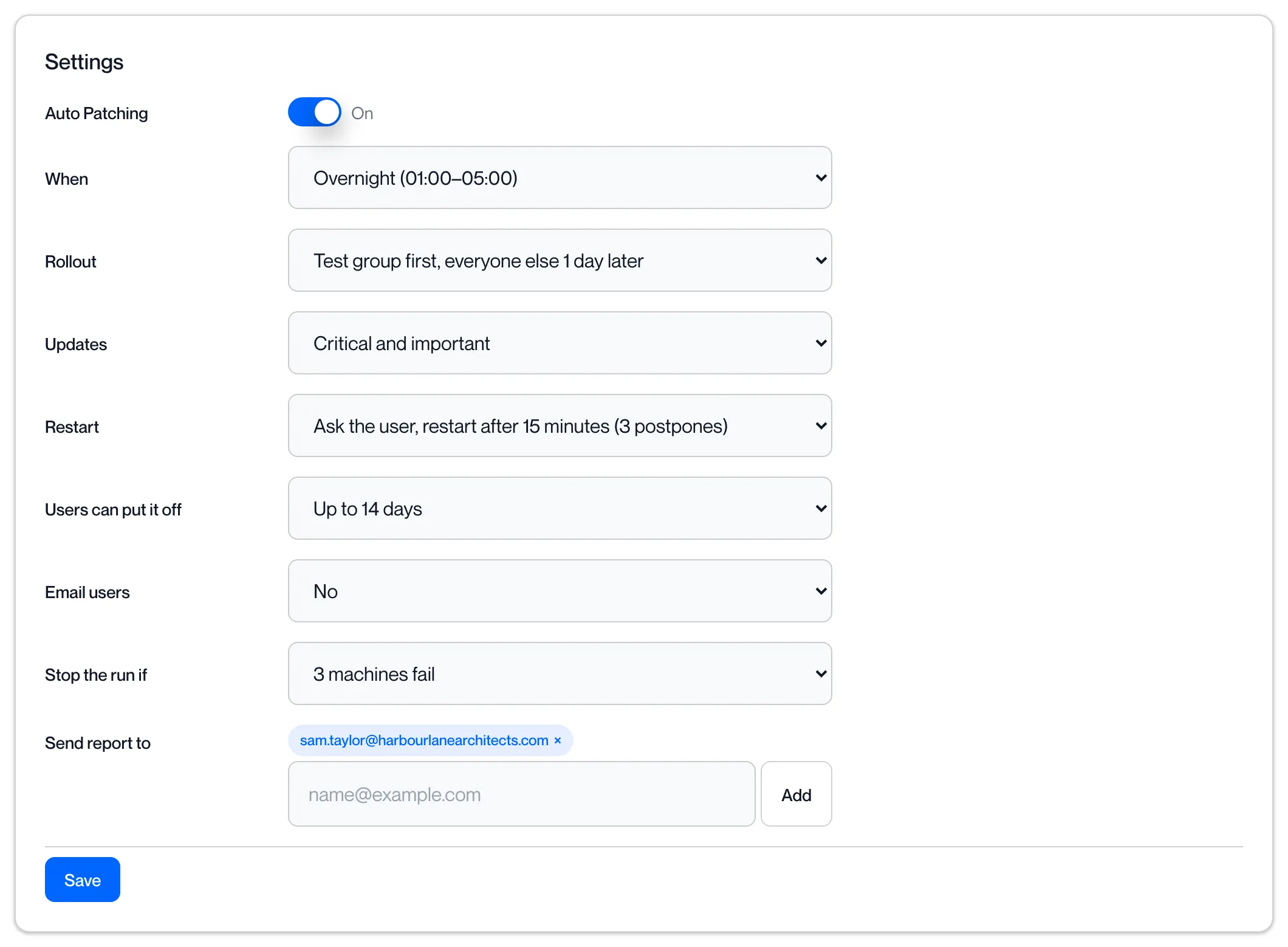
Turn the Auto Patching switch On.
Auto patching is off until you turn it on.
-
Choose each setting.
The settings are described in The settings below.
-
Check Send report to.
If no address was saved before, the list is filled with your organisation’s support contacts. Click × on an address to remove it. Type an address and click Add, or press Enter, to add one.
-
Click Save.
The portal confirms “Saved”. Nothing changes until you save.
-
Choose the test group.
From the next install window, auto patching starts a run when the window is open on an install day and at least one online workstation is missing an update of the kinds you chose. It starts one scheduled run per window.
To stop auto patching, turn the switch Off and click Save. No new scheduled run starts. Scans, the Machines tab and Run now still work.
The settings
Section titled “The settings”| Setting | Choices | What it does |
|---|---|---|
| Auto Patching | On, Off | On starts scheduled runs in the install window, shows users the popup before their night, and schedules the restart screen after installs. Off by default. |
| When | Overnight (01:00–05:00); Evenings (19:00–23:00); Weekends (all day Saturday and Sunday) | The install window and the days it opens. Overnight and Evenings open every day. Updates start installing only while the window is open, and a restart is forced only while it is open. |
| Rollout | Everyone at once; Test group first, everyone else 1 day later; Test group first, everyone else 3 days later | Who goes first. With a test group, everyone else is patched in a later window, once the gap has passed after the test group finished and restarted. |
| Updates | Critical and important; All updates | Which Windows updates are installed, by severity. All updates adds moderate and low. |
| Restart | Ask the user, restart after 15 minutes (3 postpones); Restart straight away | What happens once a PC’s updates are in. Ask the user shows the restart screen with a 15-minute countdown; the user can click Need more time up to 3 times, 60 minutes each. Restart straight away offers no postponing. See What users see. |
| Users can put it off | No; Up to 7 days; Up to 14 days; Up to 30 days | How long a user can move their PC’s night from the popup, counted from the first time they put it off. No shows only OK. 14 days by default. |
| Email users | No; The day before, and when they move it | Emails the users assigned to each workstation the day before their PC updates, and again when they move the night. No by default. |
| Stop the run if | 1 machine fails; 3 machines fail; 5 machines fail | A run stops as soon as this many workstations fail, before any more start installing. |
| Send report to | Email addresses | Who gets the report when a run finishes or stops. |
A choice reading Custom (…) means the stored value matches none of the choices; it stays as it is until you pick another.
Times are in UK time.
The emails to users
Section titled “The emails to users”With Email users on, each workstation’s assigned users get:
- “Your PC updates tomorrow night”, the day before, saying which night and window, and that they can choose another night on the PC when it asks.
- “Your PC now updates …”, when they move the night from the popup.
One person gets at most one of these emails a day and two a week, however many workstations they have. A workstation with no assigned user gets no email.
Choose the test group
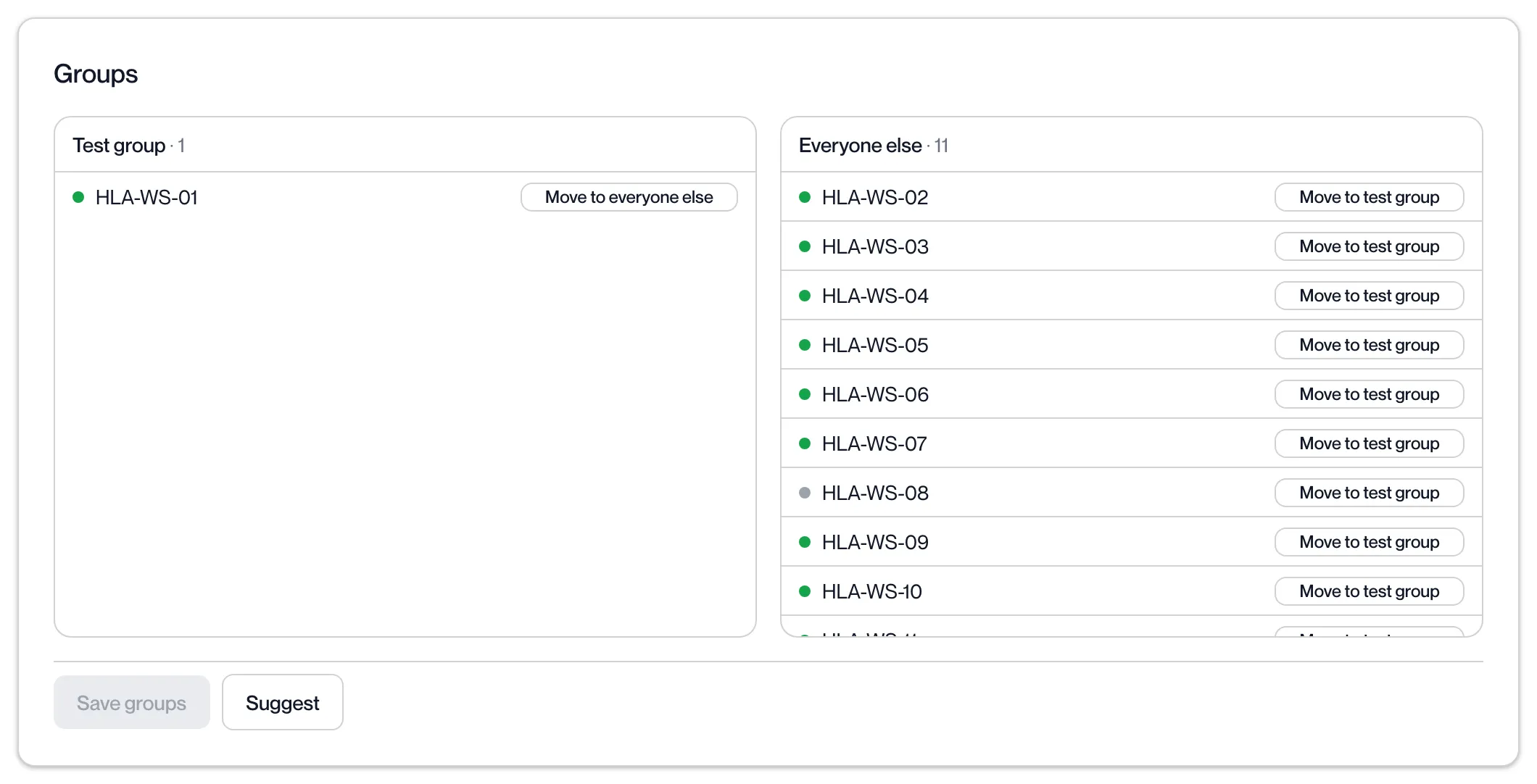
Section titled “Choose the test group”The Groups card on the Settings tab lists the test group and everyone else. The test group is patched first; it is used when Rollout is a test group first choice.
-
Click Move to test group or Move to everyone else on a workstation.
Nothing is saved yet. With more than 20 workstations, type in Search machines… to find one.
-
Or click Suggest.
The suggestion is a tenth of your workstations, at least one and at most ten, online ones first, then by name. “Suggested for N machines” shows while the suggestion is unsaved. When no test group has been saved, the card opens with the suggestion.
-
Click Save groups.
The portal confirms “Groups saved”. Undo changes puts the groups back as they were saved.
Pick workstations whose users will tell you when something goes wrong after an update.
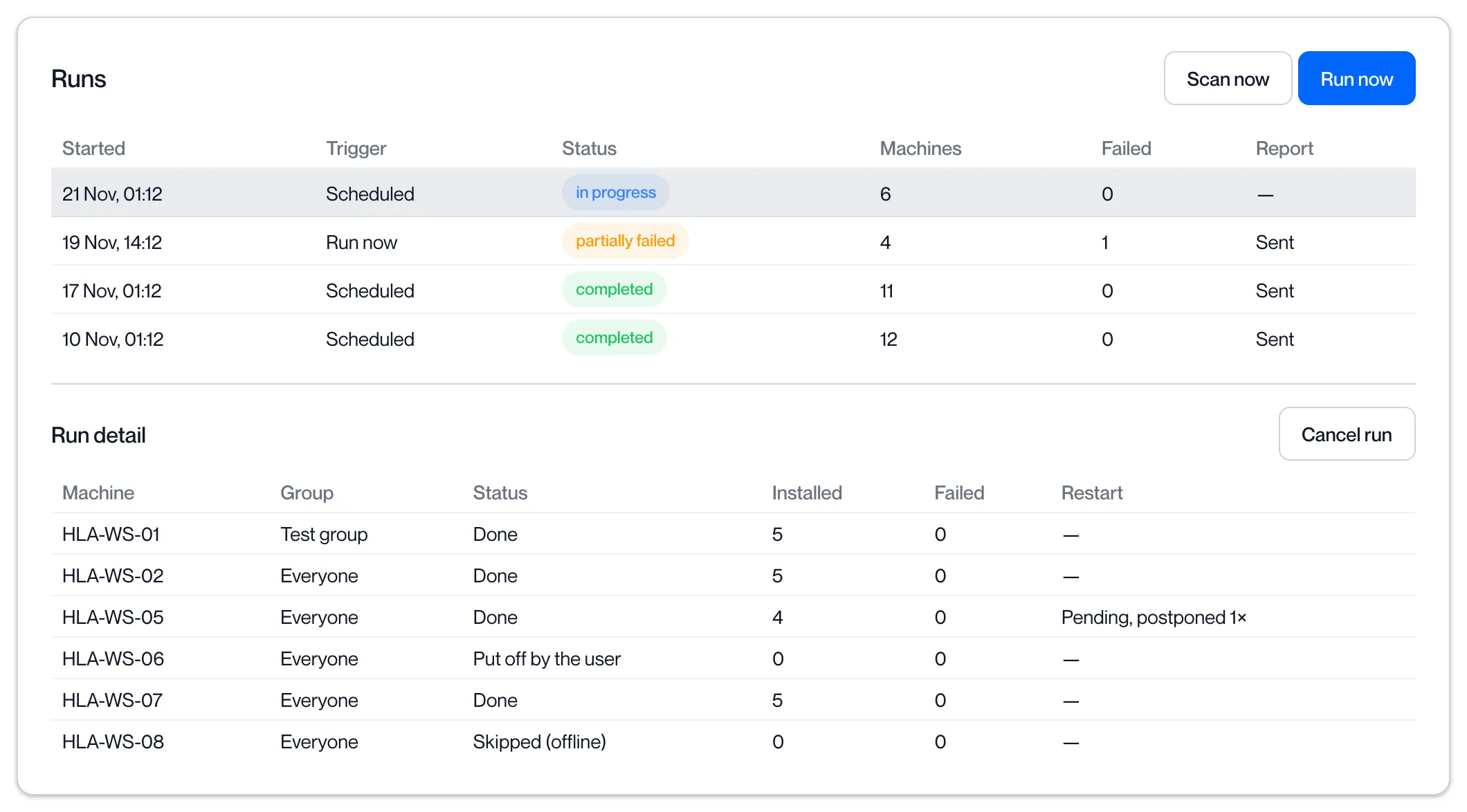
The Runs tab lists every run, 20 to a page, newest first. Newer and Older move between pages.
| Column | What it shows |
|---|---|
| Started | When the run started. |
| Trigger | Scheduled for a run auto patching started, Run now for one a tenant administrator started. |
| Status | pending, in progress, completed, partially failed, failed, halted (stopped at the failure limit) or cancelled. |
| Machines | Workstations in the run. |
| Failed | Workstations that failed. |
| Report | Sent once the report email has gone. |
Read a run
Section titled “Read a run”-
Click a run.
Run detail opens under the list. Click the run again to close it. A stopped run reads “Stopped: N machines failed, the limit is N”.
-
Read each workstation’s line.
Column What it shows Machine The workstation. Group Test group or Everyone. Status Waiting, Installing, Done, Failed, Skipped (offline), Cancelled or Put off by the user. Installed Updates installed. Failed Updates that failed to install. Restart Pending while the workstation waits to restart, with “postponed N×” when its user clicked Need more time.
A workstation offline for the whole install window is Skipped (offline) and is picked up by a later run. A workstation whose user moved its night is Put off by the user and is patched on that night.
Start a run now
Section titled “Start a run now”-
Click Run now on the Runs tab.
The portal confirms “Run started”. The run starts at once, outside the install window, for every workstation missing an update of the kinds in Updates, including workstations whose users put off their night. Workstations that are offline are skipped.
-
Click the run to follow it.
The list refreshes every 30 seconds and the run detail every 15 seconds.
Only one run can be in progress at a time. Click Scan now to scan every workstation for missing updates first; the portal confirms “Scan started”.
Cancel a run
Section titled “Cancel a run”-
Click the run on the Runs tab.
-
Click Cancel run.
The button shows on a run that is pending or in progress. The portal confirms “Run cancelled”. Workstations that have not started installing are cancelled. A workstation already installing finishes, so no PC is left half updated.
The report
Section titled “The report”When a run finishes or stops, the report goes to the addresses in Send report to, with a subject such as “Auto patching 21 Nov 2026: 6 machines”, or “Auto patching stopped 21 Nov 2026: 3 machines failed” for a stopped run. It lists each workstation’s result and any restart its user postponed. With no addresses, no report is sent.
After a run stops at the failure limit, no scheduled run starts until a tenant administrator saves the settings or starts a run.
Related pages
Section titled “Related pages”Questions
Section titled “Questions”There is no Settings tab. Why?
Section titled “There is no Settings tab. Why?”The Settings tab appears only when auto patching is on your plan. Contact your account manager.
I clicked Save and saw “Check When.” (or another setting). What does it mean?
Section titled “I clicked Save and saw “Check When.” (or another setting). What does it mean?”The patching service refused the value for that setting. Choose another value for it and save again.
A workstation was not patched last night. Why?
Section titled “A workstation was not patched last night. Why?”Check its status on the Machines tab and the latest run on the Runs tab. It is not patched when it was offline for the whole window, its user put it off, it is not in the group being patched that night, it has nothing missing of the kinds in Updates, or the previous run stopped at the failure limit.
Can I patch one workstation now without waiting for the window?
Section titled “Can I patch one workstation now without waiting for the window?”Yes. Use Install updates or Install updates and restart in its menu on the Machines tab. See Machines and Jobs.
Run now says a run is already in progress.
Section titled “Run now says a run is already in progress.”Only one run can be in progress. Wait for it to finish, or cancel it first.