The Session Menu
The Local tab and the Stats tab, with figures per screen. Open
Using the App
Remotle can open your workstation on every screen of your device, up to 4 screens. Each screen of your device becomes a screen of your workstation, at that screen’s own resolution and refresh rate.
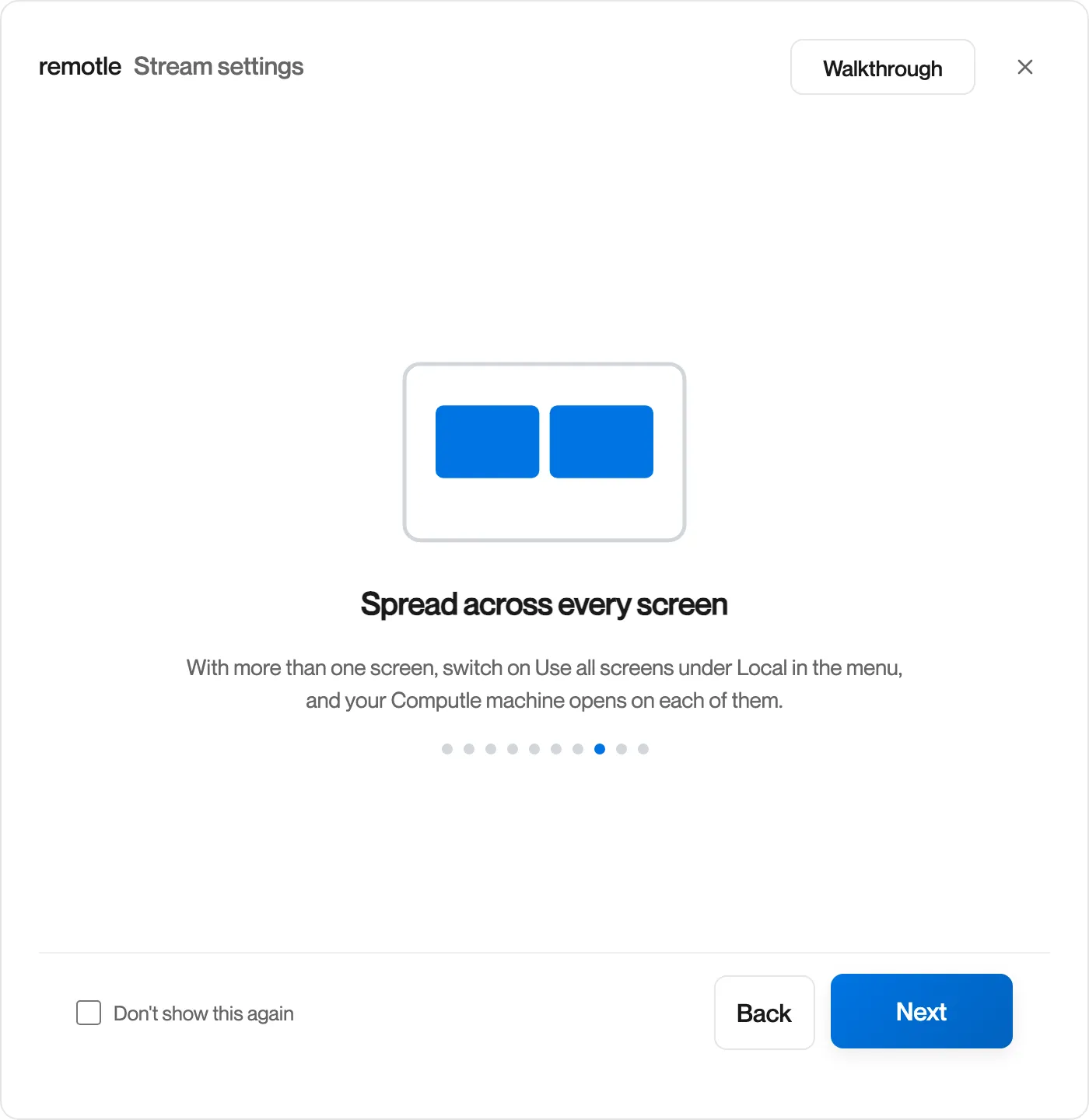
When you connect, Remotle tells your workstation how many screens you have and their sizes. The workstation arranges its displays to match, so windows and the pointer move between screens as they do on your device. Each screen is streamed separately, and the Stats tab of the session menu shows figures for each.
Use all screens is on by default. To use a single screen:
Press F2 to open the session menu.
Open the Local tab.
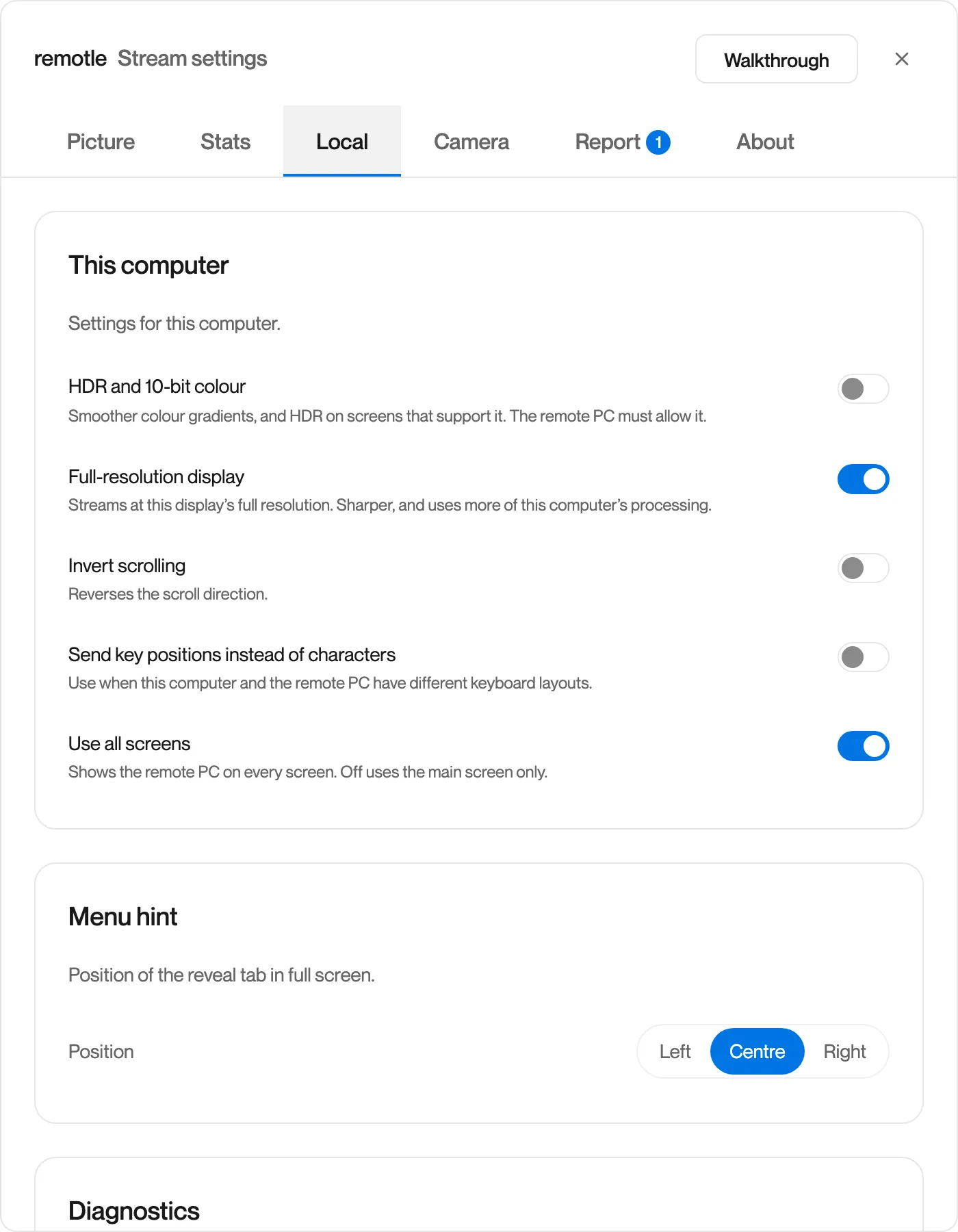
Turn off Use all screens.
Remotle uses your main screen only. Turn it back on to spread across every screen again.
The setting is saved on this device. A device with one screen ignores it.
Each screen shows your workstation full screen. The Stream menu has Fullscreen on All Screens as a second way to switch, when the PC has more than one screen.
Each screen opens in its own window, titled Remotle — Monitor 1, Remotle — Monitor 2 and so on, full screen on each. The Settings menu has Fullscreen on All Screens as a second way to switch.
Each screen shows your workstation full screen.
An iPad connected to an external display shows your workstation on it as a second screen. See iPad second screen.
On a Windows PC with three or more screens, you can choose which of them Use all screens covers. This is a beta feature of the app for Windows.
Press F2 to open the session menu, and open Settings.
Find the list of screens under Use all screens.
Each screen is listed by where it sits, Main screen, Screen on the left, Screen on the right, Screen above or Screen below, with its size.
Turn off the screens you want to keep for this PC.
Your workstation then uses exactly the screens left on. The others stay free for apps on this PC.
Two rules apply, because the session covers one rectangle across your screens:
The choice is saved for you on this PC, and kept when you reconnect or unplug a screen and plug it back in. With Use all screens on, every screen has the tab at the top, and the toolbar opens on the screen whose tab you click. The Screens button on the toolbar switches between a window, this screen and all screens in one click. See Toolbar.
When the session is in a window, your workstation’s desktop follows the size of the window. Resize the window from any edge and the desktop is resized to match. A window or Split View of any size scales the desktop to fit.
| Limit | Value |
|---|---|
| Smallest desktop | 1280 × 720 |
| Most screens | 4 |
Sessions open full screen on every screen by default.
| Platform | Enter or exit full screen |
|---|---|
| Windows and Linux | Stream menu, Enter Fullscreen or Exit Fullscreen |
| Mac | Control+Command+F, or Settings menu, Enter Fullscreen or Exit Fullscreen |
On a Mac, Command+M minimises the session window, including from full screen.
Connect an iPad to an external display and Remotle shows your workstation on it. You control the session from the iPad, so the iPad’s own screen is your working screen and the display is the second screen.
Use all screens uses every screen or your main screen only. To use a different single screen, make it your main screen in your device’s display settings. On a Windows PC with three or more screens, you can choose your screens (beta).
No. Each screen of your workstation takes the size of the screen it is shown on. A 4K screen and a 1440p screen become a 4K display and a 1440p display on the workstation.
Yes. Each screen is streamed separately, so two screens use roughly twice the data of one when both are changing. A still screen uses very little.
Remotle picks up the change and adds the screen to the session.