App Settings
Menu tab
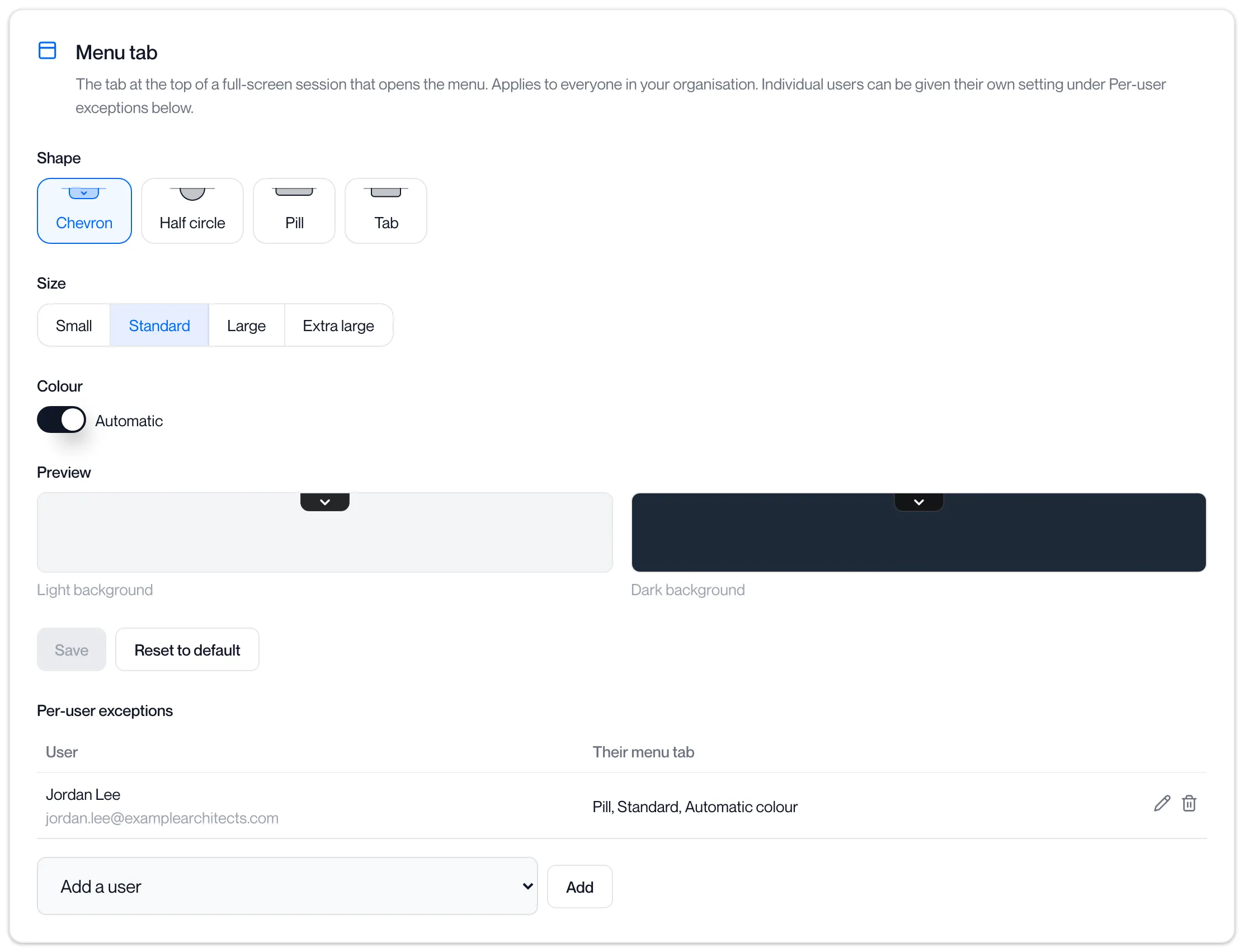
In a full-screen session the app shows a small tab at the top edge of the screen. The user clicks it to open the session toolbar. The Menu tab settings choose its shape, size and colour for everyone in your organisation, and let you give individual users their own setting. Users can also choose their own in the app.
Open Client settings in the sidebar and click the Menu tab tab. The card reads “The tab at the top of a full-screen session that opens the menu. Applies to everyone in your organisation. Individual users can be given their own setting under Per-user exceptions below.”
Organisation setting
Section titled “Organisation setting”| Setting | Options | Default |
|---|---|---|
| Shape | Chevron, Half circle, Pill, Tab | Chevron |
| Size | Small, Standard, Large, Extra large | Standard |
| Colour | Automatic, or a colour of your choice | Automatic |
Chevron is a small dark tab with a white down arrow; a click opens the session toolbar. Half circle, Pill and Tab show the full-width menu bar when the pointer is over them.
With Automatic colour, the Chevron is dark on every desktop, and the other shapes are a translucent grey that shows on both light and dark desktops. Turn Automatic off to pick a colour with the colour well, or type it as #RRGGBB into the box beside it. A half-typed value is refused with “Enter a colour as #RRGGBB.” and Save stays disabled until it is complete.
The Preview shows the tab on a light background and on a dark background as you change the settings.
-
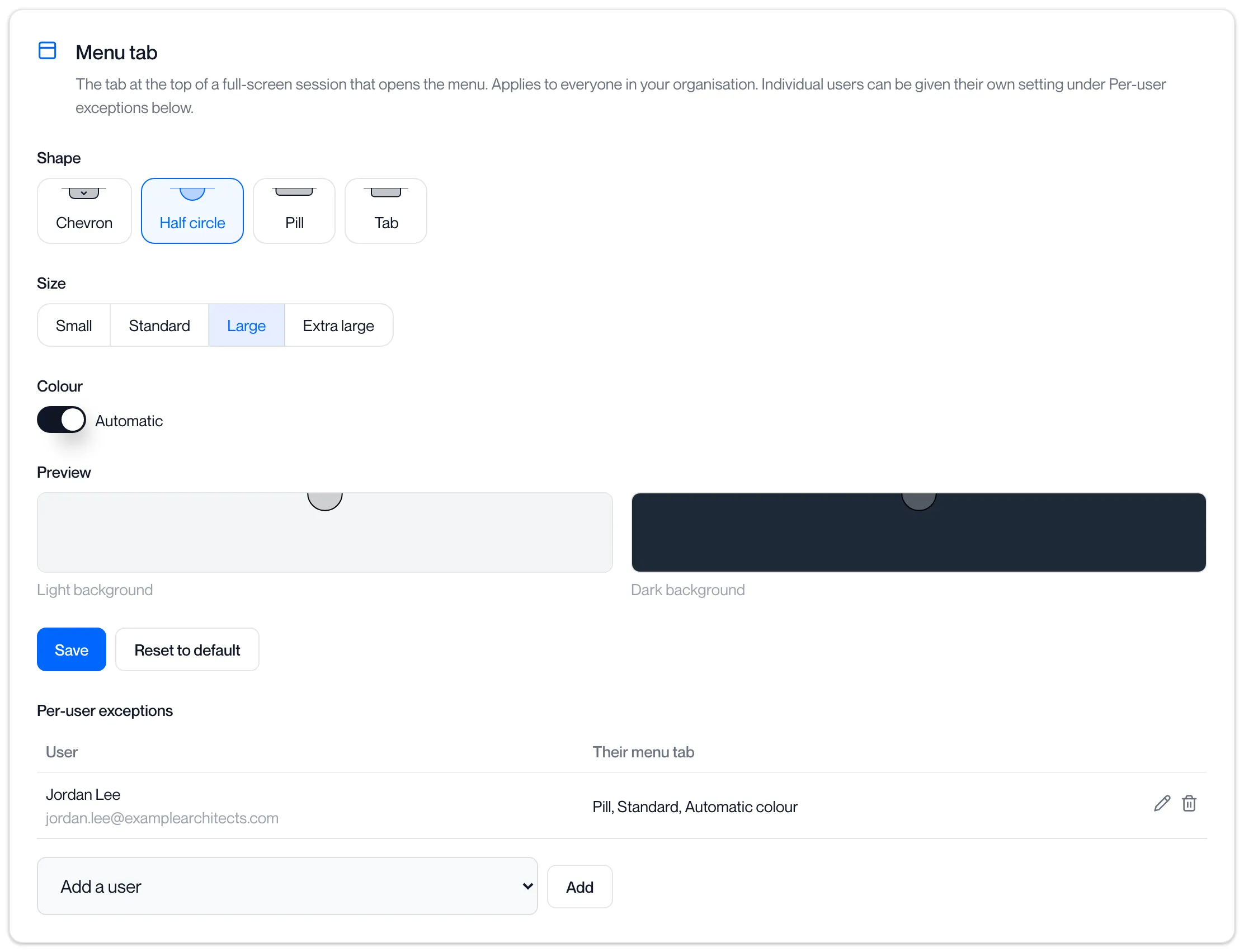
Choose a Shape, a Size and a Colour.
-
Check the Preview.
Save becomes available as soon as something differs from the saved setting.
-
Click Save.
The portal reports “Menu tab saved”.
Reset to default returns the organisation to Chevron, Standard and Automatic, and reports “Menu tab reset to default”.
Per-user exceptions
Section titled “Per-user exceptions”-
Under Per-user exceptions, choose the user from Add a user and click Add.
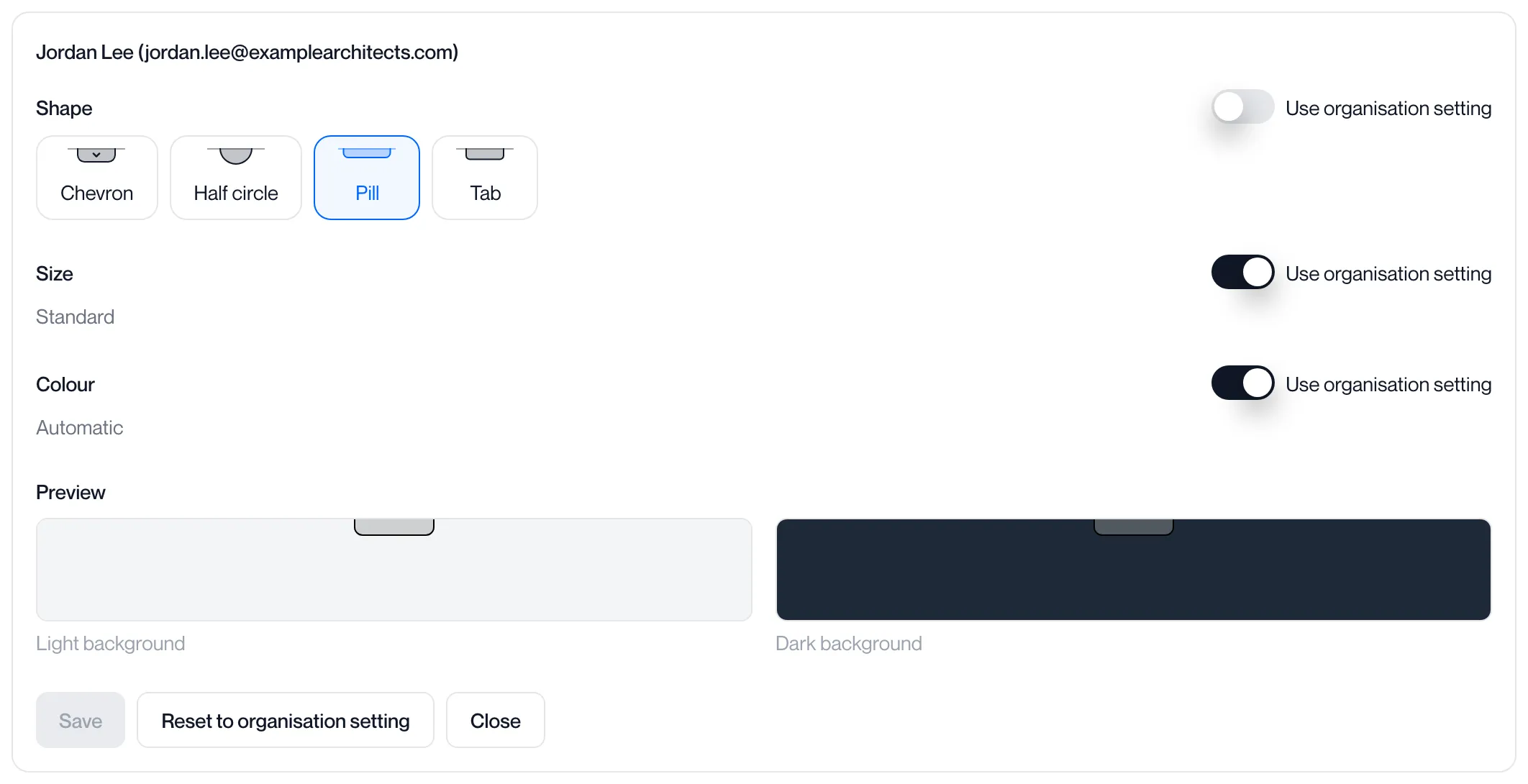
An editor opens for them. Each of Shape, Size and Colour has a switch labelled “Use organisation setting”. It is on to begin with and the organisation’s value is shown beside it.
-
Turn off “Use organisation setting” on each value that should differ, and choose it.
The Preview shows the result for this user.
-
Click Save.
The user appears in the table with their menu tab summarised, for example “Pill, Standard, Automatic colour”.
| Button | What it does |
|---|---|
| Save | Saves the exception. Reports “Menu tab saved”. |
| Reset to organisation setting | Removes the exception and reports “Menu tab reset to organisation setting”. |
| Close | Closes the editor without saving. |
In the table, the pencil opens the editor again and the bin removes the exception. A user can appear in the list once.
Related pages
Section titled “Related pages”Questions
Section titled “Questions”What colour is Automatic?
Section titled “What colour is Automatic?”For the Chevron, dark on every desktop. For the other shapes, a translucent grey: darker on a light desktop and lighter on a dark one, so the tab shows on either.
Can a user change their own menu tab?
Section titled “Can a user change their own menu tab?”Yes, in the app: Stream settings, Local, Menu hint. Each value a user sets there wins over the organisation’s setting and over an exception you give them; each one left on Automatic follows yours. See Session Menu: Local.
When does a user see a change?
Section titled “When does a user see a change?”The app reads the menu tab setting each time it starts. A user who has the app open sees the change the next time they start it.