Patch Management
Machines and Jobs
The Machines tab of Patch management lists every workstation with its auto patching status, missing updates and last scan. Tenant administrators can scan, install updates on and restart one workstation at a time from its menu, and follow that work on the Jobs tab.
The Machines tab
Section titled “The Machines tab”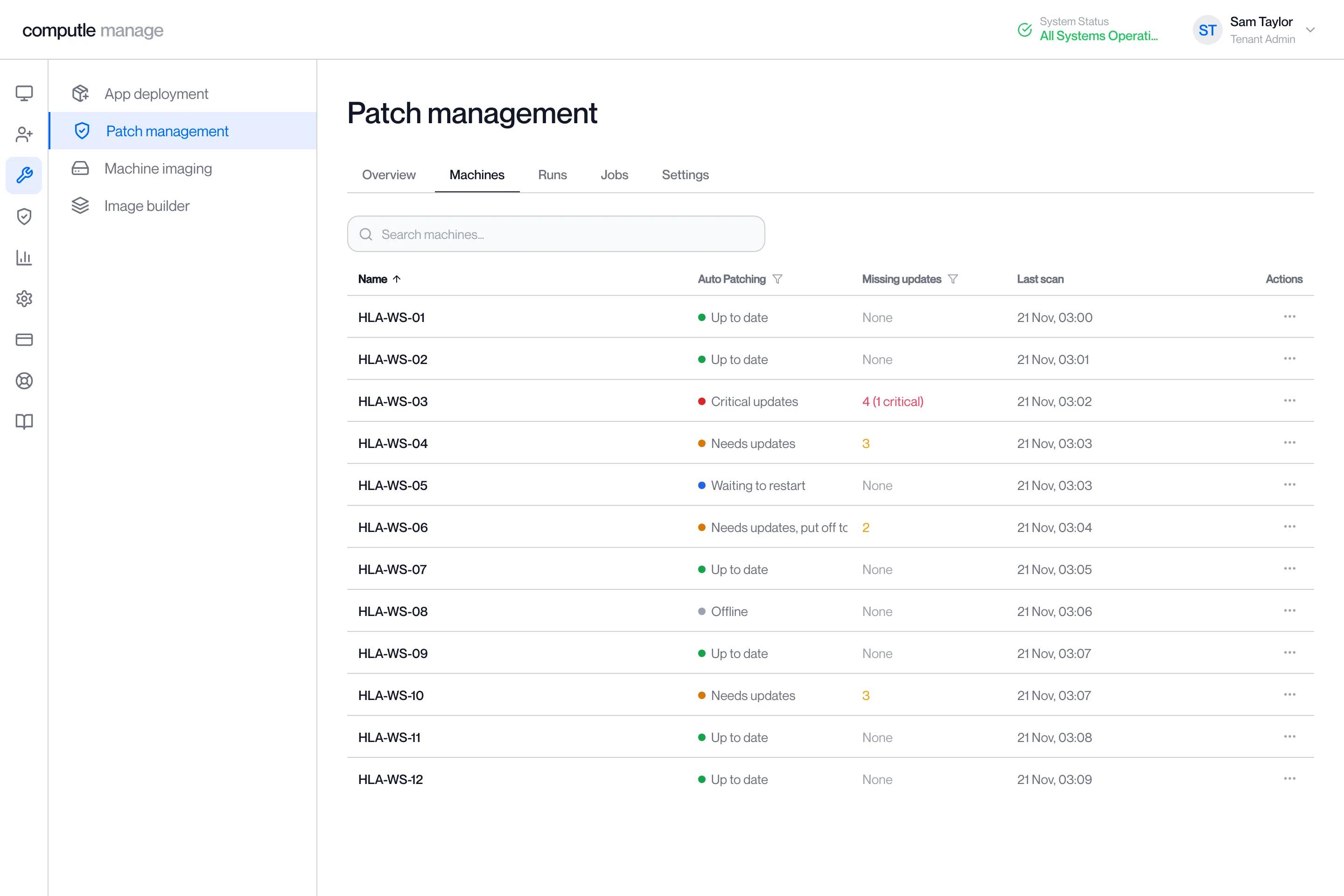
| Column | What it shows |
|---|---|
| Name | The workstation. Click the heading to sort. |
| Auto Patching | The workstation’s status, shown while auto patching is enabled for your organisation. |
| Missing updates | Updates missing at the last scan, in amber, or in red with “(N critical)” when a critical one is missing. None when nothing is missing; ”—” before the first scan. |
| Last scan | When the workstation was last scanned. |
| Actions | ⋯ opens the workstation’s menu, for tenant administrators. |
| Auto Patching status | Meaning |
|---|---|
| Up to date | Online, nothing missing and no restart waiting. |
| Needs updates | Missing at least one update. ”, put off to Tue 24 Nov night” is added when its user moved its night. |
| Critical updates | Missing at least one critical update. |
| Waiting to restart | Updates are installed and Windows needs a restart to finish. |
| Offline | The agent has not reported for 10 minutes. |
| Not in Auto Patching | The workstation has no auto patching agent reporting yet. |
Type in Search machines… to filter by name. Click the funnel on Auto Patching or Missing updates to show only some statuses. The list refreshes every 30 seconds.
A workstation’s details
Section titled “A workstation’s details”-
Click the workstation’s row.
A panel opens on the right with the time between reboots, the missing updates and the health score.
-
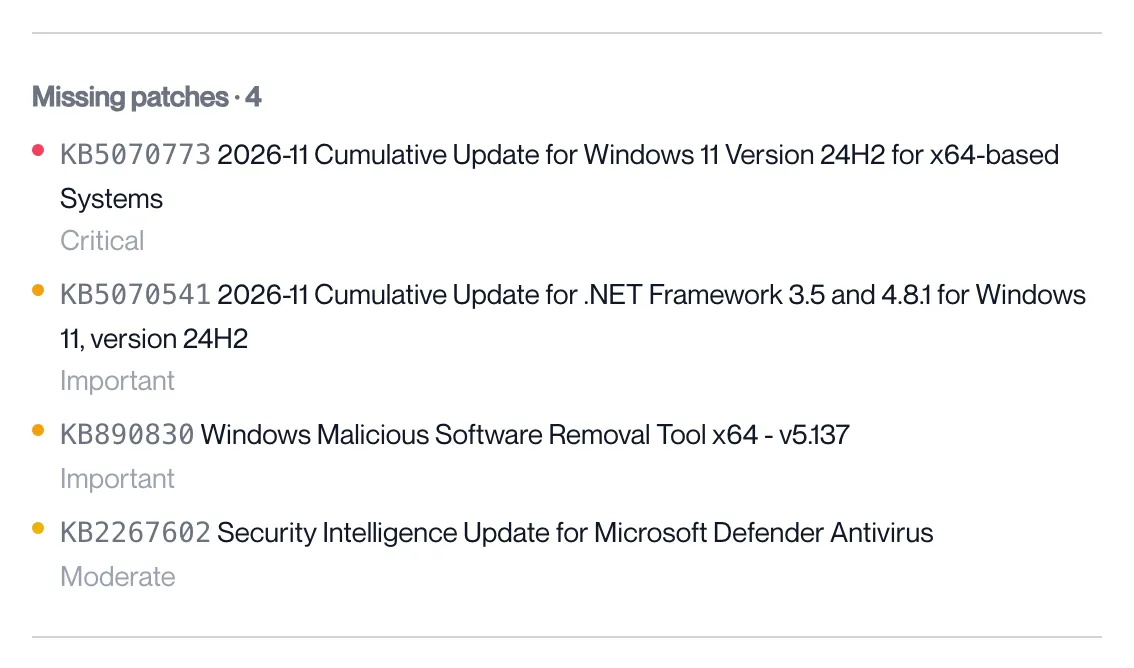
Read Missing patches.
Each missing update shows its KB number, title and severity: Critical, Important, Moderate or Low. “Up to date.” when there are none.
-
Click × to close the panel.
Scan, install or restart one workstation
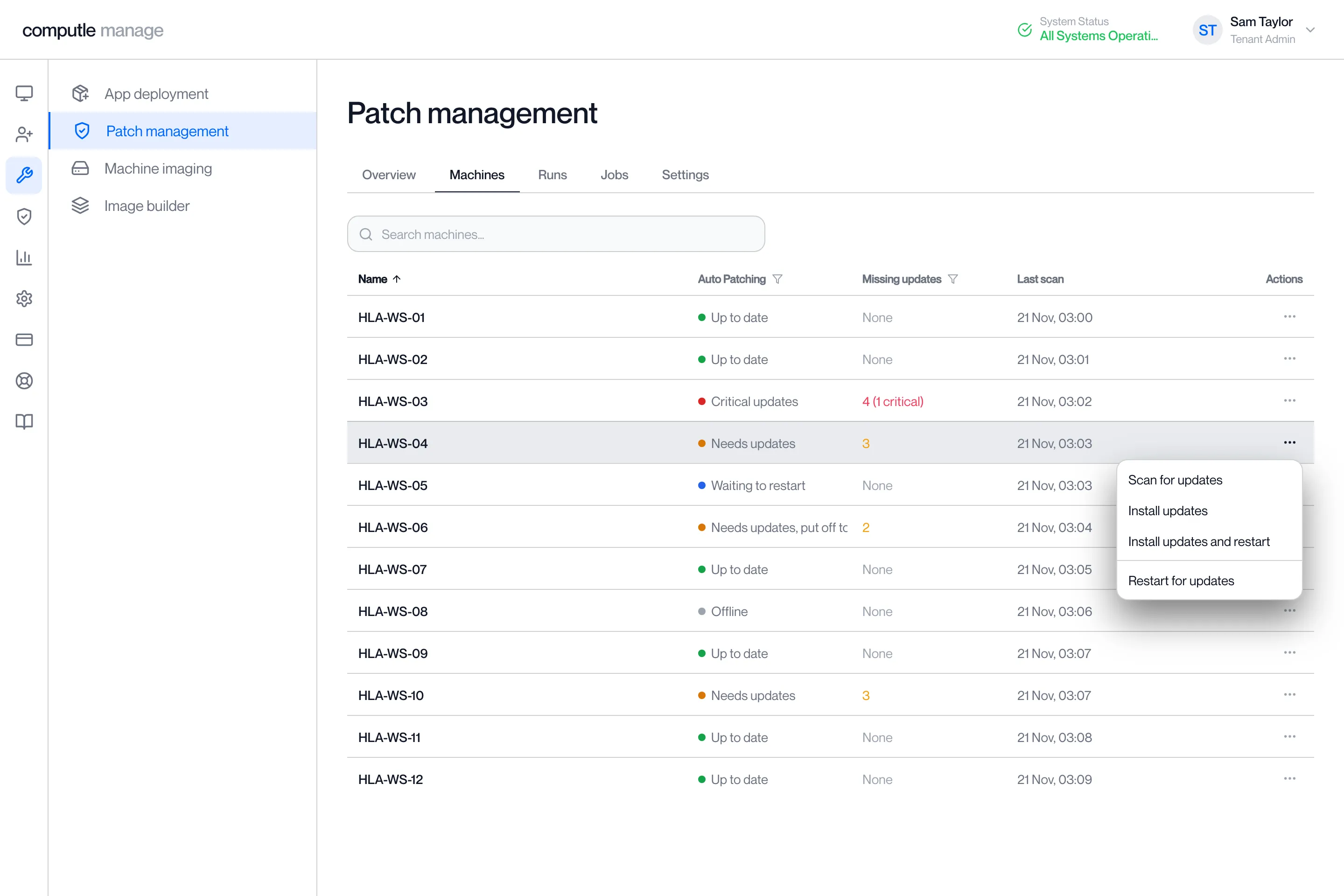
Section titled “Scan, install or restart one workstation”These actions are for tenant administrators. They appear in the menu of a workstation that runs the Computle patch agent.
-
Click ⋯ on the workstation’s row.
-
Click the action.
Action What it does Confirmation Scan for updates Scans the workstation for missing updates now. “Scan queued” Install updates Installs every missing update on the workstation. The browser asks “Install every missing update on HLA-WS-04?”. “Install queued” Install updates and restart The same, then restarts the workstation once its updates are in. “Install queued (restart after)” Restart for updates Restarts the workstation to finish installing updates. The browser asks “Restart HLA-WS-04 now?”. “Restart queued” “Could not queue the job” means the request was refused; try again.
-
Follow the job on the Jobs tab.
A restart from this menu happens 5 seconds after the workstation’s agent picks it up, and anyone signed in is signed out. Open programs are not forced closed, so a workstation with unsaved work can refuse the restart; the restart is marked failed after 15 minutes.
These actions act straight away. They do not follow the install window, the test group or the popup that auto patching uses.
The Jobs tab
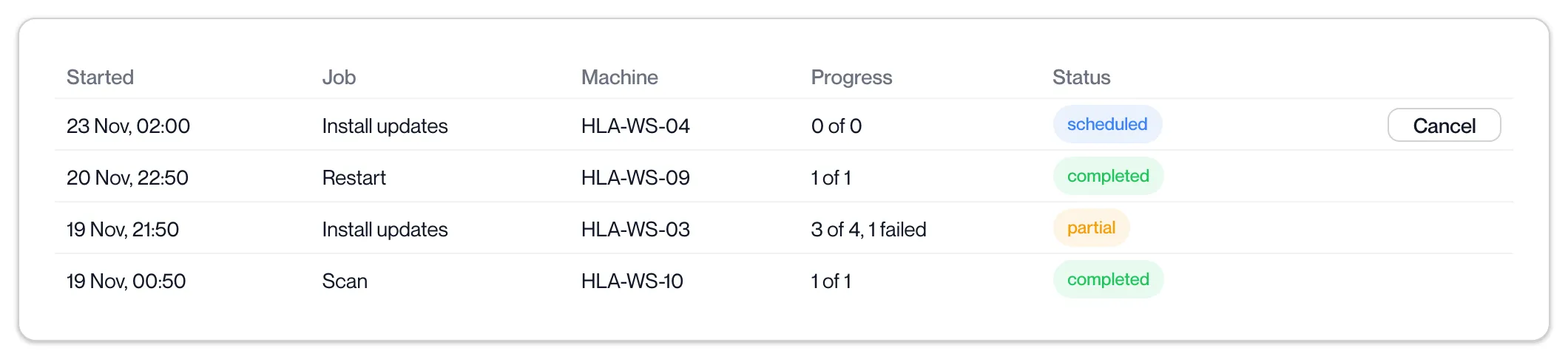
Section titled “The Jobs tab”The Jobs tab lists the scans, installs and restarts started from the Machines tab, newest first, 20 to a page. It refreshes every 10 seconds. Only tenant administrators see it.
| Column | What it shows |
|---|---|
| Started | When the job was created, or its scheduled time for a scheduled job. |
| Job | Scan, Install update, Install updates or Restart. |
| Machine | The workstation, or Several for a job covering more than one. |
| Progress | Tasks completed out of the total, with “N failed” when any failed. |
| Status | scheduled, pending, running, completed, partial, failed or cancelled. |
Cancel shows on a job that is scheduled, pending or running. The portal confirms “Cancelled”, or reads “Could not cancel the job” when the patch service refuses.
Related pages
Section titled “Related pages”Questions
Section titled “Questions”A workstation’s menu has no Scan or Install. Why?
Section titled “A workstation’s menu has no Scan or Install. Why?”The actions appear only for tenant administrators, and only on a workstation that runs the Computle patch agent. If the workstation should have it, contact your account manager.
Missing updates shows ”—”. Why?
Section titled “Missing updates shows ”—”. Why?”The workstation has not been scanned yet. Click Scan for updates in its menu, or wait for the daily scan.
The status reads Waiting to restart. What do I do?
Section titled “The status reads Waiting to restart. What do I do?”With auto patching on, the user sees the restart screen and the PC restarts within the install window. To restart it now, click Restart for updates in its menu.
A scan or install has been running a long time. Will it finish?
Section titled “A scan or install has been running a long time. Will it finish?”A scan is marked failed after 10 minutes, an update install after 2 hours and a restart after 15 minutes, and the job’s progress updates.