The Session Menu
Session Menu: Toolbar
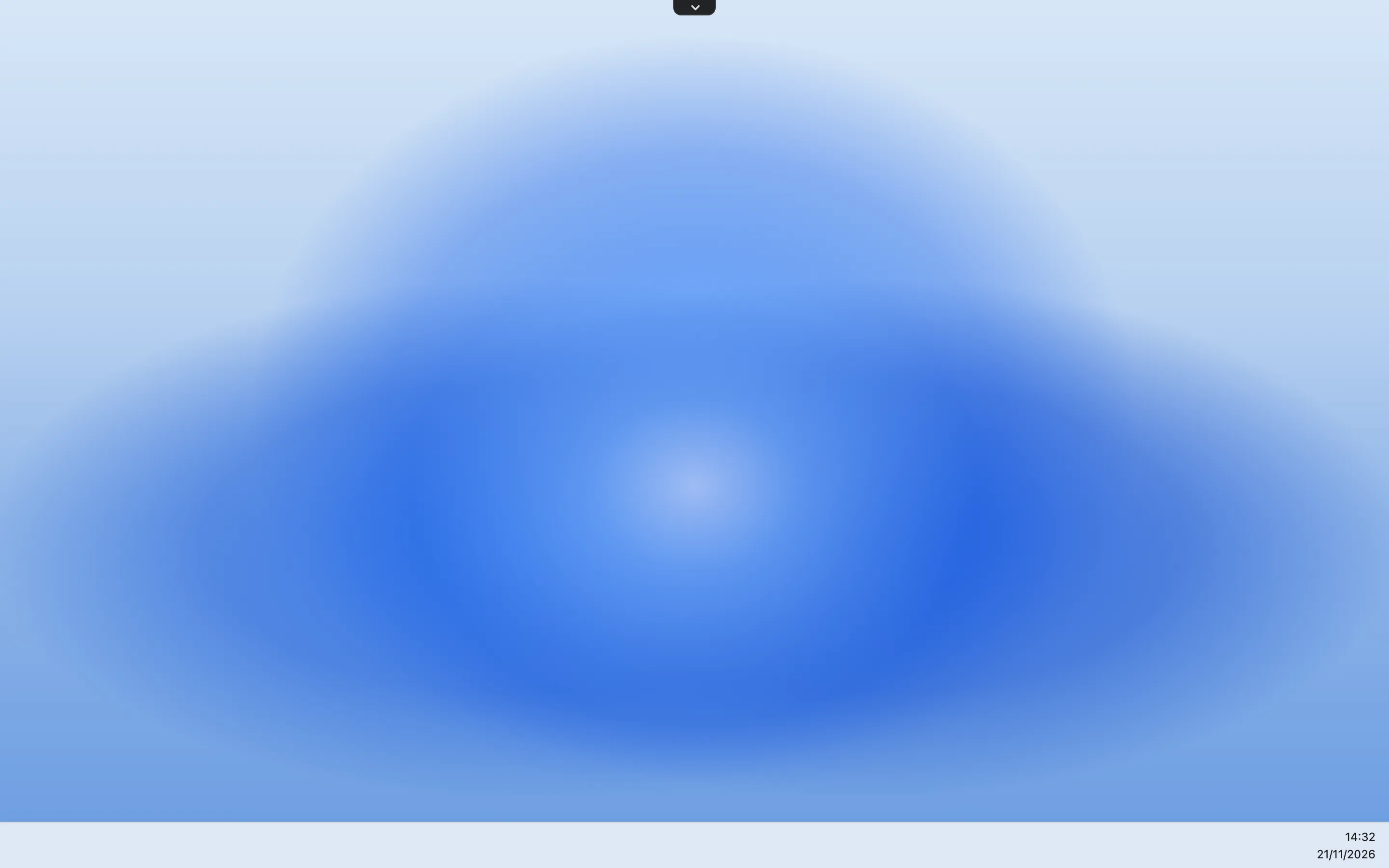
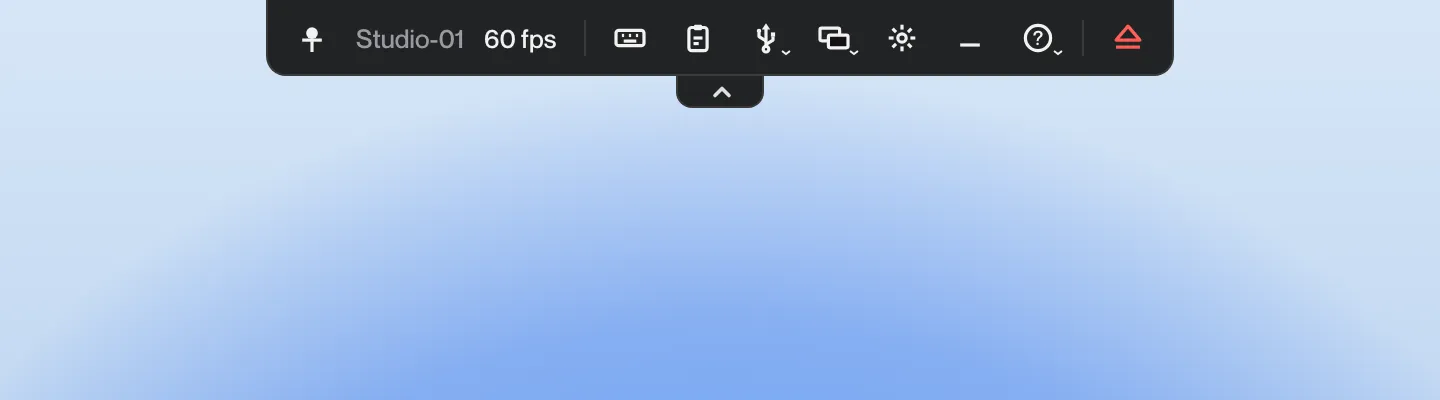
In full screen, a small dark tab with a down arrow hangs from the top edge of the screen. Click it to open the session toolbar: your machine name, the Connection view, Ctrl+Alt+Del, screens, USB devices, settings, help and Disconnect, in one row.
Open the toolbar
Section titled “Open the toolbar”-
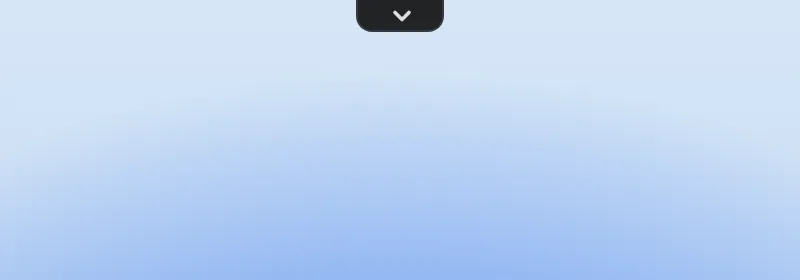
Find the tab at the top of the screen.
It is a small dark tab with a white down arrow, in the centre of the top edge. It grows a little when your pointer is over it. Your organisation may give it a different shape, size or colour, and you can choose your own on the Local tab (see Change the tab).
-
Click the tab.
The toolbar drops down from the top edge and the arrow on the tab turns to point up. The tab sits under the toolbar, so the same click closes it. Hovering over the tab does not open the toolbar; it opens only when you click.
-
Choose a button, or move your pointer away.
The toolbar closes about half a second after your pointer leaves it and the tab, unless a drop-down is open or the toolbar is pinned.
Keep the toolbar open
Section titled “Keep the toolbar open”-
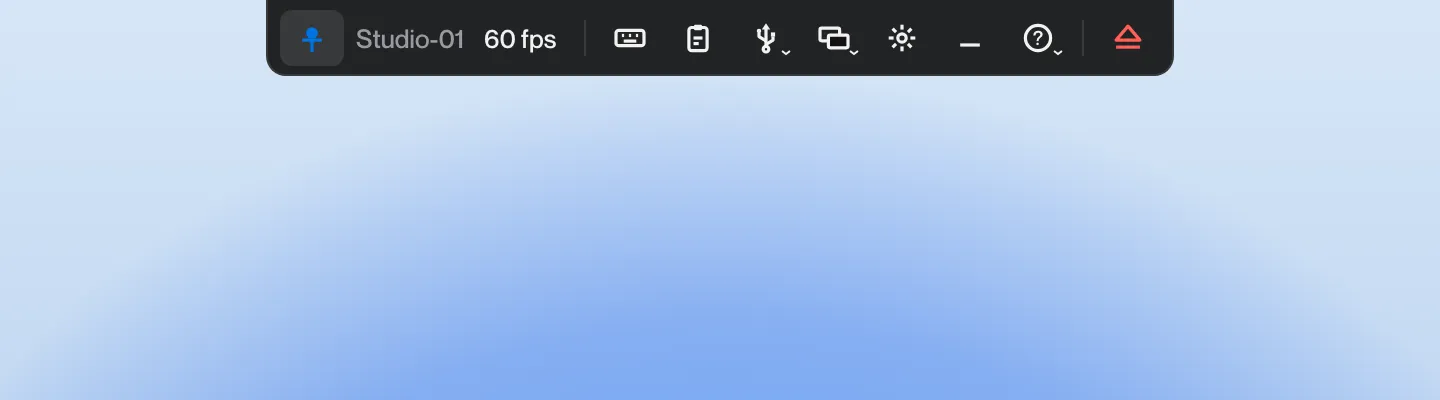
Click the pin at the left end of the toolbar.
The pin is highlighted and the toolbar stays open while you work. The tab under it is hidden while the toolbar is pinned.
-
Click the pin again to unpin it.
The tab comes back, and the toolbar closes when your pointer leaves it.
The iPad and iPhone toolbar has no pin. Tap the tab, or tap the desktop, to close it.
The buttons
Section titled “The buttons”From left to right:
| Button | What it does |
|---|---|
| Pin | Keeps the toolbar open. Windows, Mac and Linux. |
| Machine name | The workstation you are connected to, for example Studio-01. |
| Connection (the fps reading, for example 60 fps, after the machine name) | Opens the Connection view: whether your connection is good, the frame rate, delay, jitter, packet loss and any dropouts. When the connection is not good, an amber or red dot sits on the reading, just before fps. See Connection Status. |
| Ctrl+Alt+Del | Sends Ctrl+Alt+Del to your workstation. The Windows security screen appears straight away. |
| Type Clipboard | Types what you copied as keystrokes, for fields that refuse a paste, such as the Windows sign-in screen. |
| USB Devices | Drops the USB Devices menu. See USB Devices. |
| Screens | Drops three choices: Window, Fullscreen on this screen and Fullscreen on all N screens, where N is the number of screens on your device. One click applies each. |
| Settings (cog) | Opens Stream settings, the full session menu, in one click. See The Session Menu. |
| Minimise | Minimises the Computle (Remotle) window. |
| Help | Drops Check for Updates and About Computle (Remotle). |
| Disconnect (eject icon, red) | Ends the session. |
Ctrl+Alt+Del and Type Clipboard are available while you are connected. With one screen, Fullscreen on all screens is greyed out. If you have switched some screens off on the Local tab, the last Screens row reads “Fullscreen on K of N screens” and covers the screens you use.
The drop-downs open as dark menus under their button, in Remotle’s own style. Pick an item, or click anywhere else, to close one. A click that closes a drop-down does not reach your workstation.
The toolbar and its menus stay dark in the light theme, because they sit on your workstation’s picture.
On a kiosk terminal
Section titled “On a kiosk terminal”The toolbar has no Minimise button and Screens has no Window row. Disconnect returns to the machine list.
On iPad and iPhone
Section titled “On iPad and iPhone”Tap the tab to open the toolbar. It has the machine name, Connection, Ctrl+Alt+Del, Send clipboard, Type clipboard, Keyboard, Statistics, Touch, Screens, Stream settings and Disconnect. See iPad and iPhone.
In a window
Section titled “In a window”The tab and toolbar are for full screen. In a window on Windows and Linux, the menu bar at the top of the window has Settings, USB Devices and Help. On a Mac, the same items are on the menu bar at the top of the screen. F2 opens Stream settings everywhere.
Change the tab
Section titled “Change the tab”Your organisation’s administrator chooses the tab’s shape, size and colour. The tab is a chevron unless they choose otherwise.
To choose your own, open Stream settings (the cog, or F2), click Local, and set Shape, Size and Colour under Menu hint. Automatic follows your organisation. Your choice is saved to your account, so it follows you to other devices.
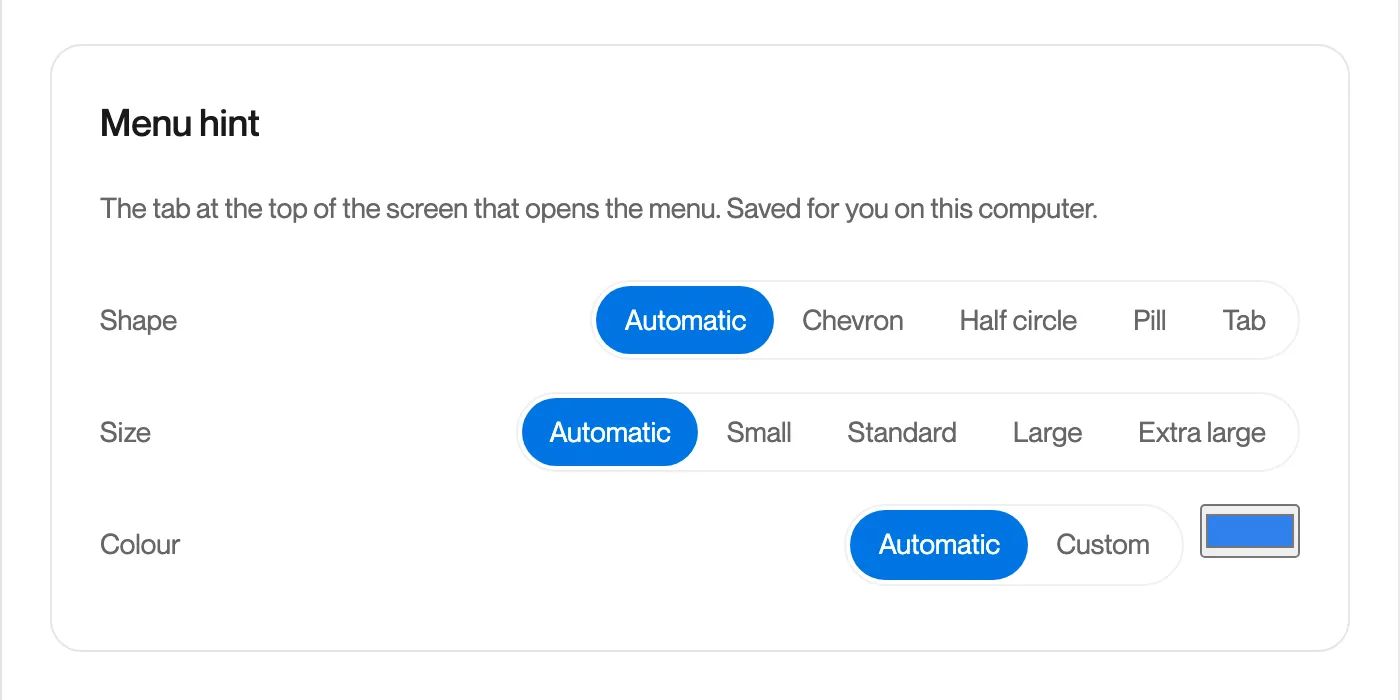
With Half circle, Pill or Tab, the tab is faint and the full-width menu bar appears when you move your pointer over it.