Patch Management
Patch Management
Patch management keeps Windows up to date on your workstations. Auto patching installs missing updates in an install window you choose, a test group first, and asks each user before their PC restarts. You can also scan, install and restart one workstation at a time.
Open Patch management under Manage in the portal. The entry appears only when patch management is enabled for your organisation. Users who are not tenant administrators find Patch management in their own menu, and the page shows a Read only badge for them.
If your portal sidebar has Patch Management under Operations instead, see Patch Management under Operations.
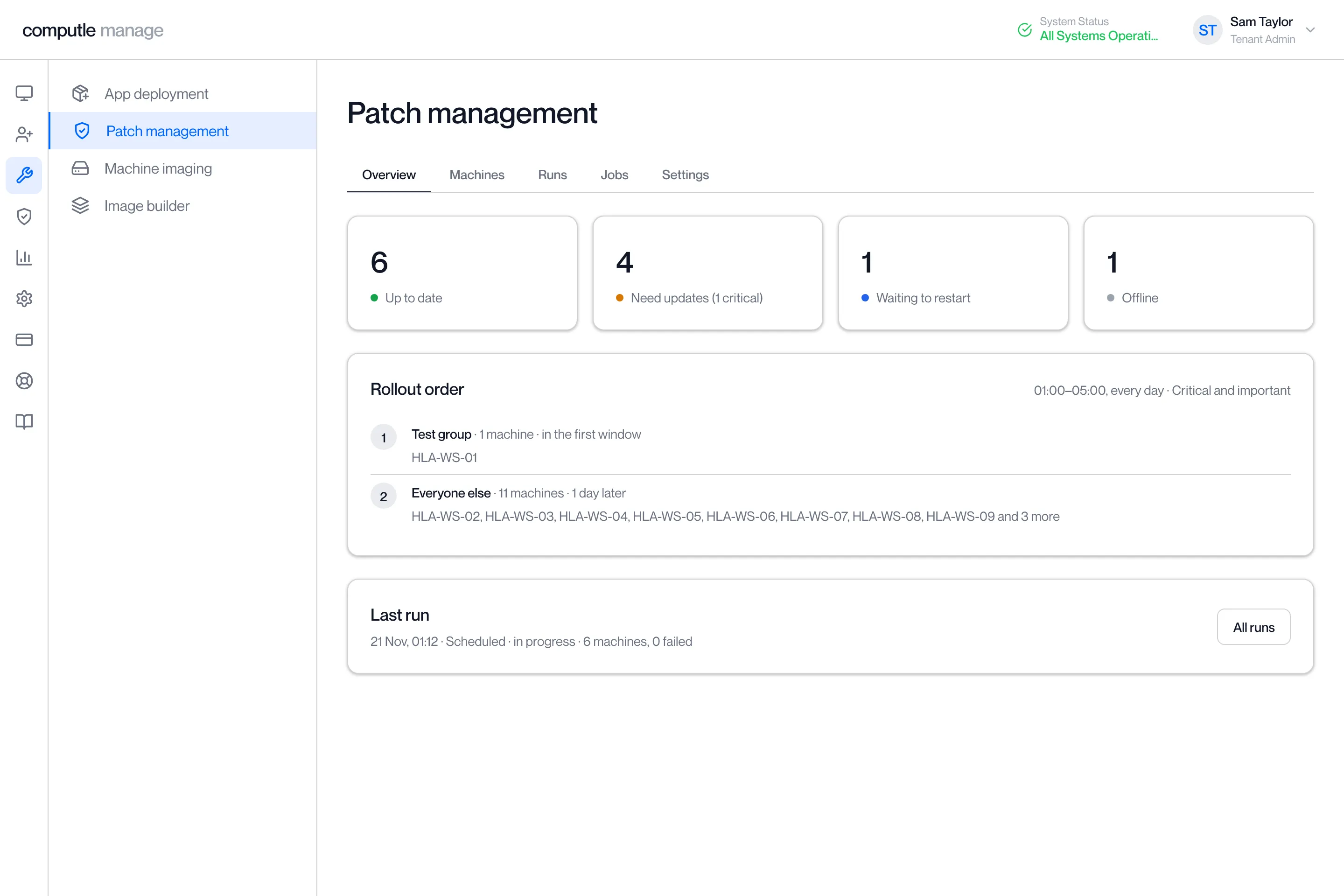
The tabs
Section titled “The tabs”| Tab | Shows | Who sees it |
|---|---|---|
| Overview | How many workstations are up to date, need updates, are waiting to restart or are offline, the rollout order and the last run. | Everyone. |
| Machines | Every workstation with its auto patching status, missing updates and last scan, and the scan, install and restart actions. | Everyone. The actions are for tenant administrators. |
| Runs | Auto patching runs, scheduled and started by hand, and what happened on each workstation. | Everyone. Scan now, Run now and Cancel run are for tenant administrators. |
| Jobs | Scans, installs and restarts started from the Machines tab. | Tenant administrators. |
| Settings | Auto patching on or off, the install window, rollout, restarts, how long users can put it off, emails and the test group. | Everyone, when auto patching is on your plan. Only tenant administrators can change it. |
When auto patching is not on your plan, the Settings tab is not shown and an Included card lists what your plan includes.
Who can do what
Section titled “Who can do what”| Users | Tenant administrators | |
|---|---|---|
| Read the Overview, Machines and Runs tabs | Yes | Yes |
| Read the settings | Yes | Yes |
| Turn auto patching on or off and change the settings | No | Yes |
| Change the test group | No | Yes |
| Start a scan or a run, cancel a run | No | Yes |
| Scan, install or restart one workstation, and see the Jobs tab | No | Yes |
The Overview tab
Section titled “The Overview tab”-
Read the counts.
Count Workstations Up to date Online, nothing missing and no restart waiting. Need updates Missing at least one update. “(N critical)” counts those missing a critical update. Waiting to restart Updates are installed and Windows needs a restart to finish. Offline The agent has not reported for 10 minutes. Click a count to open the Machines tab filtered to those workstations.
-
Read the rollout order.
Rollout order lists who is patched first: the test group in the first install window, then everyone else a day or more later, with the workstations in each step. With one group it lists everyone in the first window. The line at the top right shows the install window and which updates are installed, or “Auto Patching is off”. “No machines in the test group.” means the test group is empty; see Choose the test group.
-
Read the last run.
Last run shows when the latest run started, whether it was Scheduled or Run now, its status, and how many workstations it covered and failed. Click All runs to open the Runs tab.
Pages in this section
Section titled “Pages in this section”Questions
Section titled “Questions”Patch management is not in my menu. Why?
Section titled “Patch management is not in my menu. Why?”The entry appears only when patch management is enabled for your organisation. Contact your account manager.
The page reads “Auto Patching is off for this organisation.” What does that mean?
Section titled “The page reads “Auto Patching is off for this organisation.” What does that mean?”Patch management is not enabled for your organisation on the patching service. A tenant administrator still sees the Machines and Jobs tabs. Contact your account manager.
A line in orange mentions the licence. What do I do?
Section titled “A line in orange mentions the licence. What do I do?”“Licence check failing; using the last good licence” means the patching service could not check your organisation’s plan and is using the last answer it had. Patching carries on. If the line stays, contact your account manager.