Workstations
App warnings
App warnings tell the person using a workstation, at their desk, when one application is about to slow the whole workstation down. The Computle Health Agent watches every application’s processor and memory use once a minute. When one of them crosses a limit, a card appears in the bottom-right corner of the user’s screen. The card names the application, says what it is doing and what to do next.
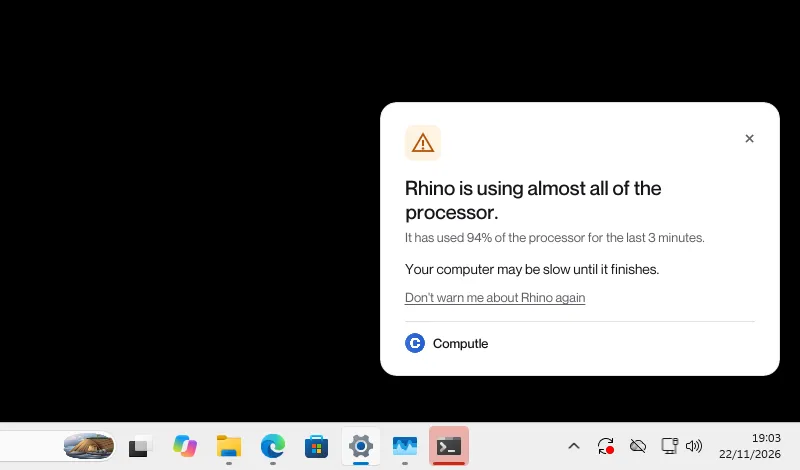
App warnings are switched on for each organisation by Computle. They are off until then. To have them switched on or off for your organisation, contact your account manager. When they are switched off, any card that is open closes within five minutes.
The two warnings
Section titled “The two warnings”Processor
Section titled “Processor”The card reads “Application is using almost all of the processor.” It appears when, for three minutes in a row, either:
- the application uses 80% or more of all the workstation’s processor cores, or
- the workstation as a whole is at 95% or more and the application accounts for 60% or more of it.
The card says how much of the processor the application has used and for how long. The next step it gives is: “Your computer may be slow until it finishes.”
Memory
Section titled “Memory”The card reads “Application is using N GB of memory.” It appears when the application’s memory keeps growing and, at that rate, the workstation will run short of memory. Short of memory means less than 10% of its memory free, or 90% of its memory limit in use. The card appears when one of these is true:
| Pattern | When it shows |
|---|---|
| Fast growth | The application has grown by 4 GB or more over four minutes, growing every minute, and the workstation will run short within the hour. |
| Steady growth | The application has grown by 512 MB or more over the last two to four hours, is still growing, and the workstation will run short within six hours. |
| Already short | The workstation is already short of memory and the application has grown by 512 MB or more in the last 15 minutes. |
Applications using less than 256 MB never cause a memory warning. The card says how much the application has grown and over what time, and asks the user to save their work, then close and reopen the application.

What the user can do
Section titled “What the user can do”| On the card | What it does |
|---|---|
| × | Closes the card. The same application can warn this user again after two hours. |
| Don’t warn me about application again | Stops all warnings about that application for this user on this workstation, permanently. Other users and other workstations are not affected. |
A card that is left open updates its figures for ten minutes and then closes on its own. Each user sees at most one card for an application every two hours, and at most two cards a day.
To turn warnings back on for every application a user has muted, the user runs this on the workstation:
"C:\Program Files\Computle\ComputleHealthAgentUI.exe" --unmuteSeeing which application it is
Section titled “Seeing which application it is”The person at the desk sees the card. As an administrator you can see the same picture in the portal, for any workstation, and look back over the last 30 days.
- Open Workstation Telemetry in the Monitoring section of the portal sidebar.
- Select the workstation.
- Select Applications.
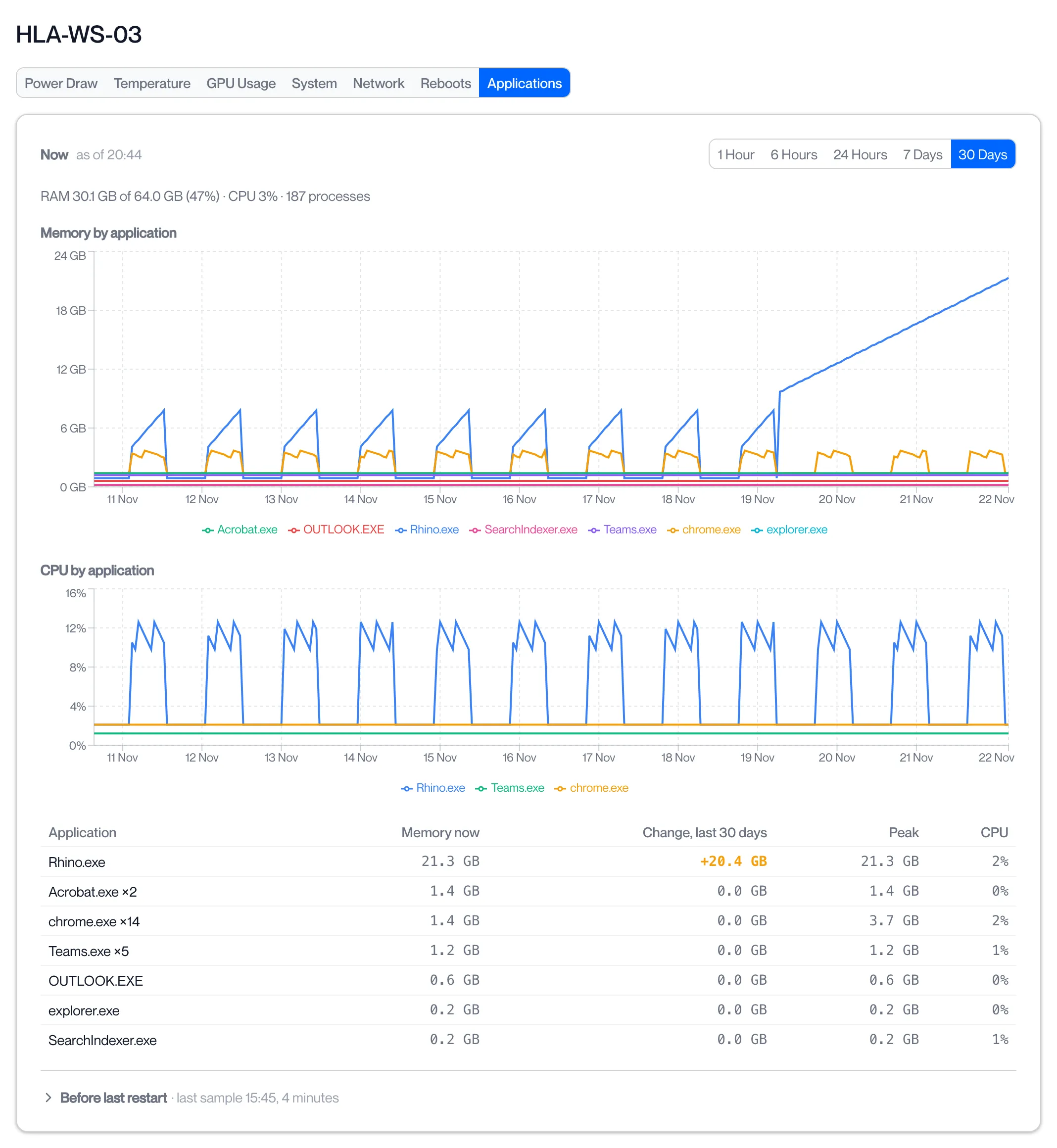
Two graphs show each application’s memory and processor use over time, with one line per application. An application whose memory line keeps climbing is the one growing. Hover over a graph to read the values at that time. Choose 1 Hour, 6 Hours, 24 Hours, 7 Days or 30 Days above the graphs; the view opens on 1 hour.
The table under the graphs lists the workstation’s applications by memory now. For each one it shows the change over the chosen time, its peak and its processor use; a rise of 1 GB or more is highlighted. An application running more than once shows its count, for example “chrome.exe ×14”, with the memory of all of them together. The workstation’s total memory and processor use are above the graphs. “Stale” next to the time means the workstation has not reported for 15 minutes.
The workstation reports every five minutes. The 7- and 30-day graphs show one reading every 30 or 60 minutes. Readings are kept for 30 days.
If the workstation restarted, or stopped responding and was restarted, Before last restart shows its last minutes, one line a minute. The line under the heading names the applications that grew during those minutes.
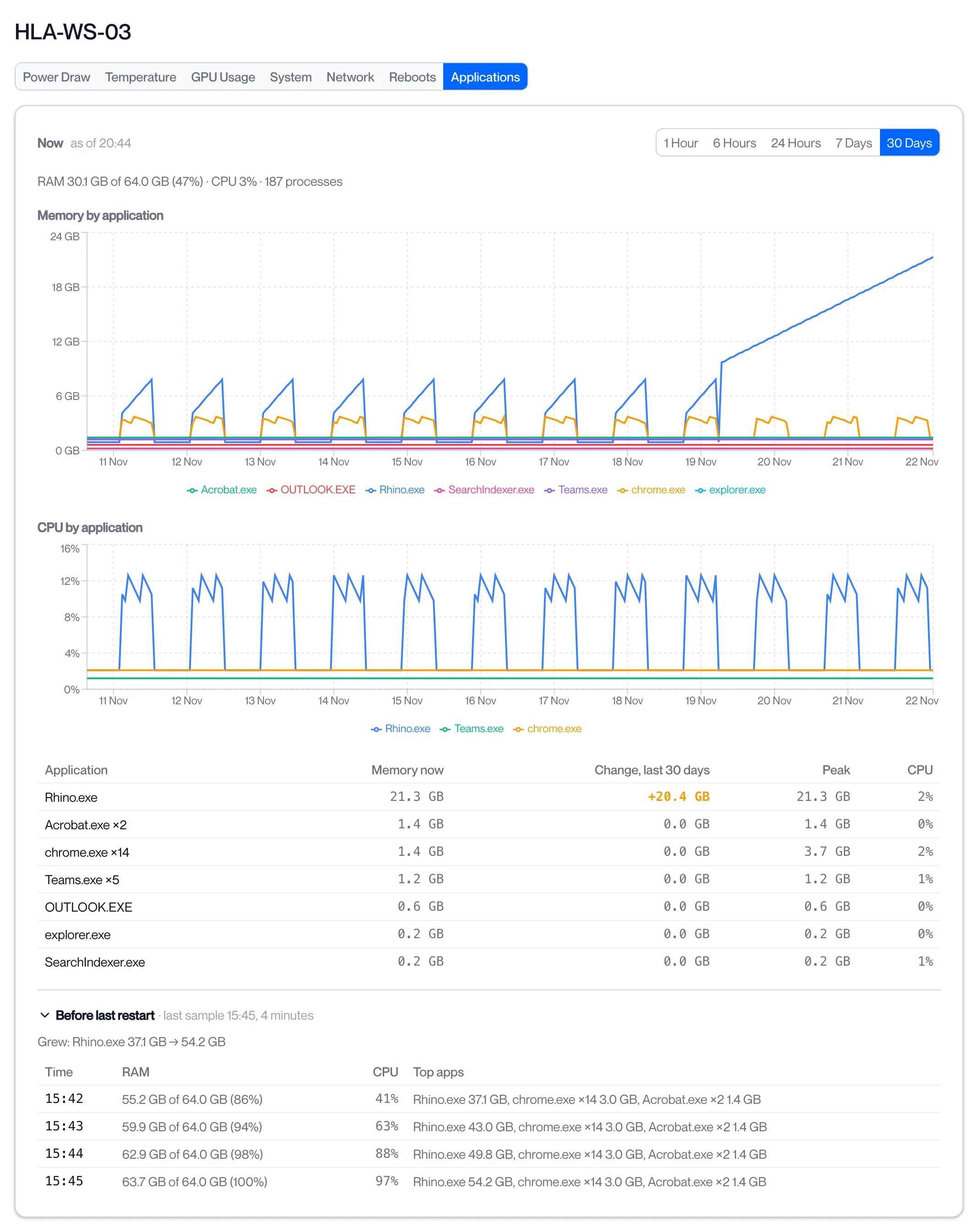
The Applications view needs the Tenant Admin role and the Computle Health Agent 2026.11.24 or later. A workstation with an older agent shows “No application data yet”.
Requirements
Section titled “Requirements”- The Computle Health Agent, version 2026.11.24 or later. Agents update themselves.
- Warnings appear in the signed-in user’s own desktop session, including sessions through Remotle. A workstation nobody is signed in to shows nothing.