Security
Alerts
An alert opens when a threat-detection rule matches activity on a workstation. Repeated matches increase the same alert’s count while it remains active.
Investigate an alert
Section titled “Investigate an alert”-
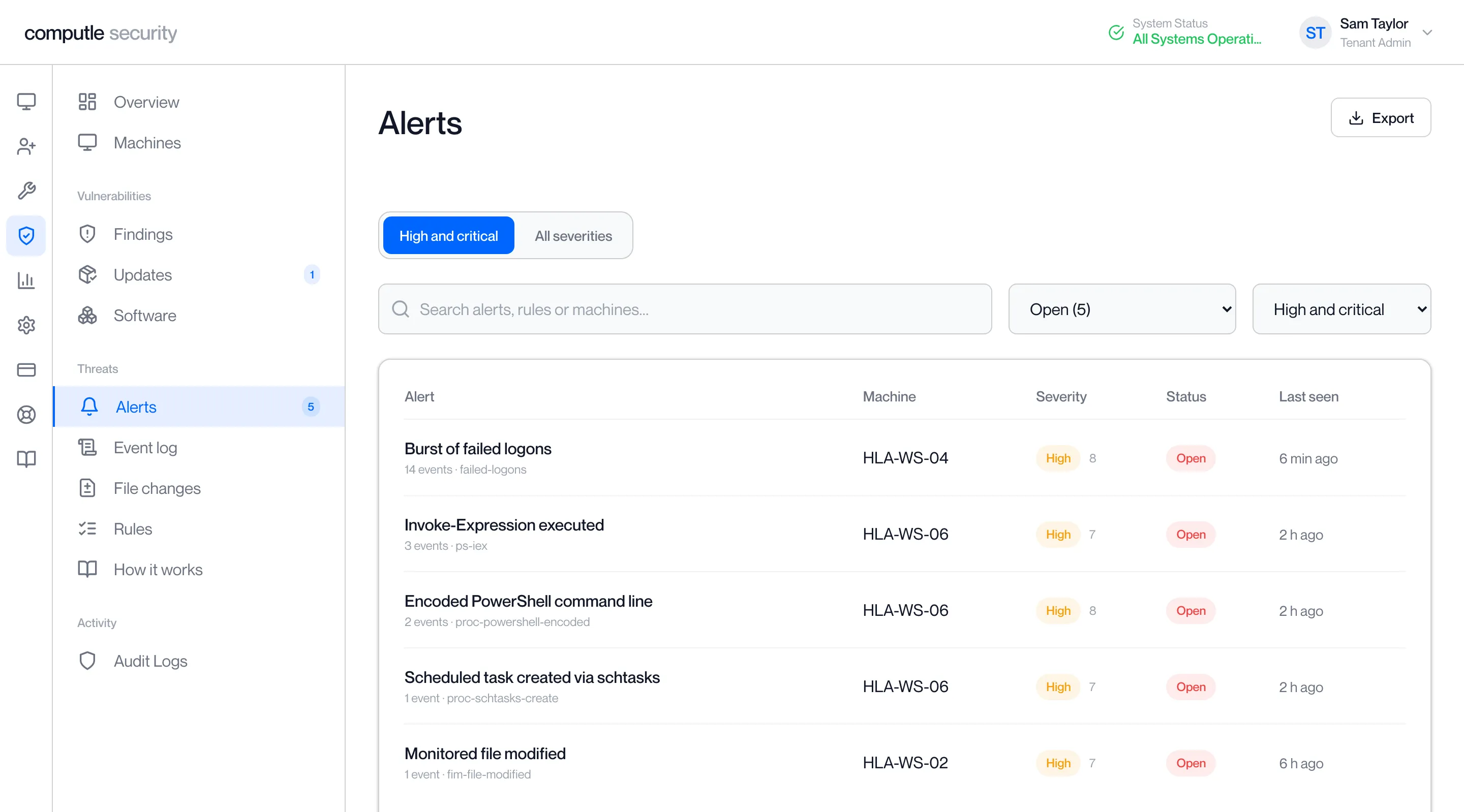
Open Alerts in the Security menu.
The default view shows Open alerts of High or Critical severity. Choose All severities to include Medium and Low. Filter by status or severity, or search for an alert, rule or machine. Export downloads the filtered list.
-
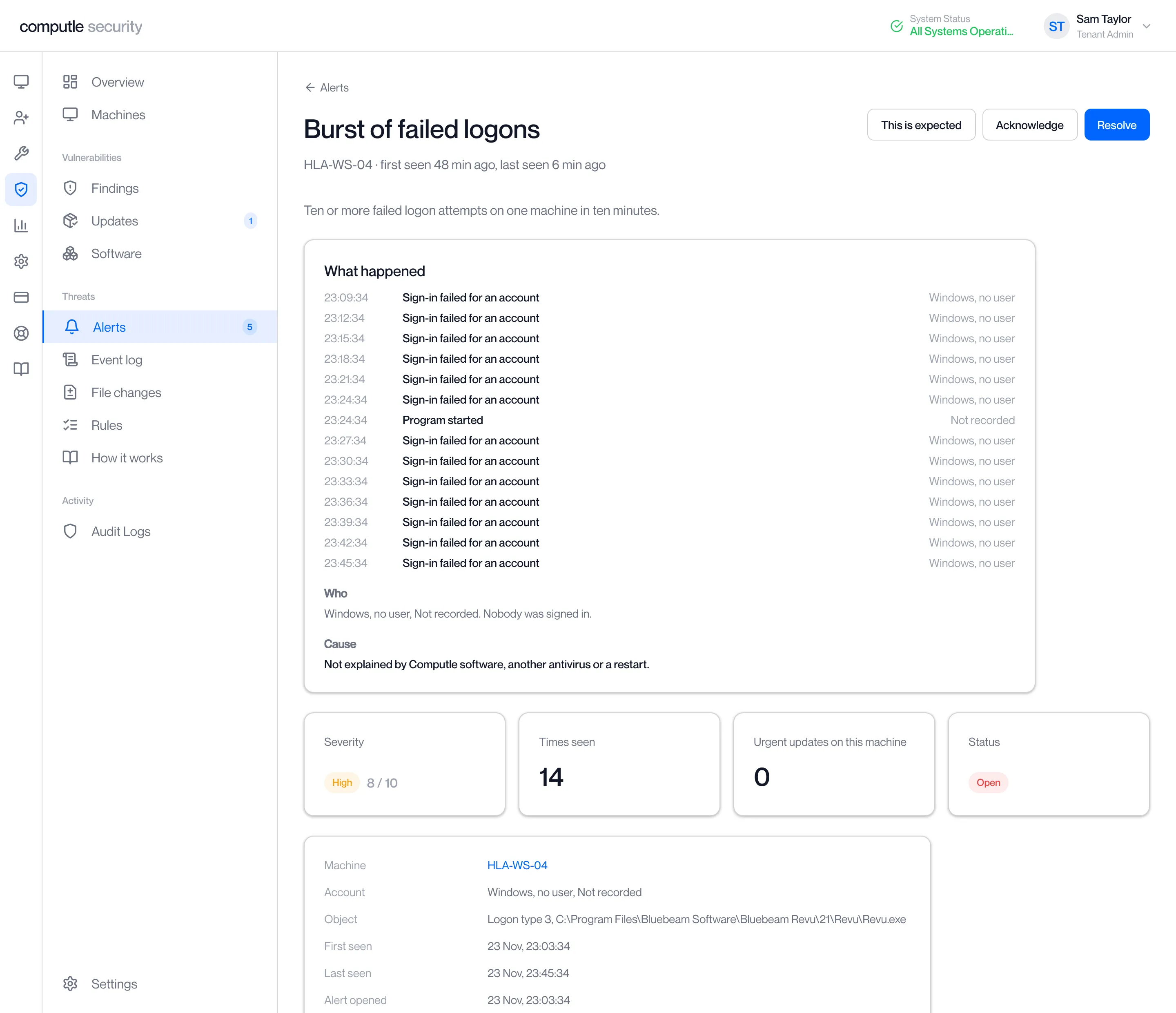
Select the alert and read its explanation.
Check the workstation, account, time and activity against what you expect. The page includes the rule’s severity, the times seen and the alert status. Select an event to inspect its recorded fields.
-
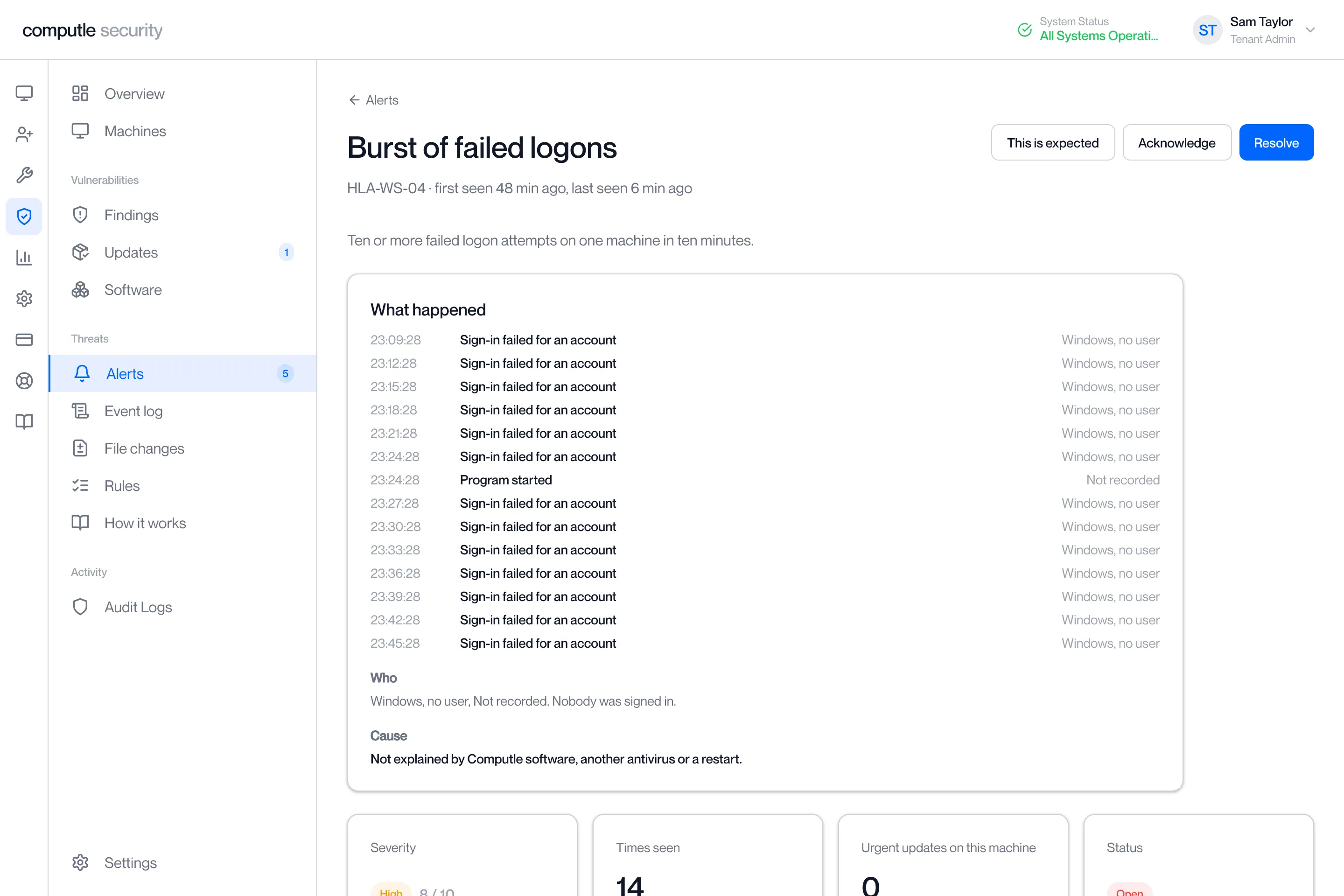
Open Rule to see what raised it.
Open in Rules takes you to the rule list.
-
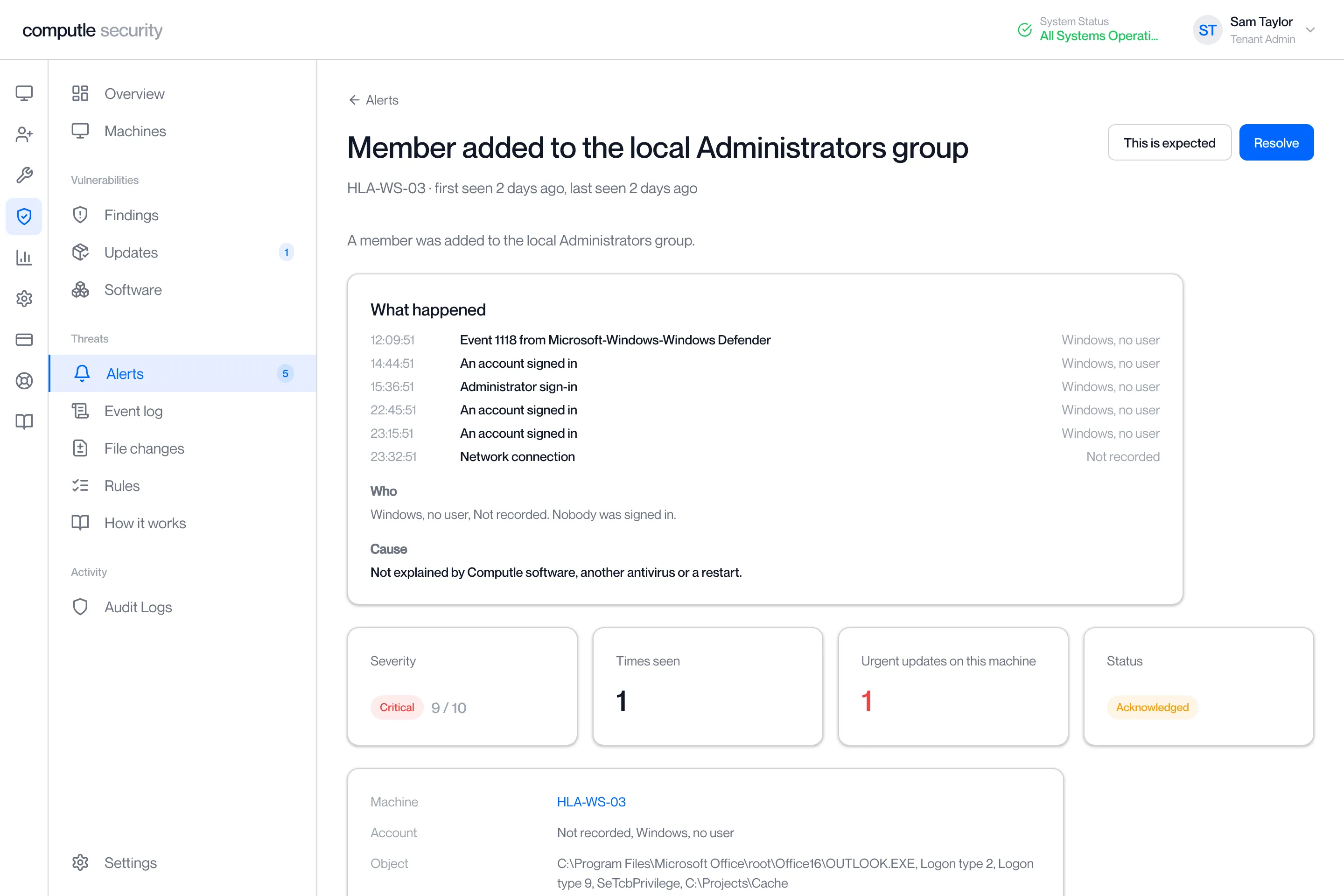
Select Acknowledge while you investigate, then Resolve when dealt with.
Acknowledge changes an Open alert to Acknowledged. Resolve closes it. Open History to see the recorded actions and who took them.
Expected activity
Section titled “Expected activity”For approved recurring activity, use This is expected where the button is available. This records the scope, reason and expiry of an exception. Review Rules to see existing exceptions or remove one.
To receive email or connected Microsoft Teams messages for alerts, configure Notifications.