Security
File changes
File changes lists files added, modified or deleted under the folders watched by your workstation security agents.
Review changes
Section titled “Review changes”-
Open File changes in the Security menu.
On Changes, search by file or machine. Each row shows the time, workstation, path, change type and reported file hash and size where available.
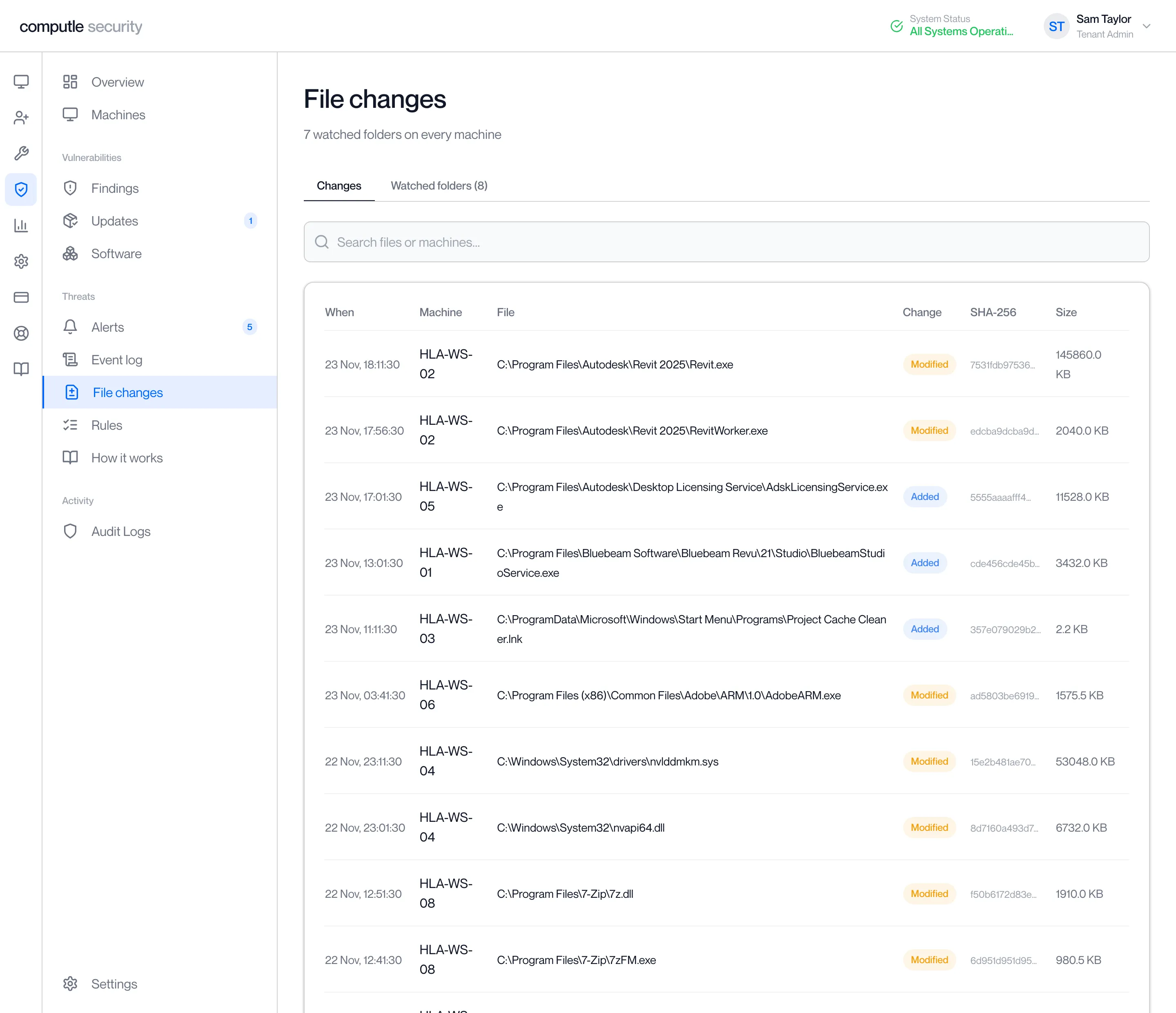
-
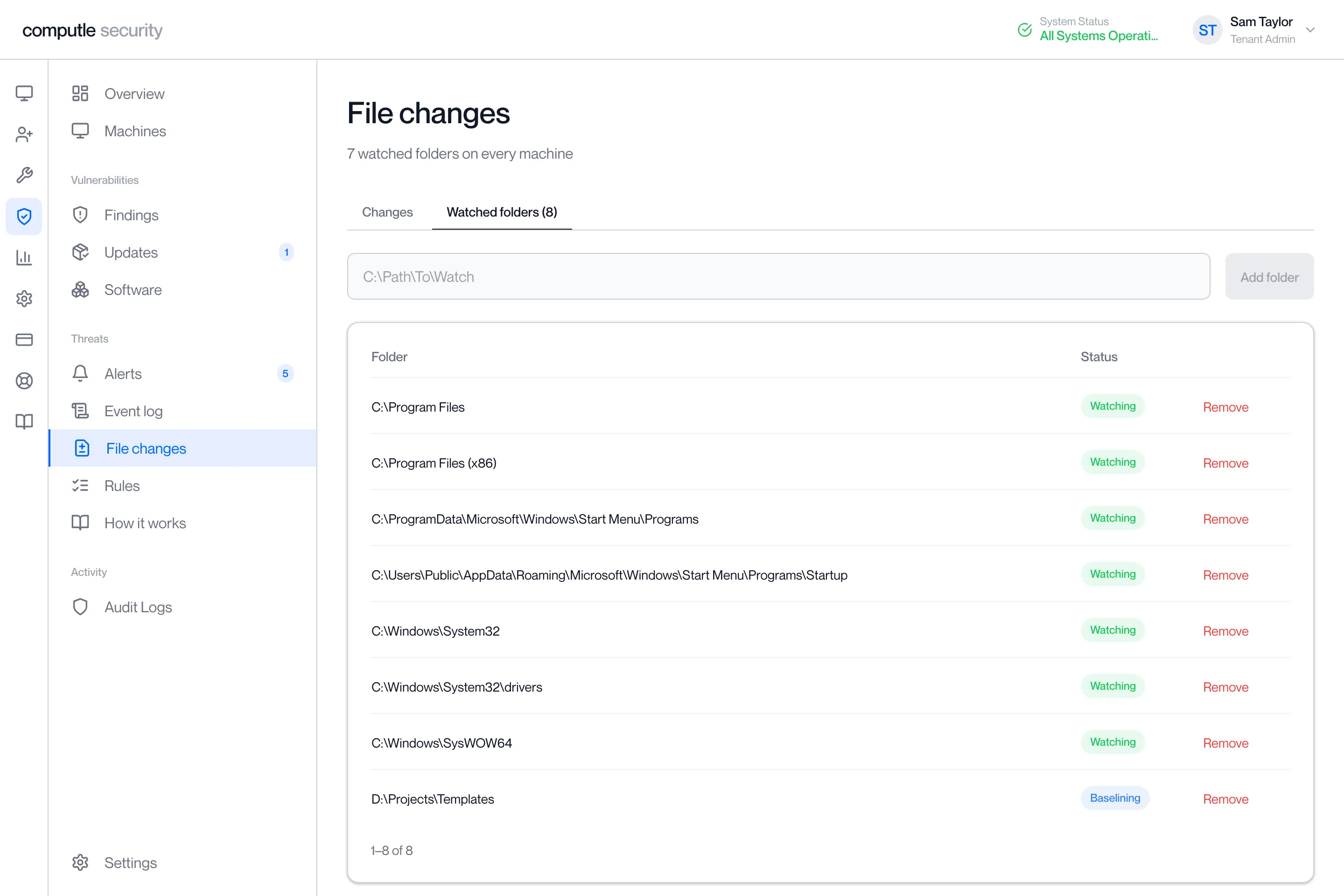
Open Watched folders to check the collection scope.
Watching means the folder is being monitored. Baselining means its initial inventory is being established.
Add or remove a watched folder
Section titled “Add or remove a watched folder”On Watched folders, enter the Windows folder path in Folder to watch and select Add folder. Select Remove beside a folder to remove it from the list. The list applies across the monitored machines.
For alerts caused by approved changes, see Expected behaviour. Trusted publishers controls which signed changes are logged without an alert.