Getting Started
Install apps on your workstation
Computle App Library is the window on your Windows workstation where you choose software offered by your organisation. Your workstation’s Computle agent downloads and installs the apps you choose.
Open Computle App Library
Section titled “Open Computle App Library”Connect to your workstation, then open the Windows Start menu and search for Computle App Library. You can also open its desktop shortcut.
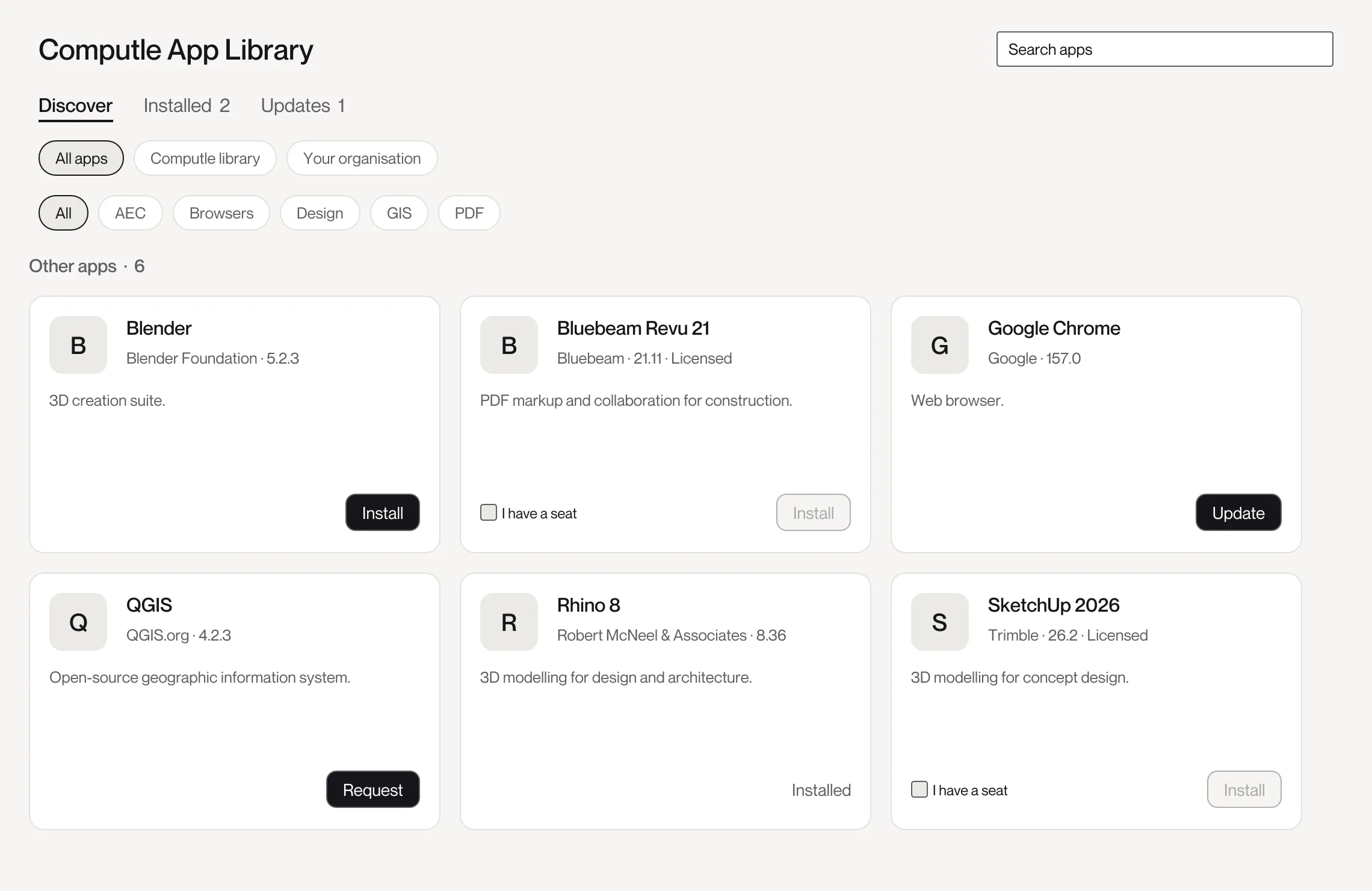
Use Discover to browse. Search by app name or vendor, or narrow the list with the category buttons. Computle library shows the shared software library; Your organisation shows your organisation’s own apps and collections. A collection installs a group of apps together.
If the shortcut is missing or the window says the library is turned off, ask your IT administrator to check whether App Library is available on your workstation.
Install an app
Section titled “Install an app”Select Install on the app’s card.
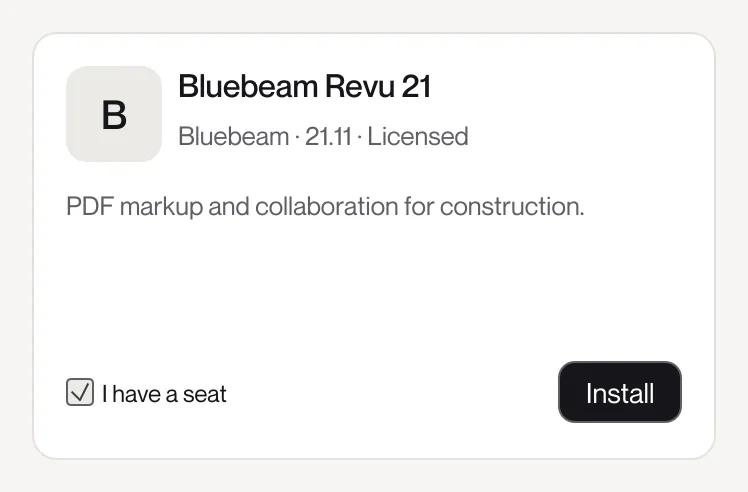
For a licensed app, first tick I have a seat when shown. This confirms that you have the required licence or your administrator has agreed one.
The agent handles the download and installation. Keep using your workstation while it runs. A progress card at the bottom right shows the download and installation status.
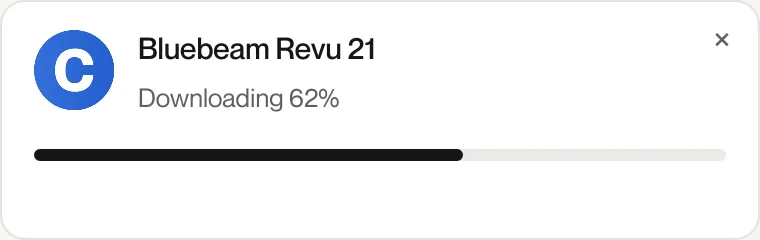
Closing the progress card dismisses the notification; the installation continues. When the app is installed, its card says Installed. Open the app from the Windows Start menu or its shortcut.
When an app needs approval
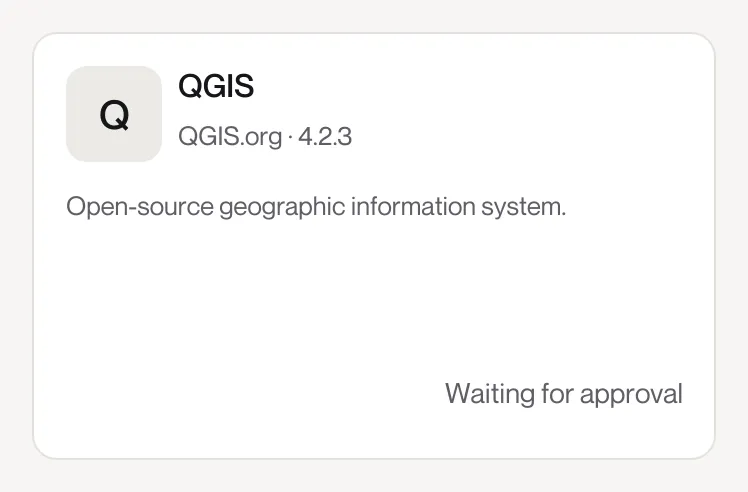
Section titled “When an app needs approval”Some cards have Request instead of Install. Select Request to ask your administrator to approve the installation. A licensed app can still ask you to confirm your licence first.
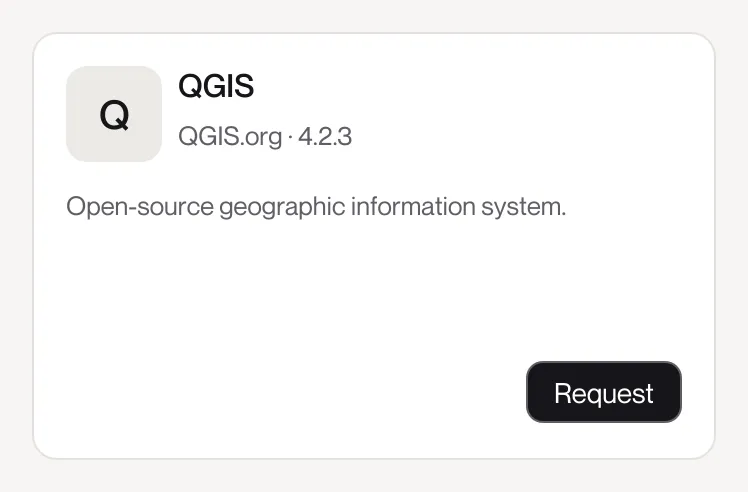
The card changes to Waiting for approval. Once approved, installation starts. If the request is declined, the card shows the result.
Find installed apps and updates
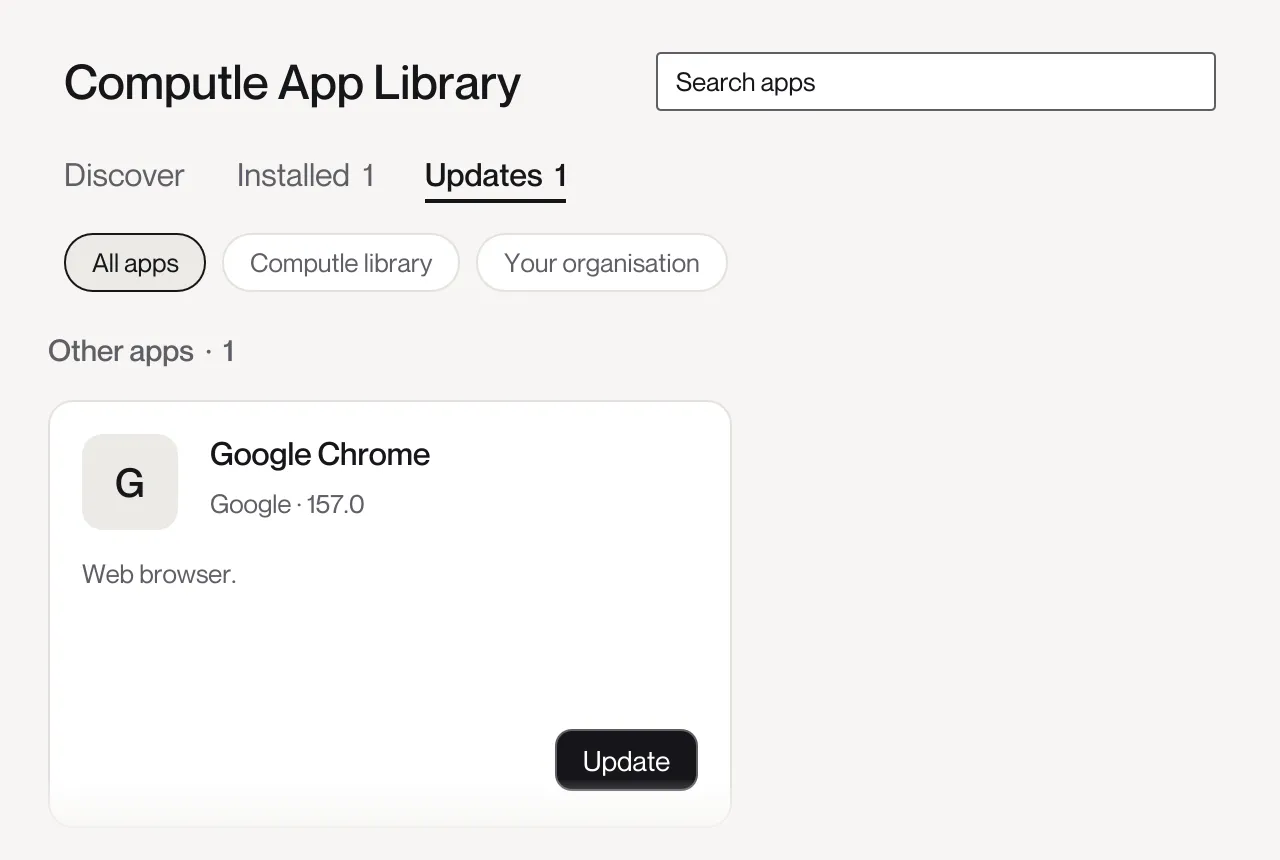
Section titled “Find installed apps and updates”Open Installed to see apps from the library that are installed on this workstation. Open Updates to see offered apps with an older version installed, then select Update on the app you want to update.
Remove an app
Section titled “Remove an app”On Installed, select Uninstall where it is available. The card asks you to confirm: select Uninstall again to remove the app, or Keep to leave it installed.
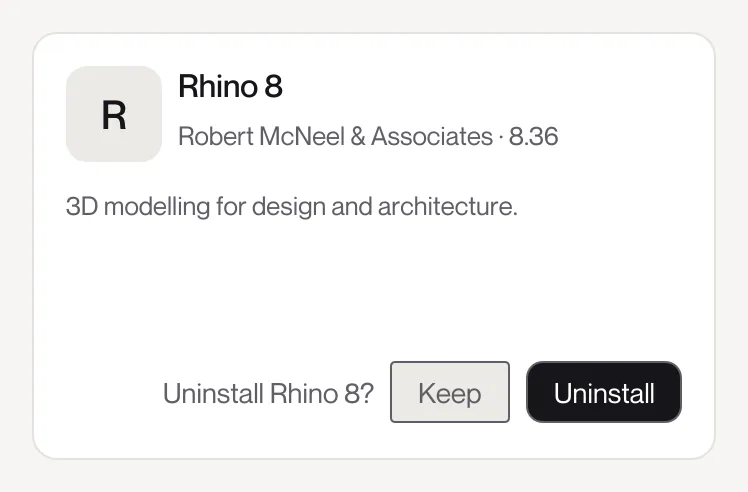
Uninstall is available for apps the library can remove. Ask your IT administrator about an app without that control.
If an installation needs attention
Section titled “If an installation needs attention”- Not enough free space: free space on your workstation’s system drive, then try again. Ask IT before deleting files you are unsure about.
- Try again: read the explanation on the card before retrying. If it fails again, send your IT administrator the app name and the message shown.
- Waiting for approval: your administrator needs to review the request.
- The App Library can’t reach Computle: try again shortly. If it continues, ask your IT administrator to check the workstation’s agent and connection.
For administrators, Let users install approved apps explains choosing the offered software and reviewing requests.