Deploy apps
Check your own installer before deploying
Use your own installer when the app is not in the Computle library, or your organisation needs a particular package. Open Manage → App deployment. You need the Tenant Admin role.
Upload the file
Section titled “Upload the file”Select Upload installer and choose an MSI, EXE or ZIP. The upload control shows its progress. When it finishes, the app opens and the portal says Uploaded and matched or Uploaded; check its settings.
A matched file has been recognised against a known app. An unmatched file needs its generated settings checked before you confirm it.
Review what will run
Section titled “Review what will run”Read Details before selecting Ready to deploy:
| Detail | Check |
|---|---|
| Installer | The type and arguments match the installation you intend to run. |
| Detection | The rule can identify the installed app, such as its MSI product code, program name/version or file version. |
| Uninstall | A removal rule exists if you need to uninstall through the portal. None means the portal cannot offer that action. |
| Restart | Whether a restart is always required, allowed when the installer asks, or never requested. |
| SHA-256 | The stored installer’s hash; the agent checks its download against this. |
| Source, size and version | This is the package you intended to upload. |
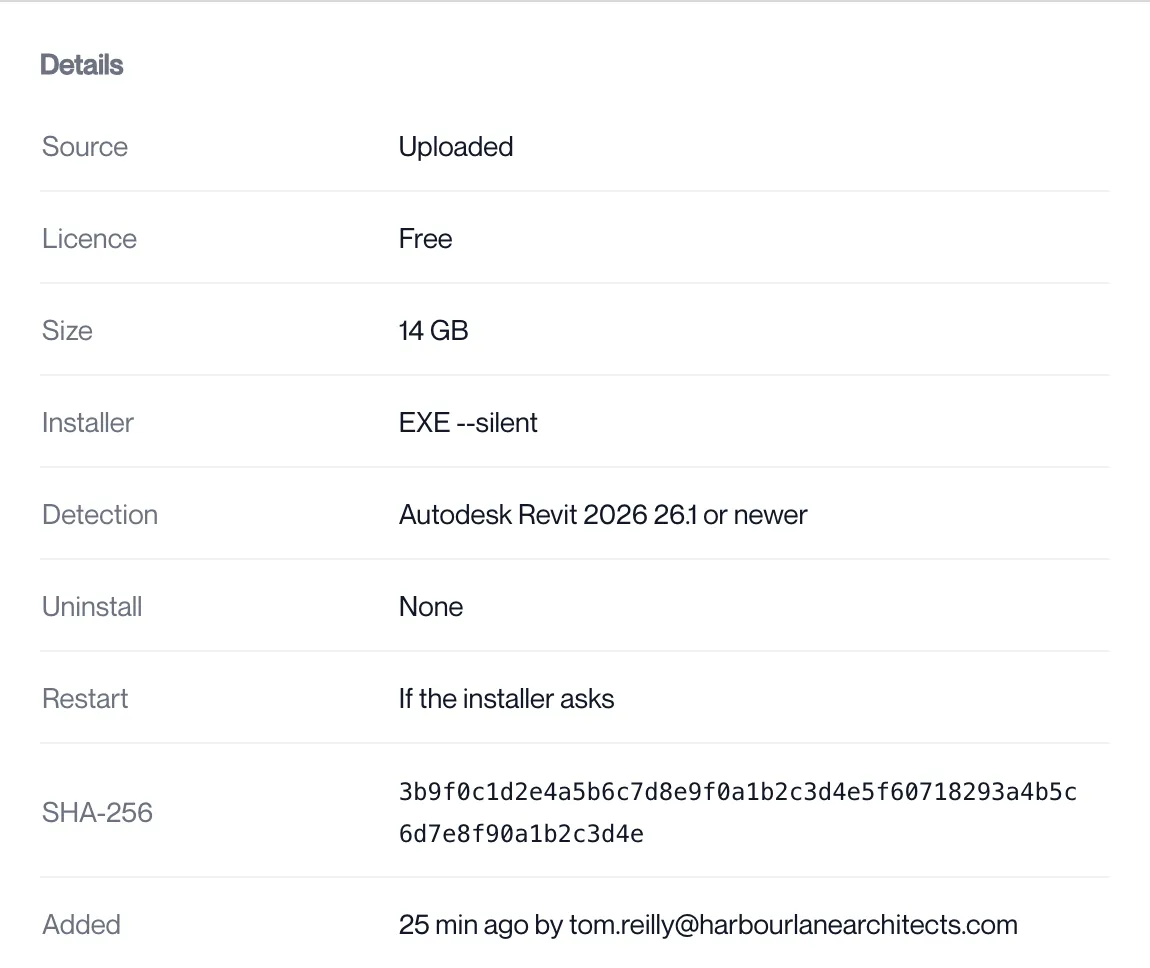
The panel displays the package’s settings. Checking them is separate from running the installer on a workstation.
Mark the app ready
Section titled “Mark the app ready”When you have checked the package, select Ready to deploy in Check before deploying. The portal shows App ready to deploy and makes the deployment controls available.

Continue with Install apps on your workstations. Start with the workstations you intend to use for checking the app, then follow the deployment results.
If the upload fails
Section titled “If the upload fails”Read the message before trying again. The upload did not reach the app store means the file was not stored; upload it again. That upload was already used requires a fresh upload. That file is larger than the upload limit needs a package within the service’s limit.