Security
Expected behaviour
Use This is expected after checking that the activity behind an alert is approved. The option is available on unresolved alerts whose rules allow exceptions.
Mark an alert expected
Section titled “Mark an alert expected”-
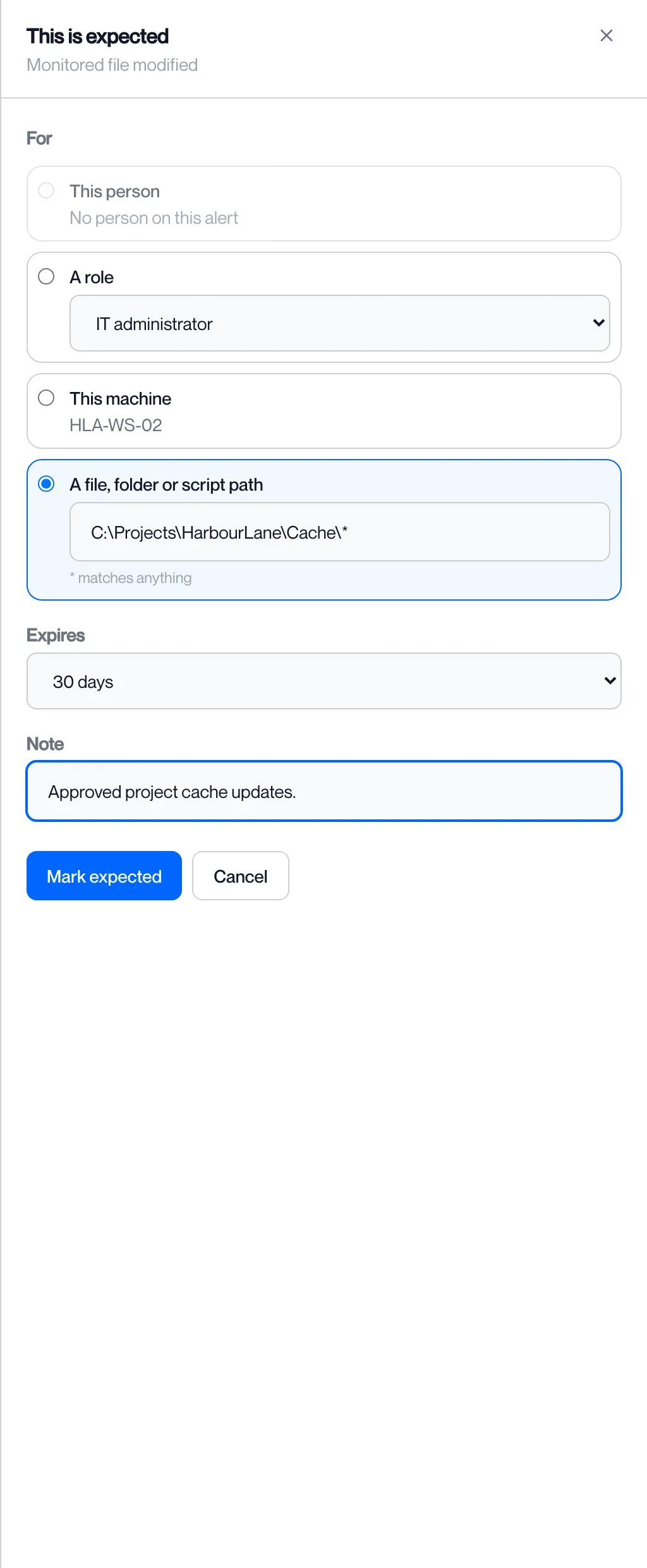
Open the alert and select This is expected.
Choose the scope that covers the approved activity: This person, A role, This machine, or A file, folder or script path. A person or role option can be unavailable when the required information has not been recorded.
-
Set an expiry and enter a note.
Choose 7 days, 30 days, 90 days or Never. For a path,
*matches anything. Use a path that covers the approved activity. The note must explain why the activity is expected and can contain up to 200 characters. -
Select Mark expected.
The portal records the exception and resolves the alert with your note.
Review or remove an exception
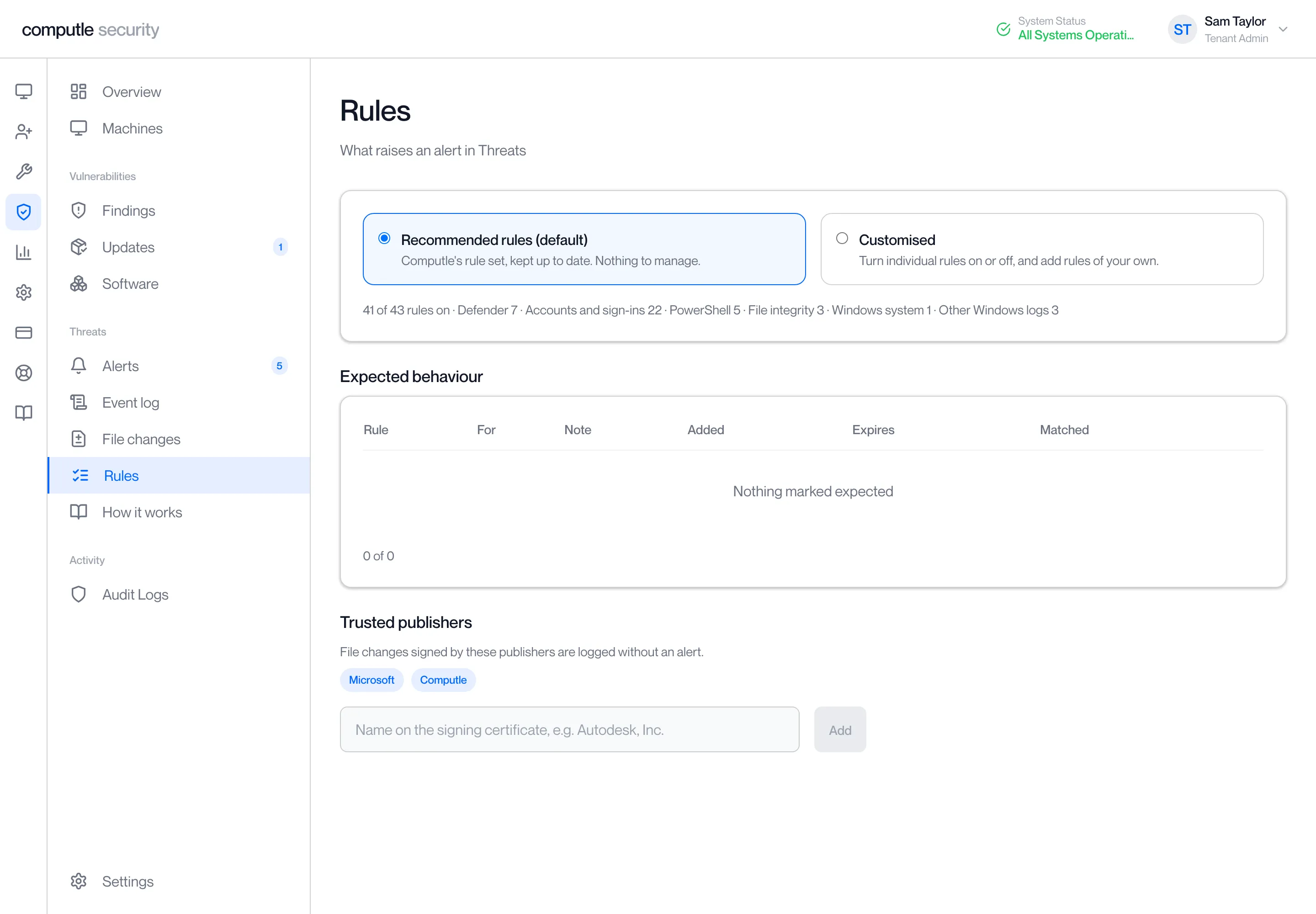
Section titled “Review or remove an exception”Open Rules and find Expected behaviour. The list shows the rule, scope, note, creation and expiry times, and how often the exception has matched. Select Remove on an exception to remove it.
Security roles let you group people when an exception should apply to a role.