Billing & Reports
Sign-in duration
Sign-in duration measures the time from Windows accepting a sign-in to a usable desktop. It uses the workstation timings available for your organisation.
Find slow sign-ins
Section titled “Find slow sign-ins”-
Open Monitoring in the portal rail, then select Sign-in duration.
Choose a Period. The summary shows the median, 90th percentile, slowest sign-in and slow stage. People groups the records by person.
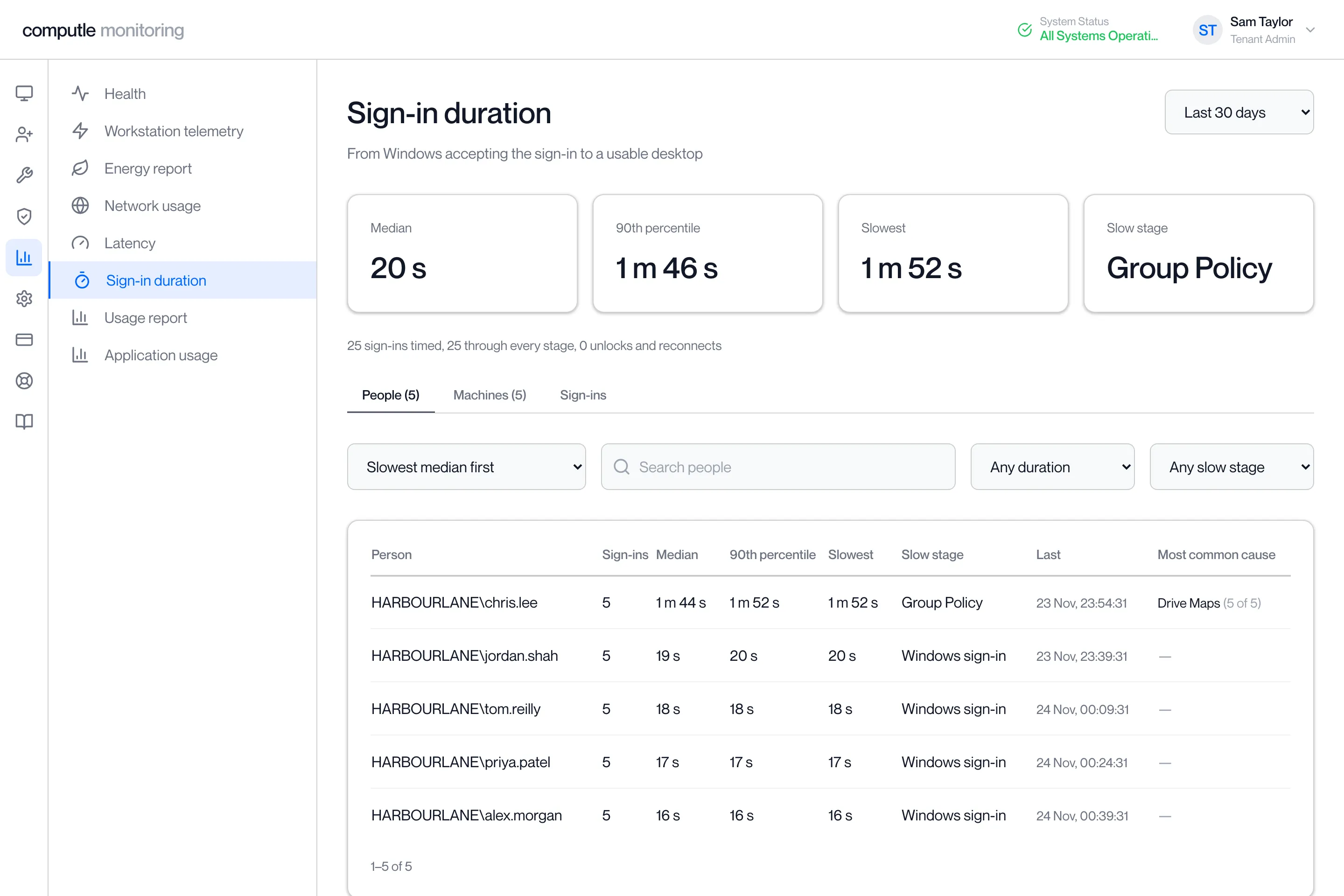
-
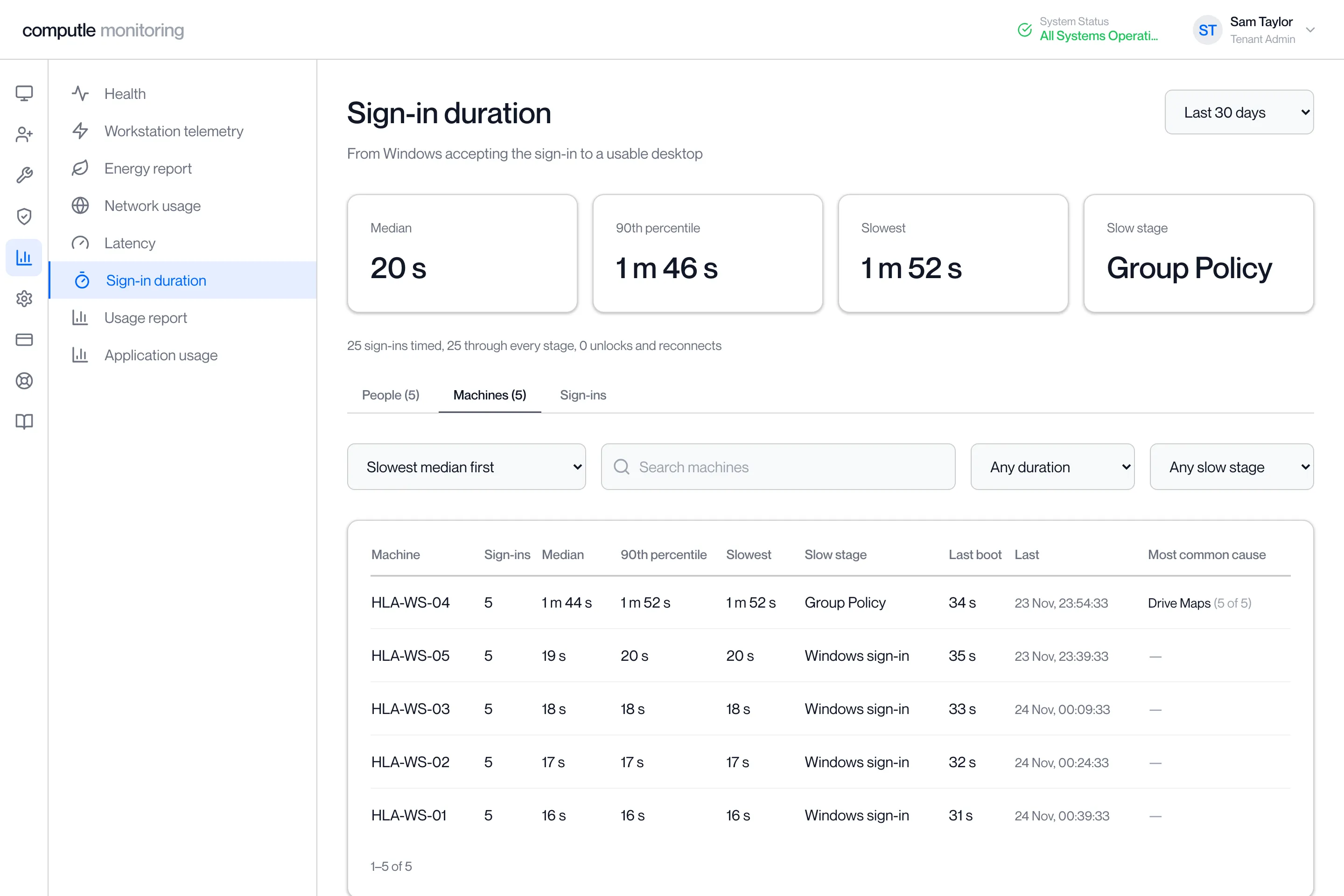
Select Machines to compare workstations.
Use Order to change the sorting. Slower than filters by duration, and Slow stage narrows the list to one stage. The machine list also shows the last boot where a record is available.
-
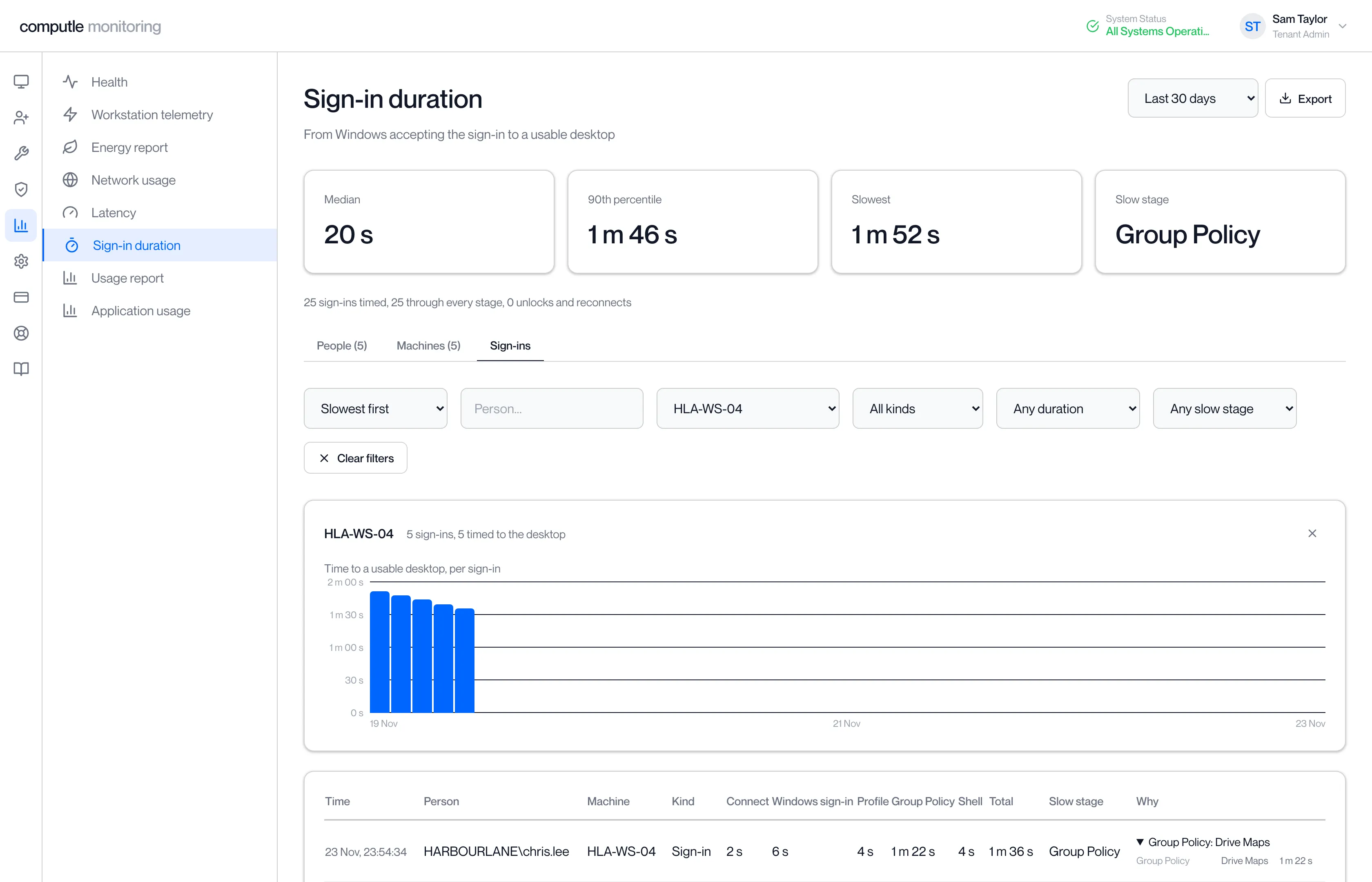
Select a person or machine to open its sign-ins.
The history chart shows recorded time to the desktop. Hover over a bar to read its time. The table separates Connection, Windows sign-in, Profile, Group Policy and Shell where those timings are available.
-
Expand Why where an explanation is available.
Read the recorded evidence and its duration. A dash means an explanation or timing was not recorded. Select Export on the Sign-ins view to download the filtered timing rows.
Read the measurements
Section titled “Read the measurements”| Measurement | Meaning |
|---|---|
| Median | The middle recorded duration. |
| 90th percentile | A duration at or below which about 90% of the recorded timings fall. |
| Slowest | The longest recorded duration in the selected group. |
| Slow stage | The stage identified in the recorded timing data. |
Use Sign-ins to find successful or failed sign-in activity. Connection quality during a session is shown under Latency.