Security
Rules
Rules describes the activity that raises threat alerts. Open Rules in the Security menu.
Recommended rules
Section titled “Recommended rules”Recommended rules (default) uses Computle’s maintained rule set. The summary shows how many rules are on and their categories.
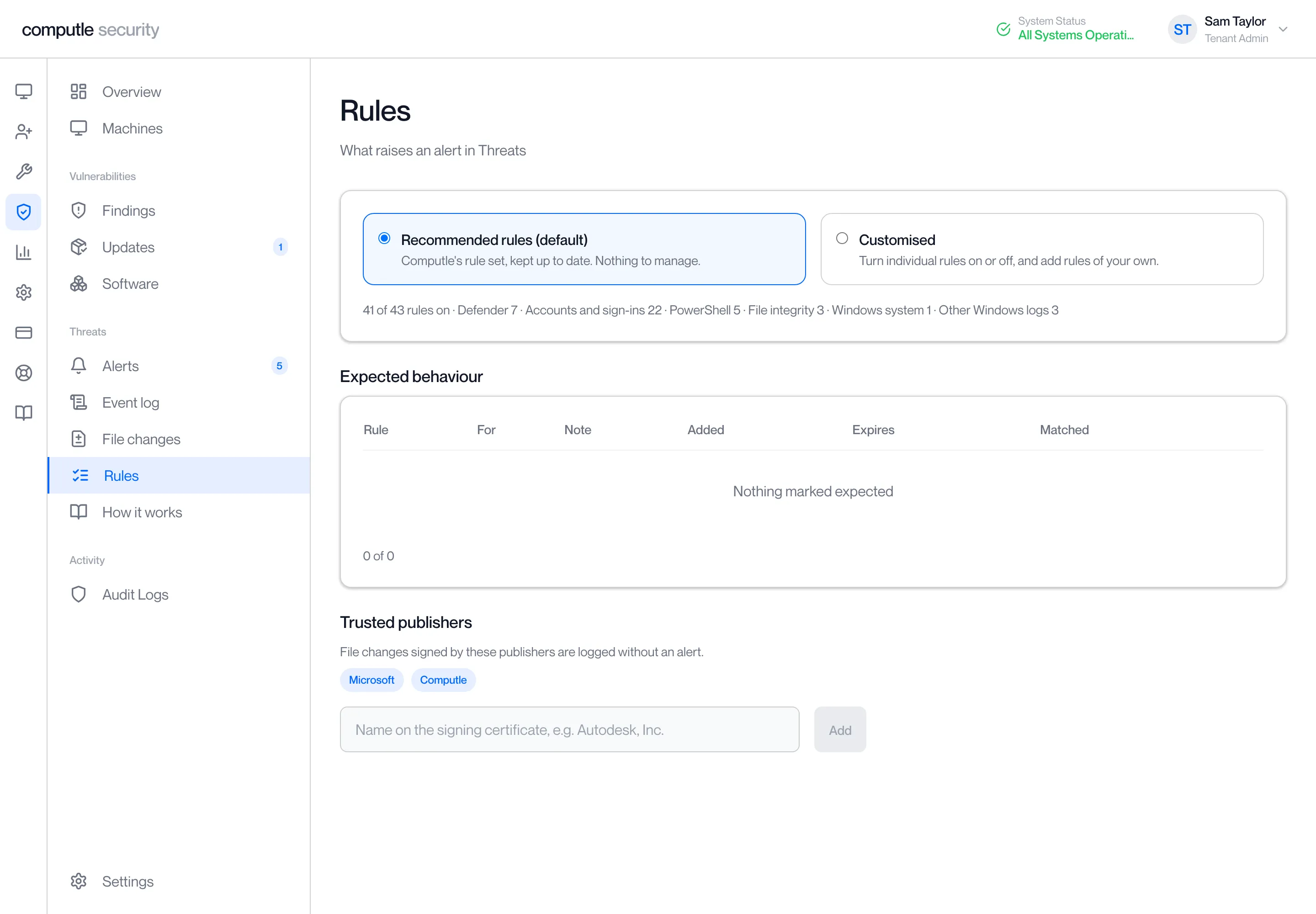
Expected behaviour lists exceptions recorded from alerts. See Expected behaviour to add or remove an exception.
Customise rules
Section titled “Customise rules”-
Select Customised.
Search by rule or MITRE ID, or filter by category or severity. Expand a category to inspect its rules.
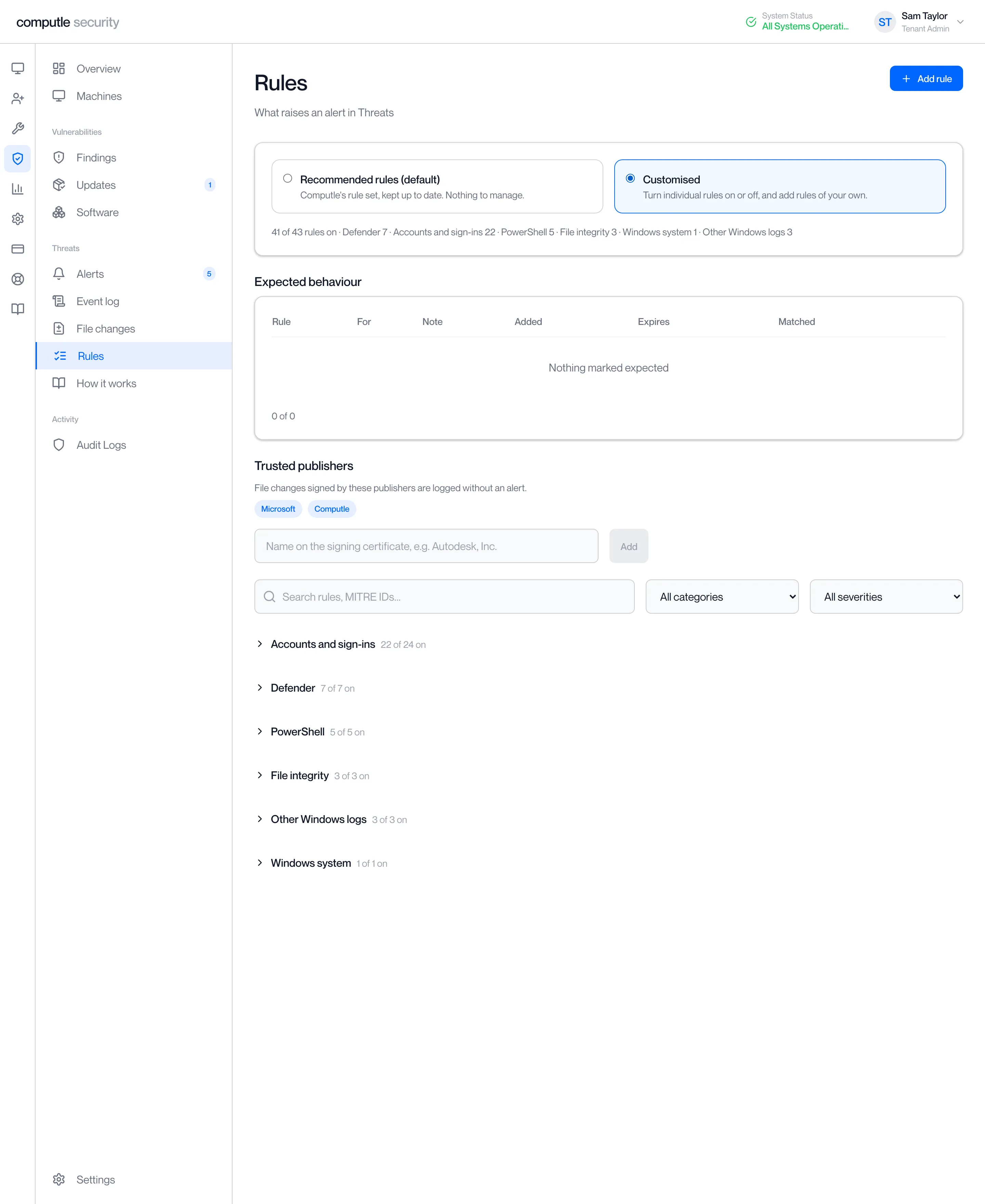
-
Change the relevant rule.
On switches the rule on or off. First time only is available for rules that allow it. Protected rules show Always alerts in that column.
-
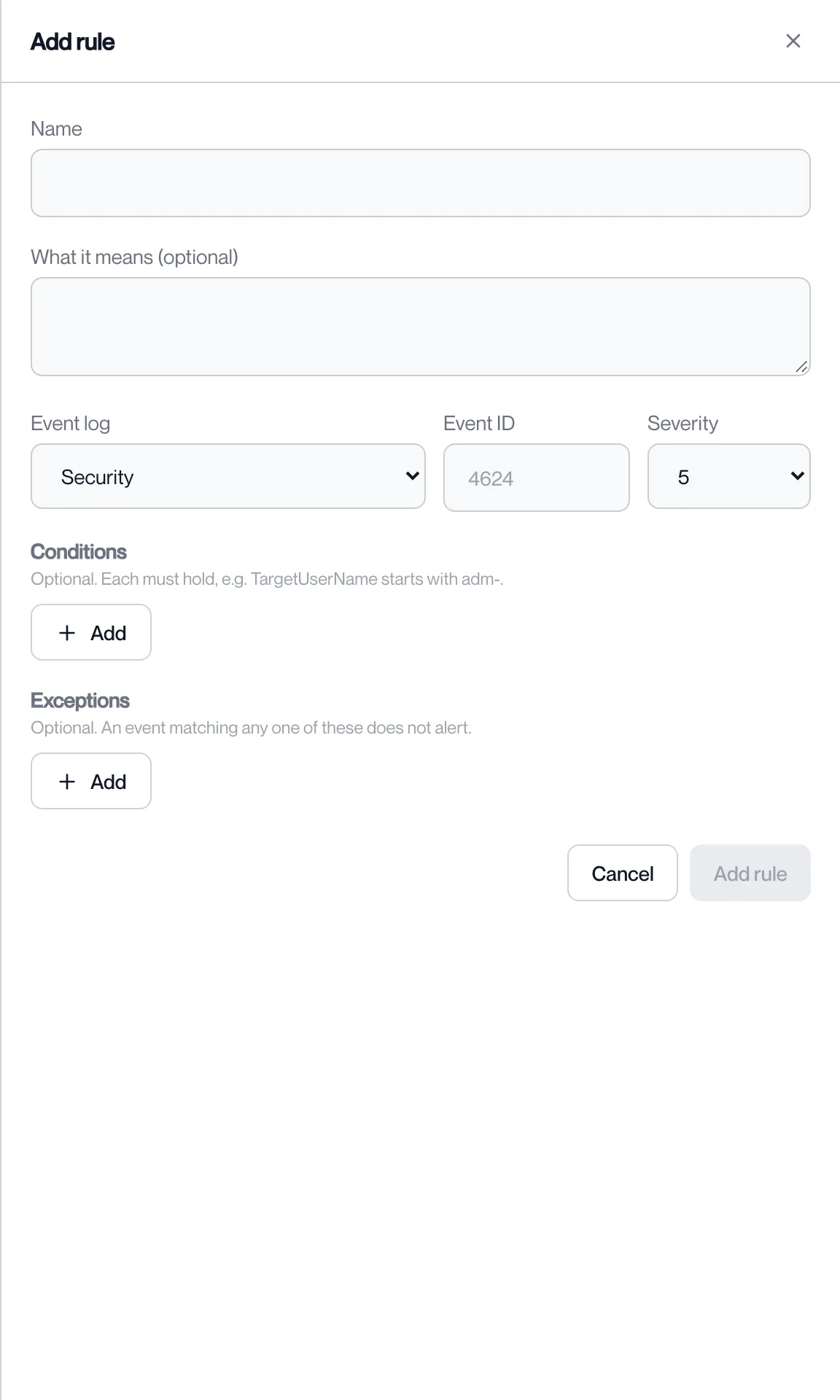
Use Add rule to create an organisation-specific rule.
Complete the rule form and select Add rule. Organisation-specific rules have Edit and Delete controls in the list.
Return to the recommended set
Section titled “Return to the recommended set”Select Recommended rules (default), then read the confirmation and select Use recommended rules. Supplied rules return to their shipped settings. Rules you created are turned off and kept in the list.
Trusted publishers
Section titled “Trusted publishers”File changes signed by a trusted publisher are logged without a file alert. Microsoft and Computle are built-in entries.
In Trusted publishers, enter the name on the publisher’s signing certificate and select Add. Use the remove control beside an organisation-added publisher to remove it. Built-in entries have no remove control.