Security
Machines
Open Machines in the Security menu to check workstations with security agents.
Find a workstation
Section titled “Find a workstation”-
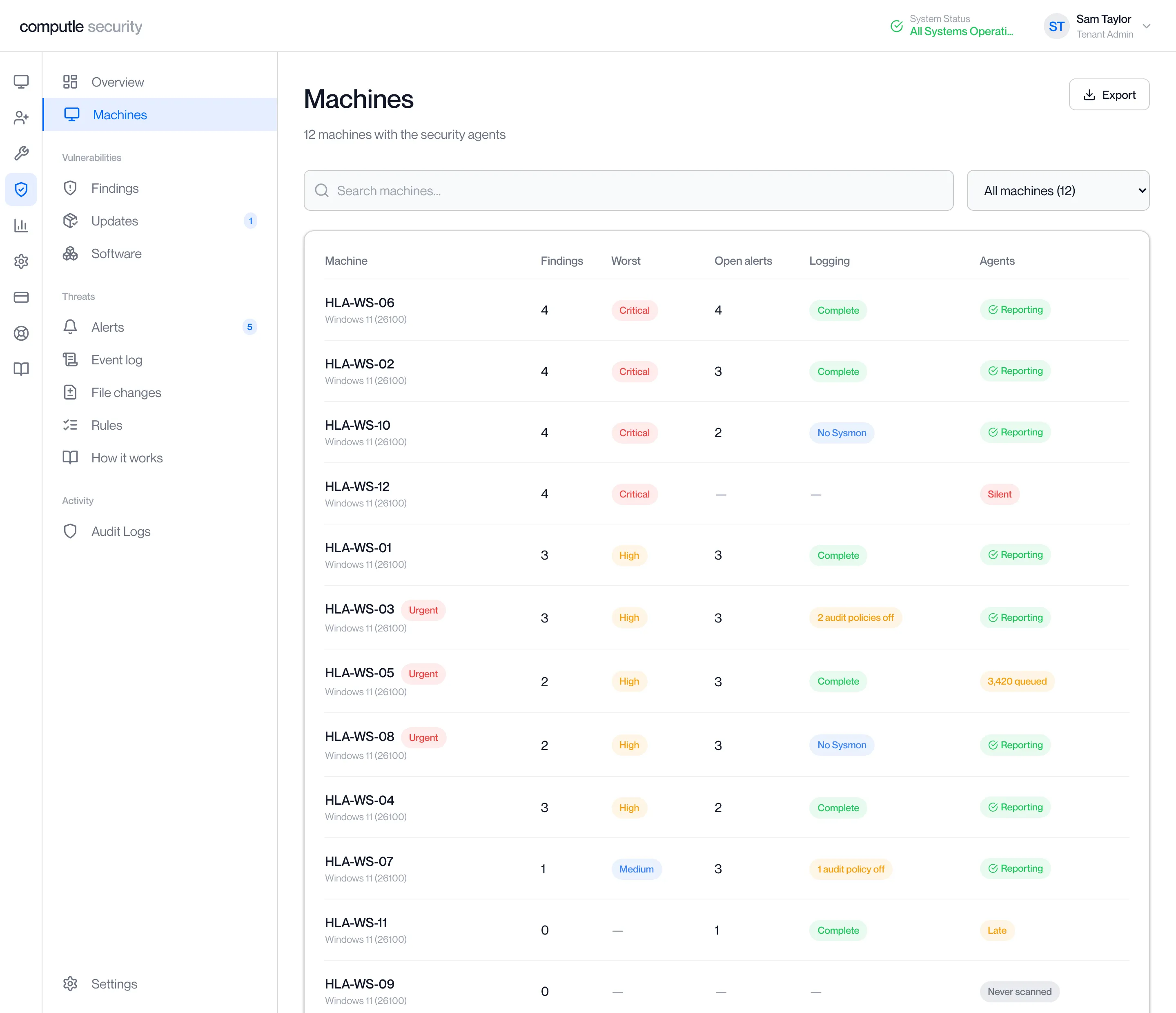
Search for the machine or choose a filter.
The available filters include Critical update, Open alerts, Logging gaps, Events queued and Not reporting. Filters depend on your enabled modules. Select Export to download the filtered list.
-
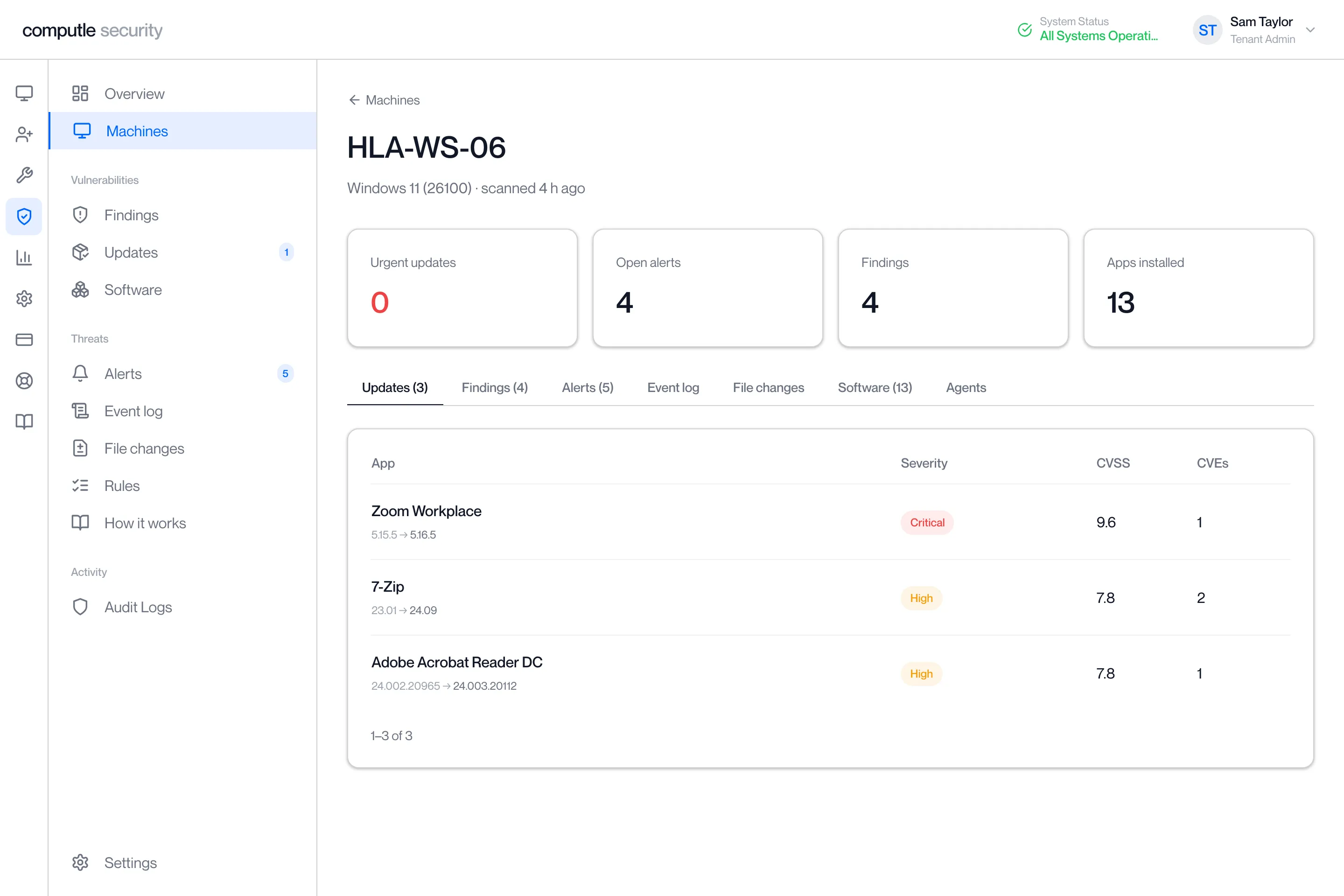
Select a machine.
The Updates tab lists the software that needs attention on that workstation. Select an update to see its affected machines and CVEs.
-
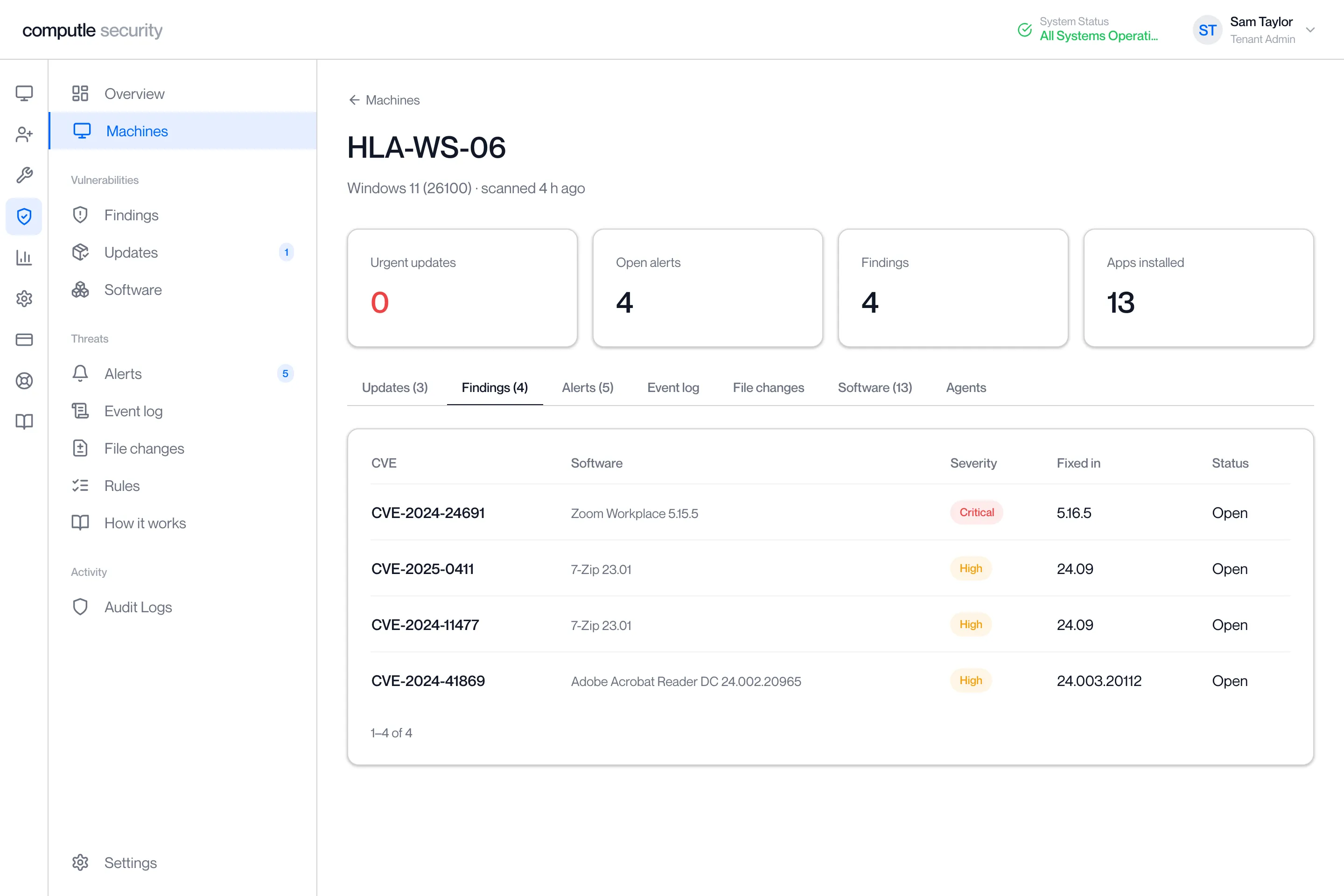
Open Findings to see individual vulnerabilities.
Each row shows the CVE, affected software, severity and fixed version where one is known.
-
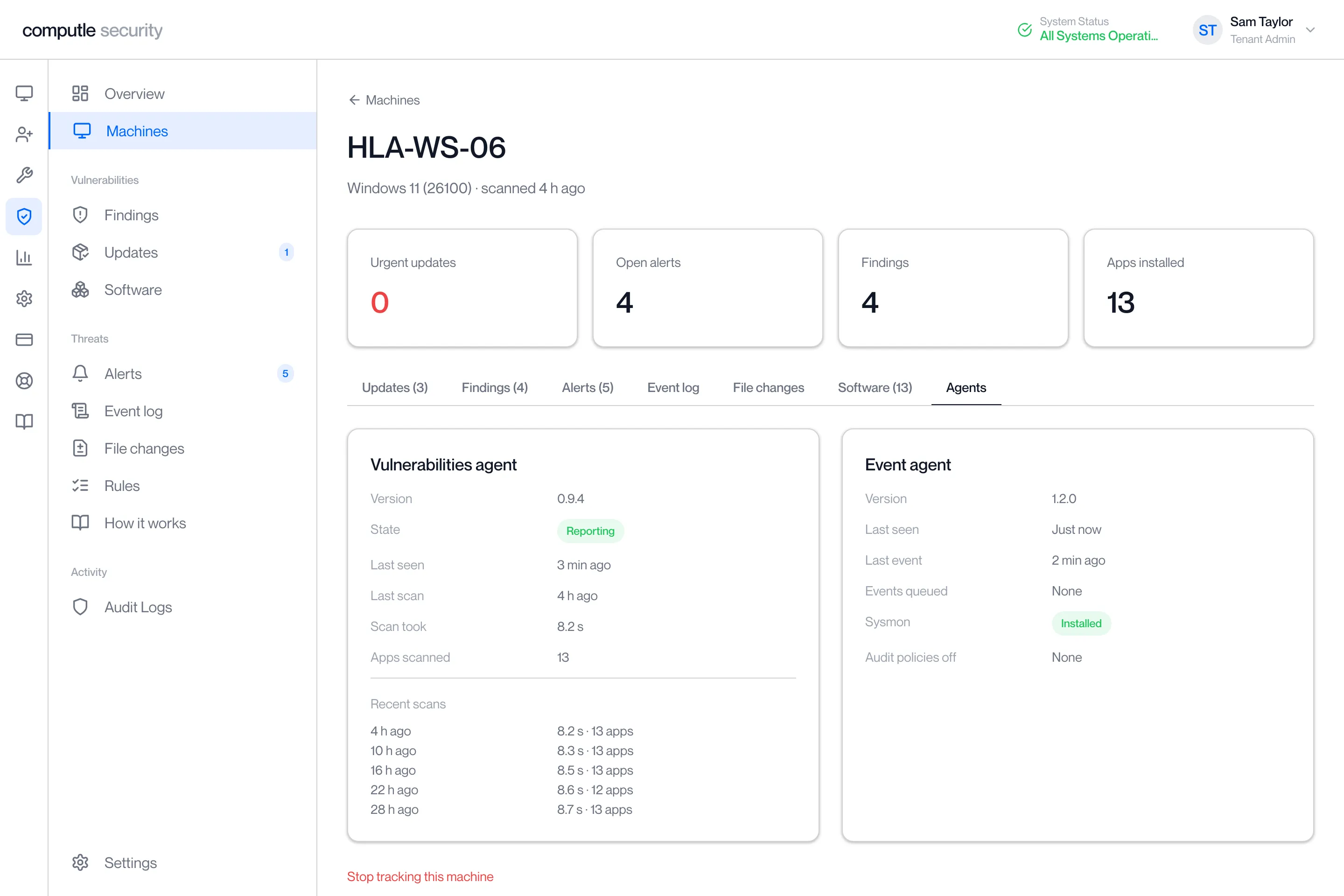
Open Agents when reporting needs attention.
Check the last-seen time, scan information, queued events and missing logging policies shown for each agent.
Other machine views
Section titled “Other machine views”| Tab | Shows |
|---|---|
| Alerts | Threat alerts for this machine. |
| Event log | Its recent collected Windows events. |
| File changes | Changes reported under watched folders. |
| Software | Installed apps reported by the vulnerability agent. |
These tabs appear when the relevant module and agent are present. See Alerts, Event log and File changes for the corresponding views across your organisation.
Stop tracking a machine
Section titled “Stop tracking a machine”On Agents, select Stop tracking this machine only when you intend to remove it from the Security inventory. Read the confirmation before continuing. Workstation assignment and power controls are on the Workstations page.