Using the App
Relative Mouse for 3D Apps
Relative mouse lets you keep turning a 3D view after your mouse would normally reach the edge of the screen. It is useful for orbiting, looking around and other controls where the remote app hides its pointer.
Available in beta 2026-11-24-1251 for Windows, Mac and Linux clients. The workstation host also needs a version that supports relative mouse.
Watch: Use relative mouse in 3D apps
Section titled “Watch: Use relative mouse in 3D apps”1:00 · 4K video with English captions.
Turn it on
Section titled “Turn it on”-
Connect to your workstation and press F2.
The session menu opens. Select Local.
-
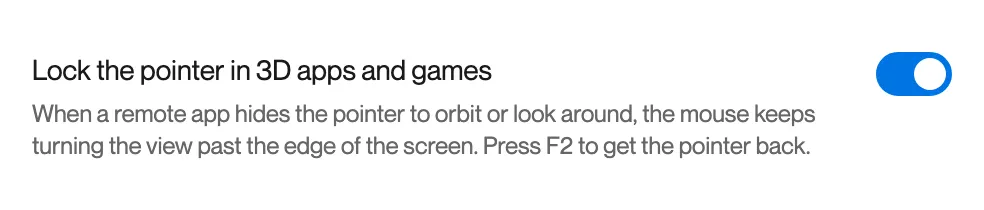
Find Lock the pointer in 3D apps and games.
Leave it On, which is the default. This choice is saved on the device you are connecting from.
-
Close the menu and use your app’s orbit or look-around control.
Click inside the remote app and use its usual mouse controls. When the app hides its pointer, Remotle locks the local pointer and sends the mouse movement to the app. You can keep turning the view beyond the screen edge.
Get the pointer back
Section titled “Get the pointer back”Press F2. Remotle releases the pointer and opens the session menu so you can use its controls.
Close the menu and resume the app’s orbit or look-around control when you want to continue. The pointer is also released when the session loses focus or disconnects.
To stop using relative mouse, switch Lock the pointer in 3D apps and games off under Local.
If it does not engage
Section titled “If it does not engage”- Check that the setting is On on the device you are using.
- Check that both the app and the workstation host support relative mouse. An older host keeps the previous mouse behaviour.
- Click inside the remote view and use an app control that hides its pointer. Ordinary desktop pointing does not activate pointer lock.