# Computle Client: Get Started

1. **Download Computle Client and follow the installation steps.**

<table data-card-size="large" data-column-title-hidden data-view="cards"><thead><tr><th></th><th data-hidden data-card-target data-type="content-ref"></th><th data-hidden data-card-cover data-type="image">Cover image</th></tr></thead><tbody><tr><td></td><td><a href="https://softwaredownloads.oncomputle.com/ComputleClientV3_Setup_3.1.0.2.exe">https://softwaredownloads.oncomputle.com/ComputleClientV3_Setup_3.1.0.2.exe</a></td><td><a href="https://590139285-files.gitbook.io/~/files/v0/b/gitbook-x-prod.appspot.com/o/spaces%2FVtJhup5nG3tHLCSRWhhh%2Fuploads%2Fgit-blob-4f0e179637632f4fc7cdc15e4295017621f194d0%2FWindows.png?alt=media">Windows.png</a></td></tr><tr><td></td><td><a href="https://softwaredownloads.oncomputle.com/ComputleClient-3.1.0-Universal.pkg">https://softwaredownloads.oncomputle.com/ComputleClient-3.1.0-Universal.pkg</a></td><td><a href="https://590139285-files.gitbook.io/~/files/v0/b/gitbook-x-prod.appspot.com/o/spaces%2FVtJhup5nG3tHLCSRWhhh%2Fuploads%2Fgit-blob-fdc0e8f282a88c31fbb417aba5da634162f84030%2FMacOS.png?alt=media">MacOS.png</a></td></tr></tbody></table>

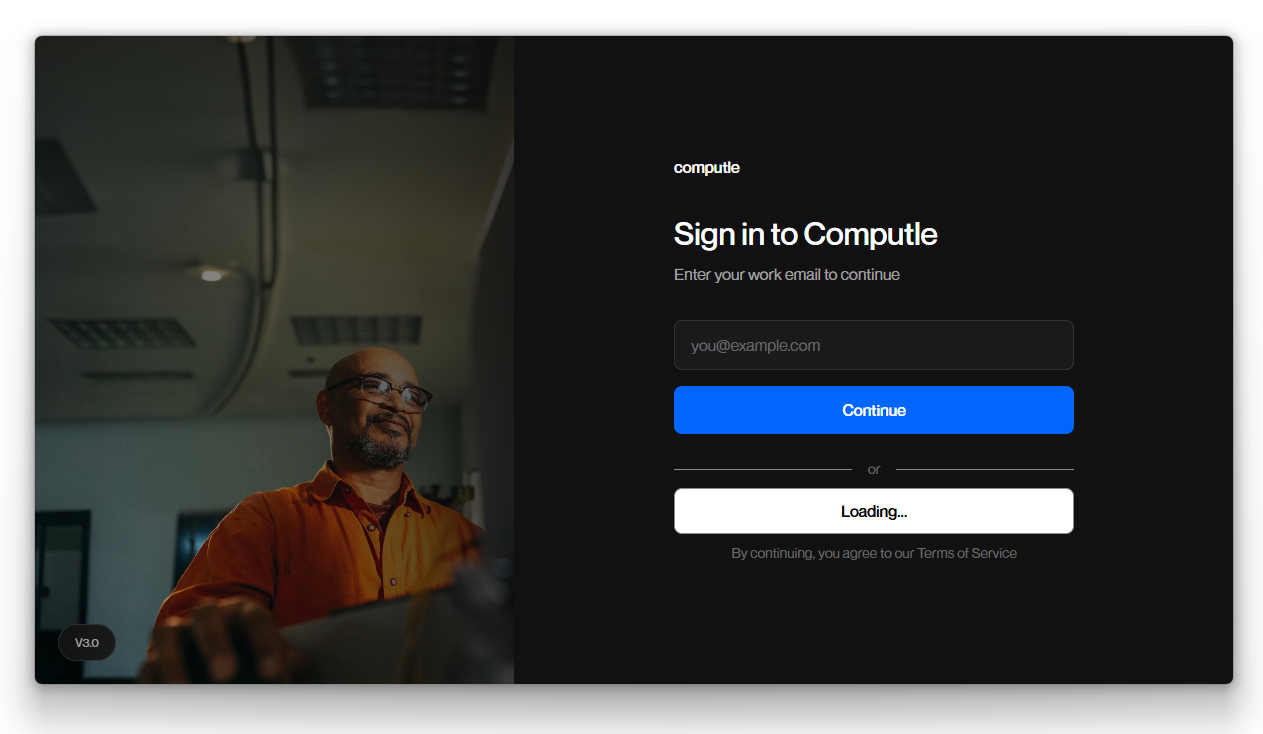
2. **Click Login with Microsoft**

<figure><img src="https://590139285-files.gitbook.io/~/files/v0/b/gitbook-x-prod.appspot.com/o/spaces%2FVtJhup5nG3tHLCSRWhhh%2Fuploads%2Fgit-blob-b51b8c0bde2d53c70fa2d022d8ad2c51280d8b8f%2Fimage%20(44).png?alt=media" alt=""><figcaption></figcaption></figure>

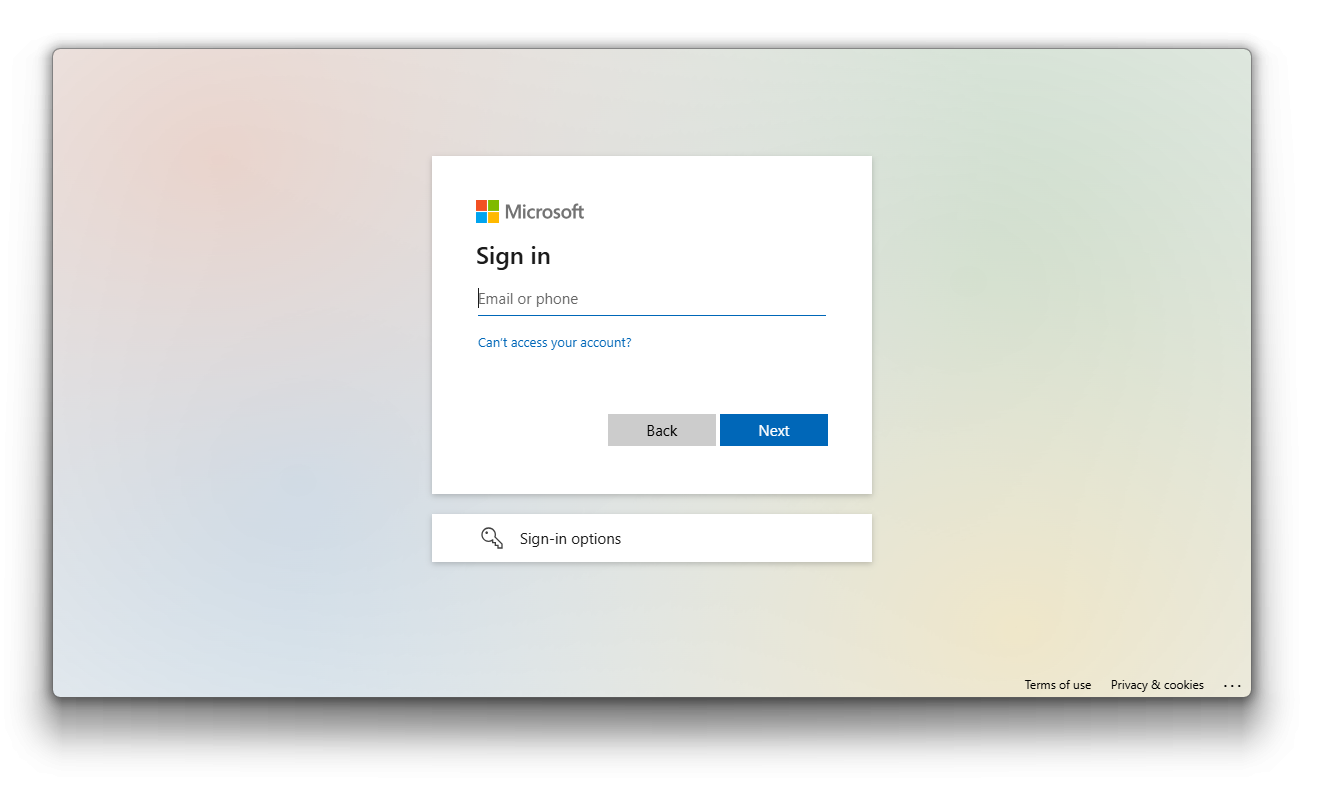
3. **Enter your work email.**

<figure><img src="https://590139285-files.gitbook.io/~/files/v0/b/gitbook-x-prod.appspot.com/o/spaces%2FVtJhup5nG3tHLCSRWhhh%2Fuploads%2Fgit-blob-60f2d5ea54fee34f232d81d3e49cacb70979a583%2Fimage.png?alt=media" alt=""><figcaption></figcaption></figure>

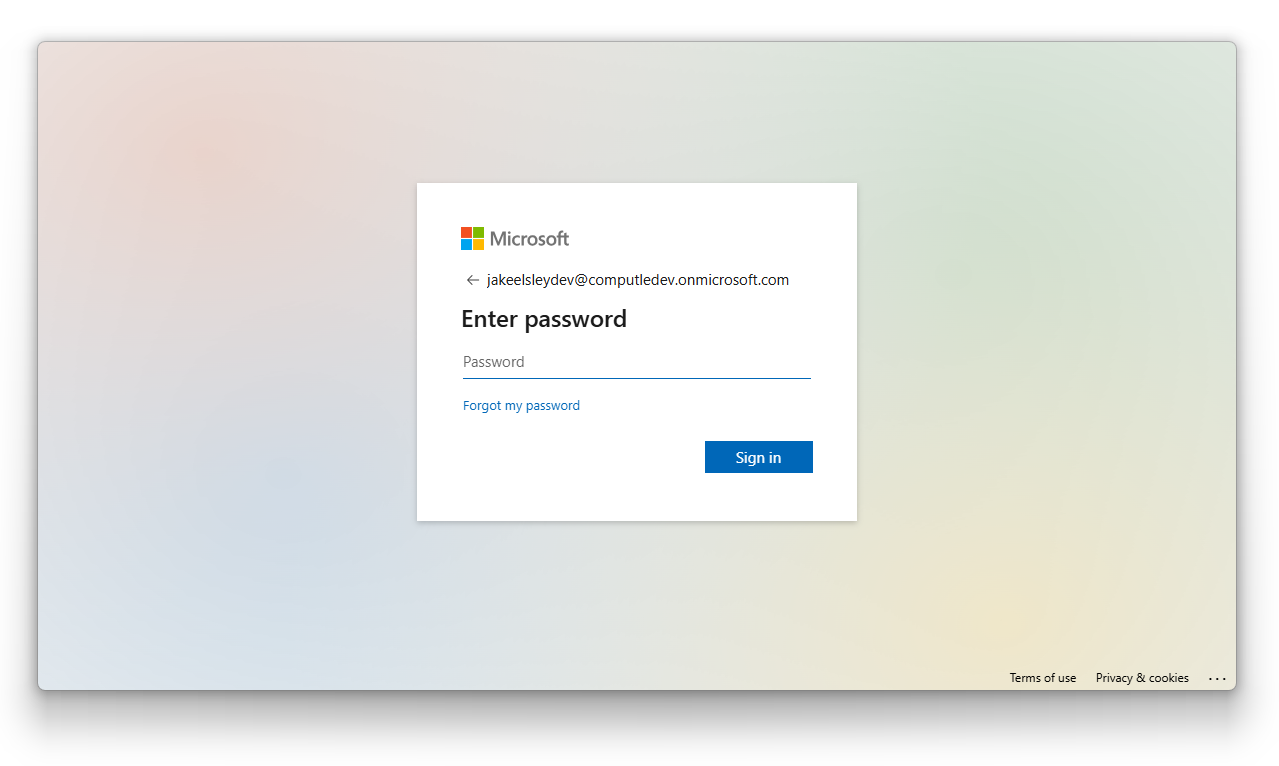
4. **Enter your password.**

<figure><img src="https://590139285-files.gitbook.io/~/files/v0/b/gitbook-x-prod.appspot.com/o/spaces%2FVtJhup5nG3tHLCSRWhhh%2Fuploads%2Fgit-blob-63e094eccbf4823823bab11c7a9f064fe0a5f4c5%2Fimage.png?alt=media" alt=""><figcaption></figcaption></figure>

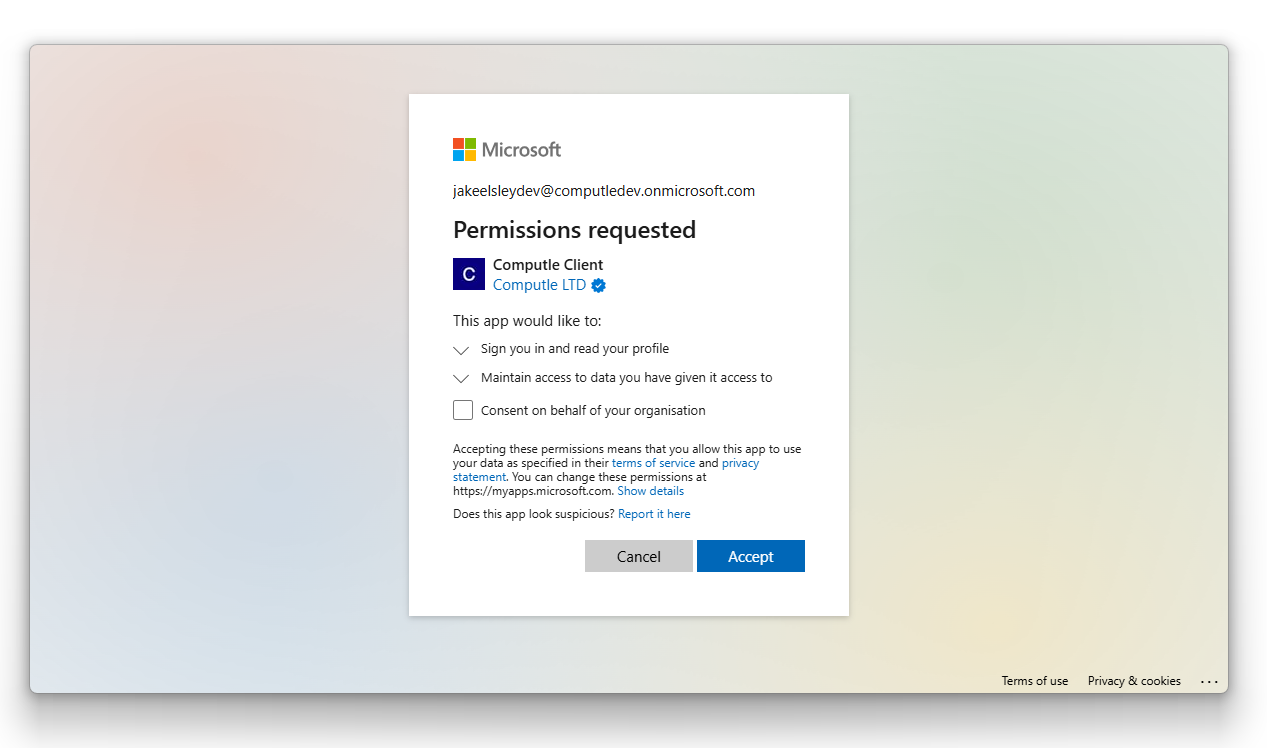
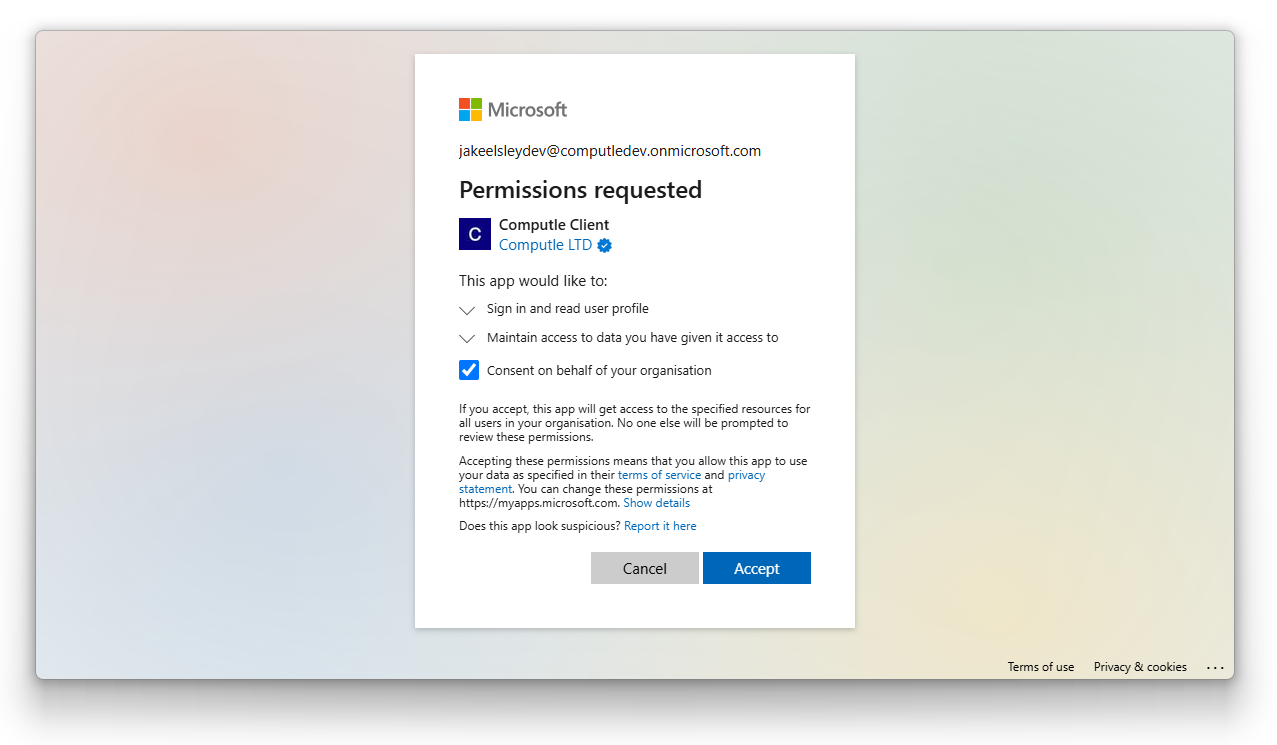
5. **If requested, grant application consent for Computle Client to:**
   1. Sign you in and read your profile.
   2. Maintain access to data you have given it access to.

<figure><img src="https://590139285-files.gitbook.io/~/files/v0/b/gitbook-x-prod.appspot.com/o/spaces%2FVtJhup5nG3tHLCSRWhhh%2Fuploads%2Fgit-blob-375264545f109792dd5aea6537cfc15cbe5a6b8b%2Fimage.png?alt=media" alt=""><figcaption></figcaption></figure>

{% hint style="warning" %}
Application consent must be granted for Computle Client to authenticate against Entra ID. To consent on behalf of your organisation, select "Consent on behalf of your organisation".
{% endhint %}

<figure><img src="https://590139285-files.gitbook.io/~/files/v0/b/gitbook-x-prod.appspot.com/o/spaces%2FVtJhup5nG3tHLCSRWhhh%2Fuploads%2Fgit-blob-0c39053b5749922c91609140917a604ff39ac425%2Fimage.png?alt=media" alt=""><figcaption></figcaption></figure>

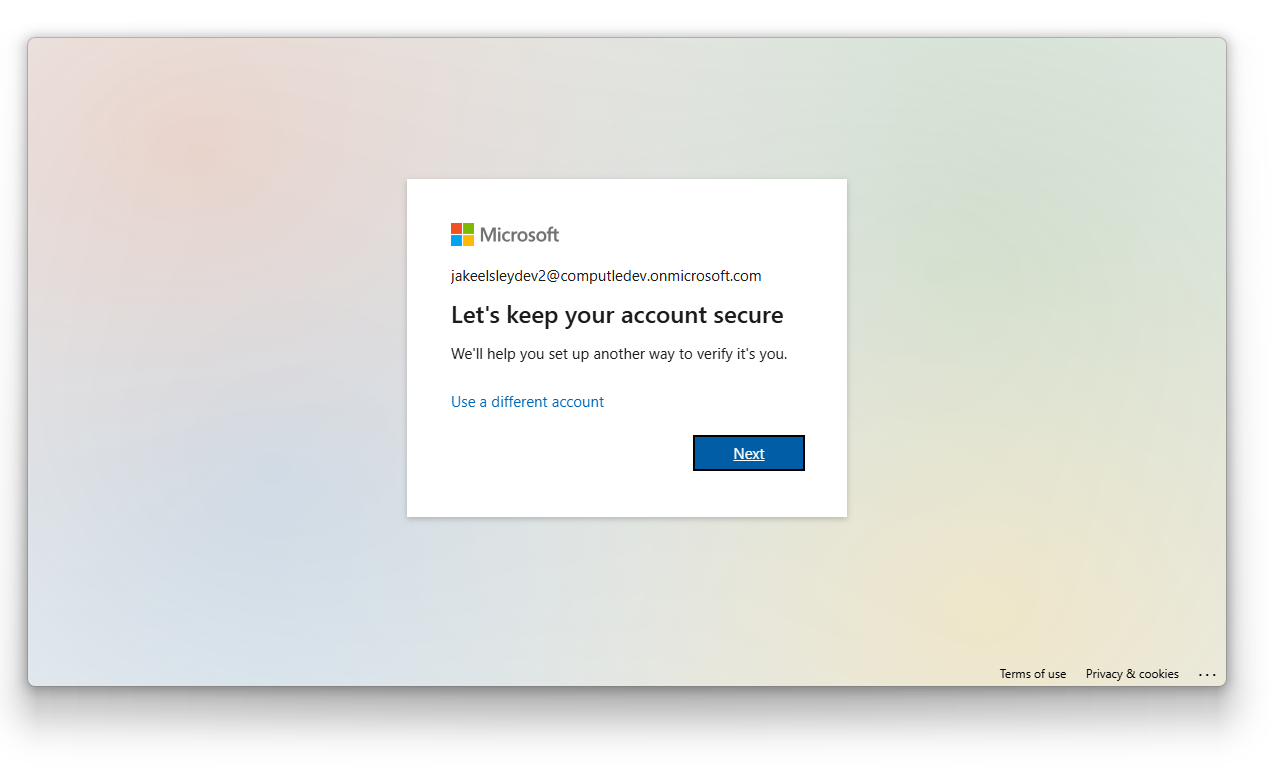
6. **If requested, enrol in Microsoft Authenticator.**

<figure><img src="https://590139285-files.gitbook.io/~/files/v0/b/gitbook-x-prod.appspot.com/o/spaces%2FVtJhup5nG3tHLCSRWhhh%2Fuploads%2Fgit-blob-618b52770f2ad6bfe709fe5d057a13b8f345d3c2%2Fimage.png?alt=media" alt=""><figcaption></figcaption></figure>

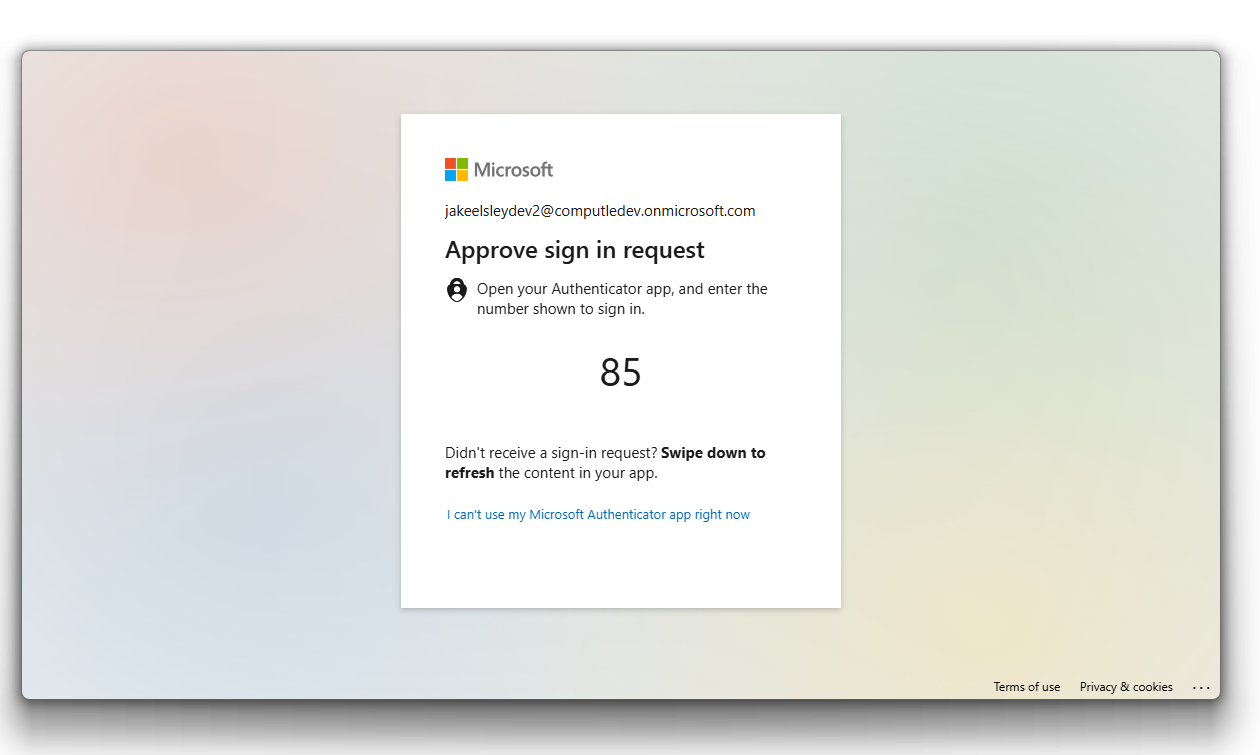
7. **If requested, approve the sign in request on your mobile device.**

<figure><img src="https://590139285-files.gitbook.io/~/files/v0/b/gitbook-x-prod.appspot.com/o/spaces%2FVtJhup5nG3tHLCSRWhhh%2Fuploads%2Fgit-blob-d60bf0d5e04efcac015c69751dec06e5790c217f%2Fimage.png?alt=media" alt=""><figcaption></figcaption></figure>

8. **Wait for Computle Client to authenticate you.**

<figure><img src="https://590139285-files.gitbook.io/~/files/v0/b/gitbook-x-prod.appspot.com/o/spaces%2FVtJhup5nG3tHLCSRWhhh%2Fuploads%2Fgit-blob-8c952d51473905aa1f4ed32c88c8c6f072659e7b%2Fimage.png?alt=media" alt=""><figcaption></figcaption></figure>

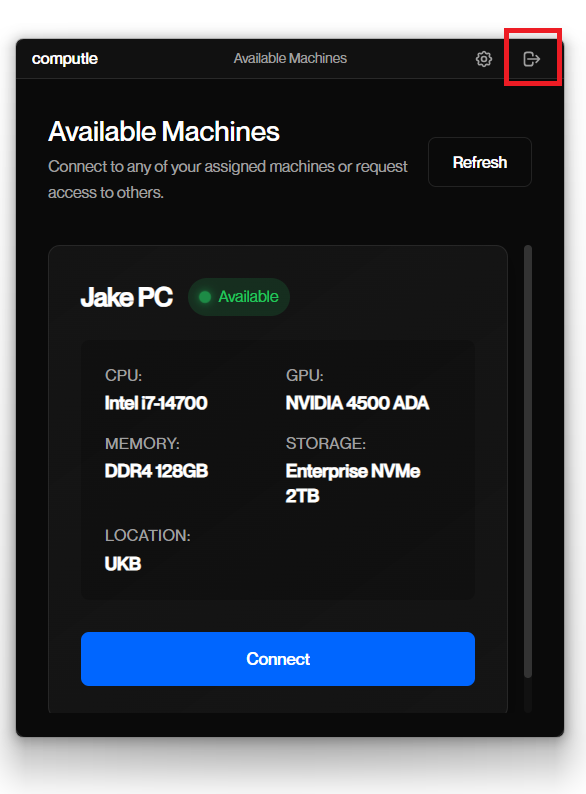
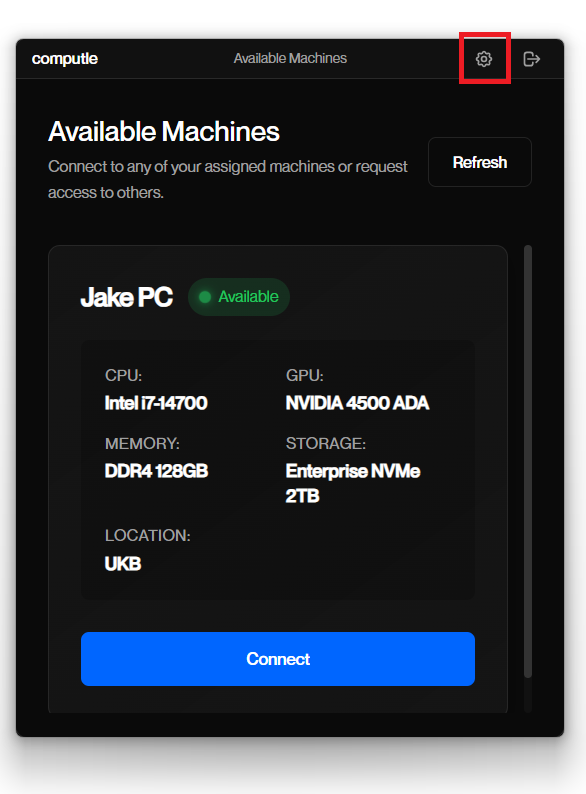
9. **Once authenticated, you will be presented with your available machines.**

<figure><img src="https://590139285-files.gitbook.io/~/files/v0/b/gitbook-x-prod.appspot.com/o/spaces%2FVtJhup5nG3tHLCSRWhhh%2Fuploads%2Fgit-blob-7bae8cf7aadfb24466a87459b7a40b0a000a891a%2Fimage%20(55).png?alt=media" alt=""><figcaption></figcaption></figure>

***

## How to Log Out

To logout, click the Log Out icon.

<figure><img src="https://590139285-files.gitbook.io/~/files/v0/b/gitbook-x-prod.appspot.com/o/spaces%2FVtJhup5nG3tHLCSRWhhh%2Fuploads%2Fgit-blob-93bb008960fcd1b557ab8cd21174299e8e338904%2Fimage.png?alt=media" alt=""><figcaption></figcaption></figure>

***

## Diagnostics

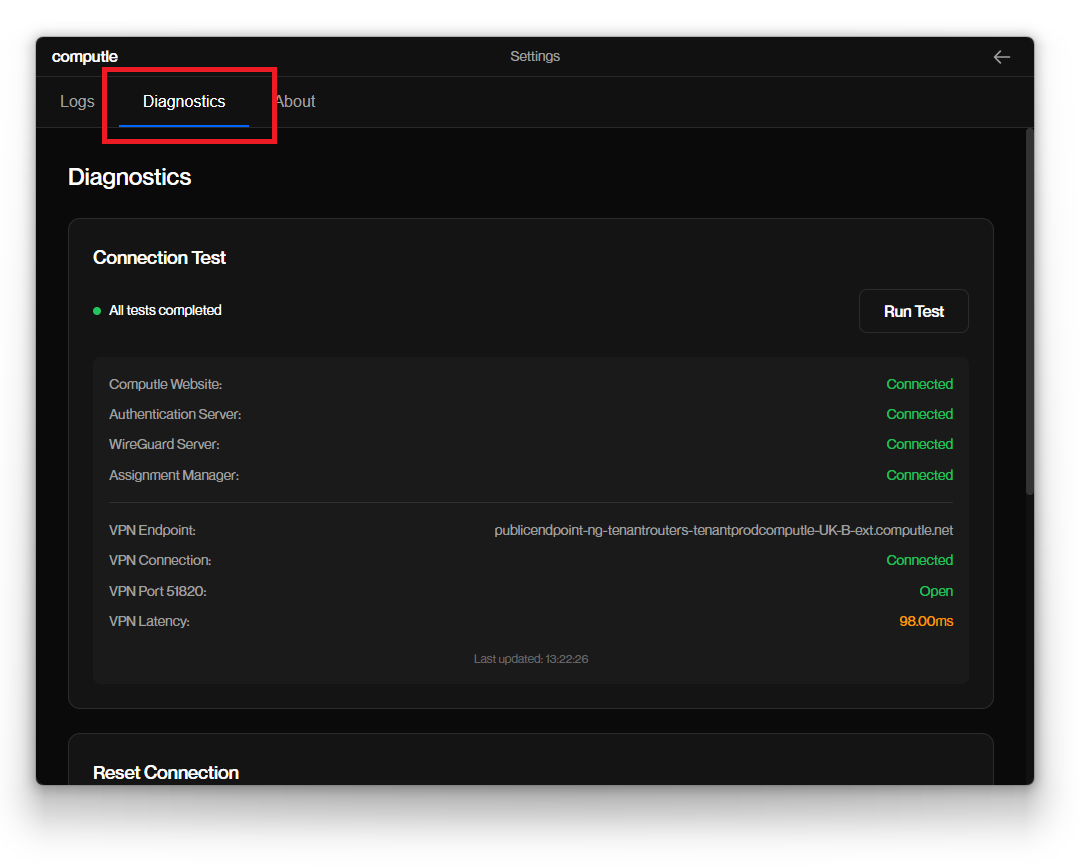
You can view the Diagnostics by heading to Settings > Diagnostics.

<figure><img src="https://590139285-files.gitbook.io/~/files/v0/b/gitbook-x-prod.appspot.com/o/spaces%2FVtJhup5nG3tHLCSRWhhh%2Fuploads%2Fgit-blob-7e8fec5aba29312ce8c05f814223e672397a9cc2%2Fimage.png?alt=media" alt=""><figcaption></figcaption></figure>

<figure><img src="https://590139285-files.gitbook.io/~/files/v0/b/gitbook-x-prod.appspot.com/o/spaces%2FVtJhup5nG3tHLCSRWhhh%2Fuploads%2Fgit-blob-663ae9eb7bdb5c07d88f93b2a1cf48652568f7aa%2Fimage.png?alt=media" alt=""><figcaption></figcaption></figure>

***

## Notes to Administrators

{% hint style="warning" %}
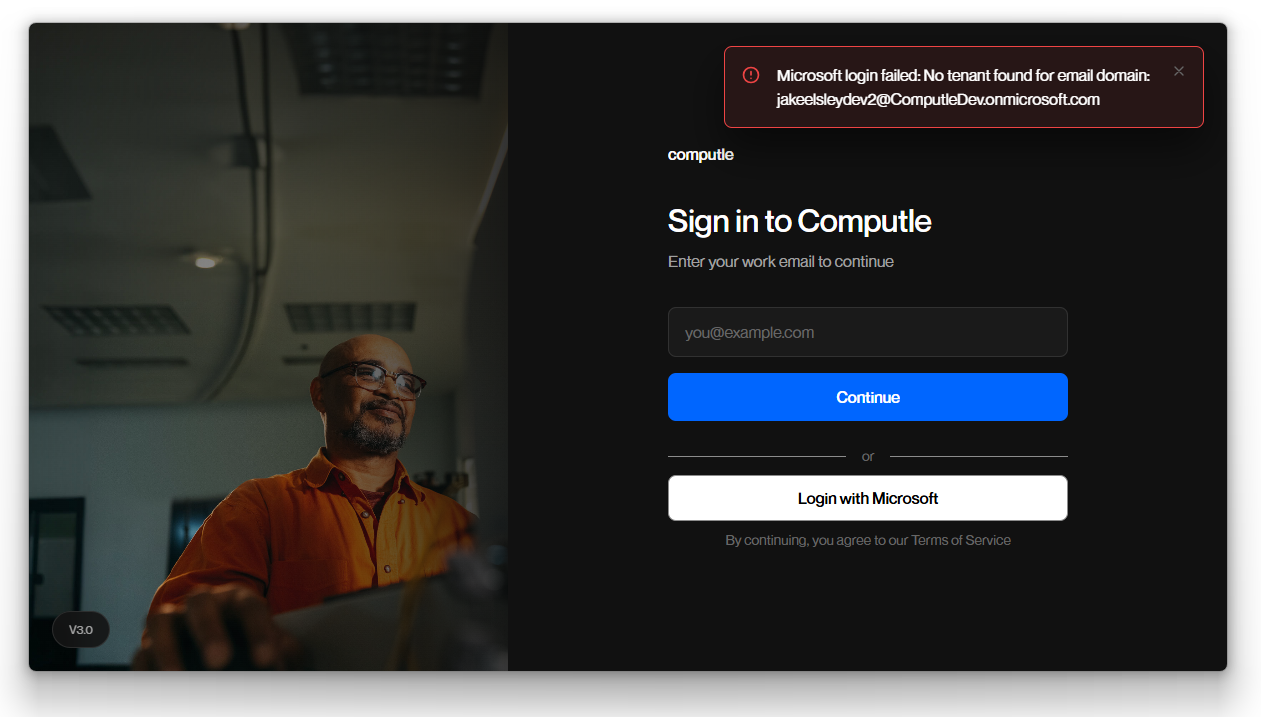
If you are not enrolled, you will receive an error message.
{% endhint %}

<figure><img src="https://590139285-files.gitbook.io/~/files/v0/b/gitbook-x-prod.appspot.com/o/spaces%2FVtJhup5nG3tHLCSRWhhh%2Fuploads%2Fgit-blob-9de65e18f1014231e1576a9f2b56b22b9ded2b3e%2Fimage.png?alt=media" alt=""><figcaption></figcaption></figure>

***

## Migrating to Version 3.0.8

Head here.